
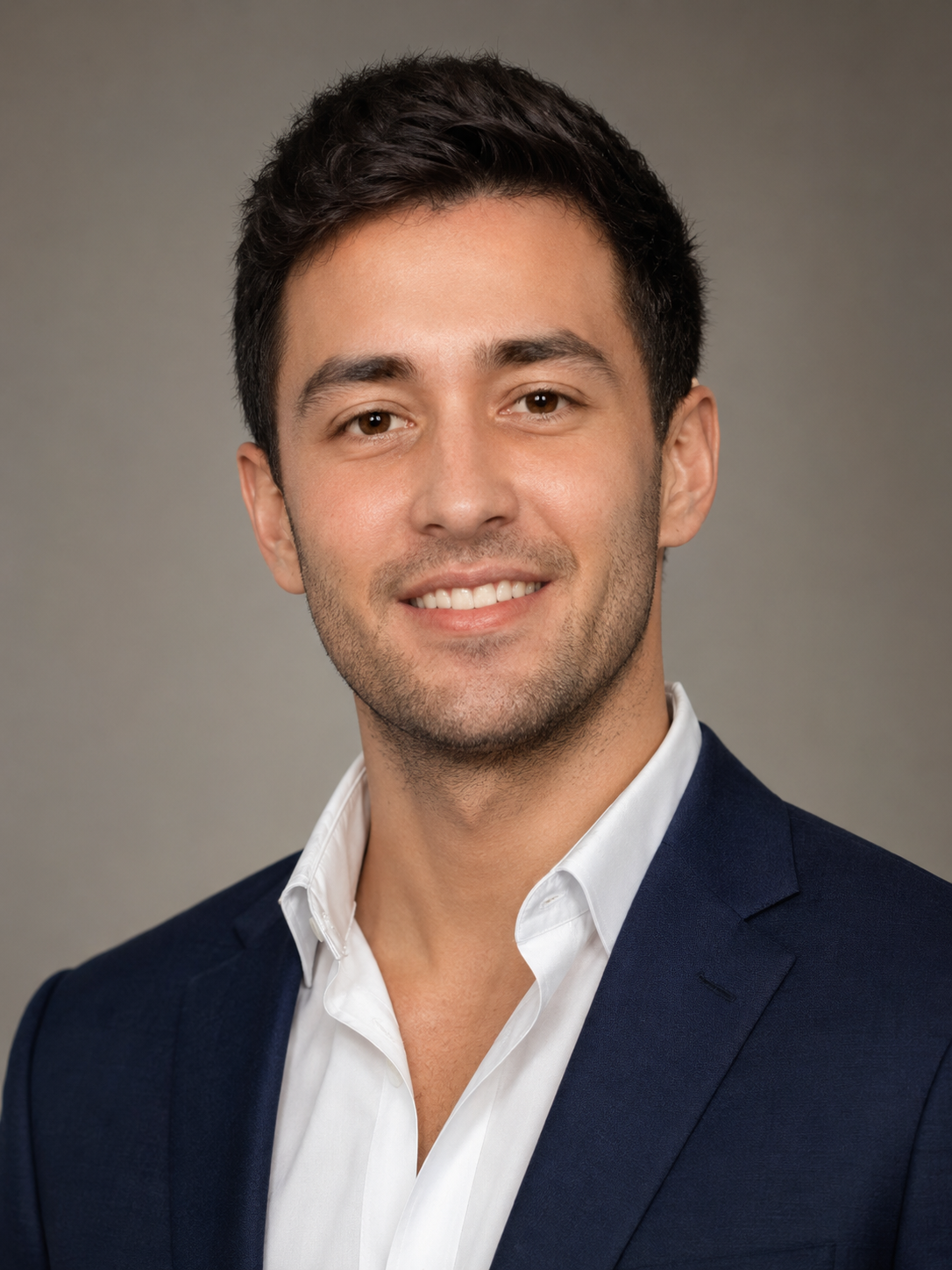
Image-to-Image
Soft LinkedIn Headshot Retouch
Professional profile photos that need restraint instead of heavy retouching
Best for: Professional profile photos that need restraint instead of heavy retouching
#chatgpt-photo-editing#portrait#headshot
ChatGPT Photo Editing Prompt Guide
Copy prompt examples for portrait retouching, product photos, background changes, high-quality enhancement, and trending AI photo edits.
Start with prompts shaped around the strongest search intents: portrait retouching, background replacement, product photos, quality enhancement, text-to-edit prompts, and trending social styles.
Soft LinkedIn Headshot Retouch
Professional profile photos that need restraint instead of heavy retouching
Best for: Professional profile photos that need restraint instead of heavy retouching
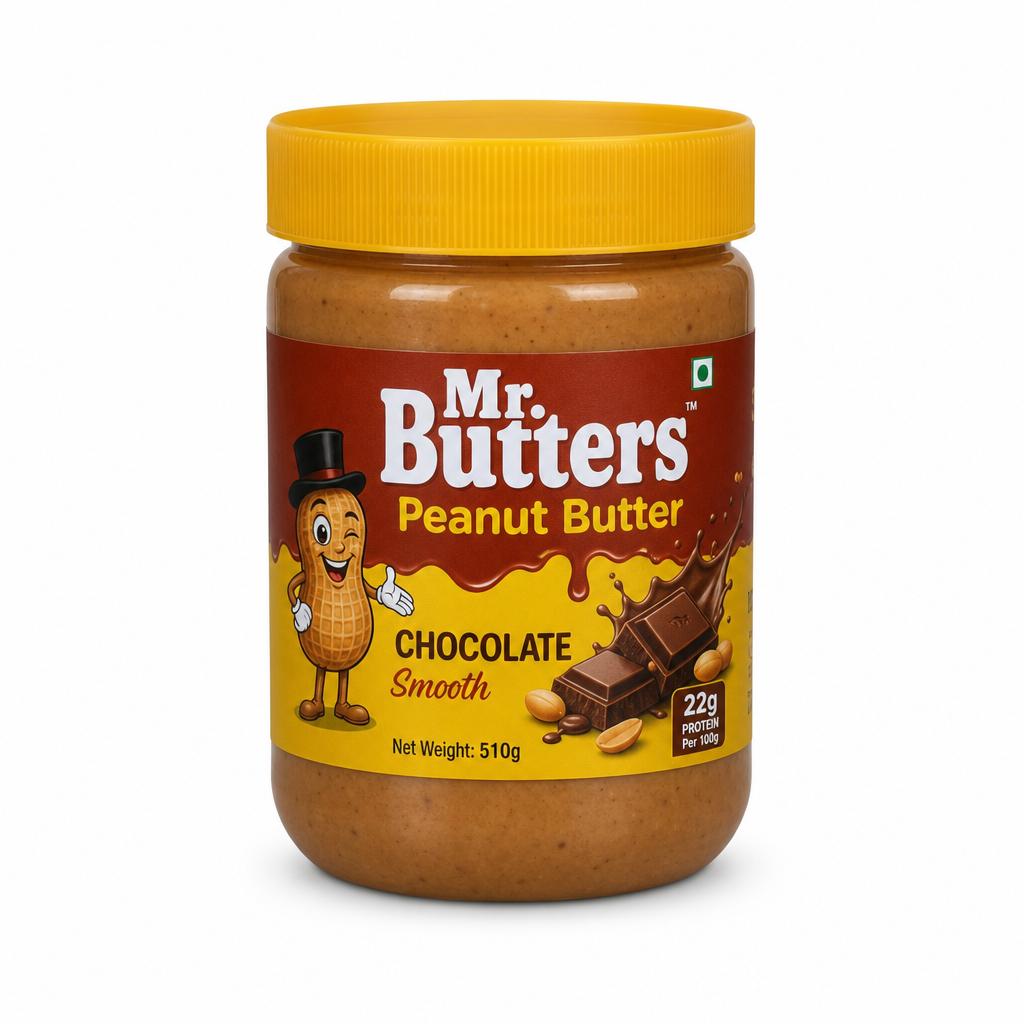
Ecommerce White Background Cleanup
Marketplace product images for Shopify, Etsy, and Amazon-style listings
Best for: Marketplace product images for Shopify, Etsy, and Amazon-style listings
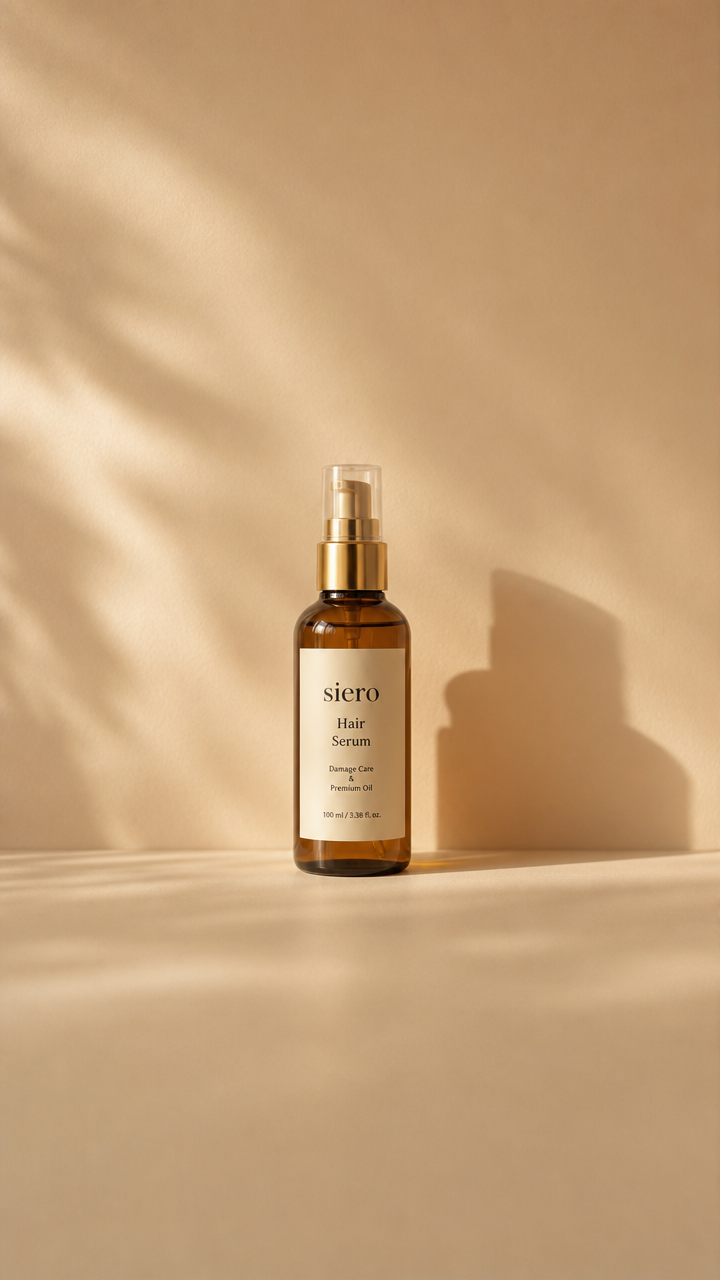
Vertical Story Canvas Extension
Turning square assets into Stories, Reels covers, and mobile ads
Best for: Turning square assets into Stories, Reels covers, and mobile ads
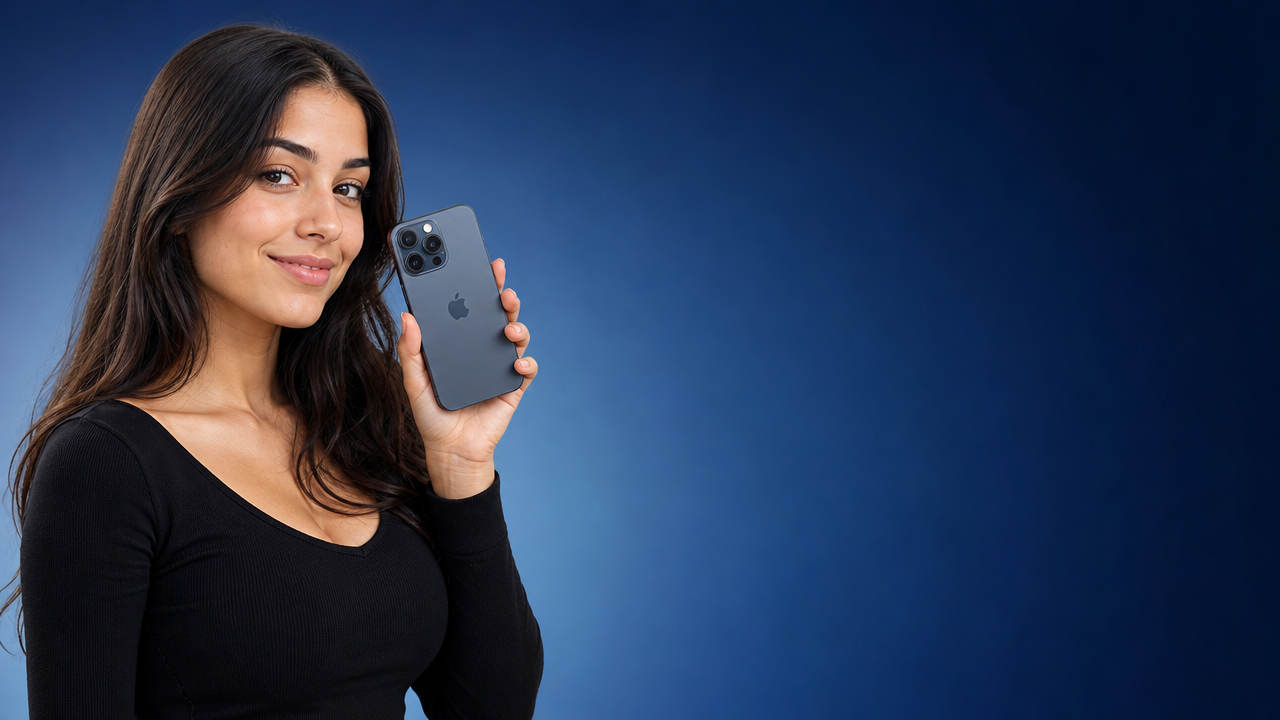
YouTube Thumbnail Reframe
Thumbnail layouts before adding final typography in a design tool
Best for: Thumbnail layouts before adding final typography in a design tool
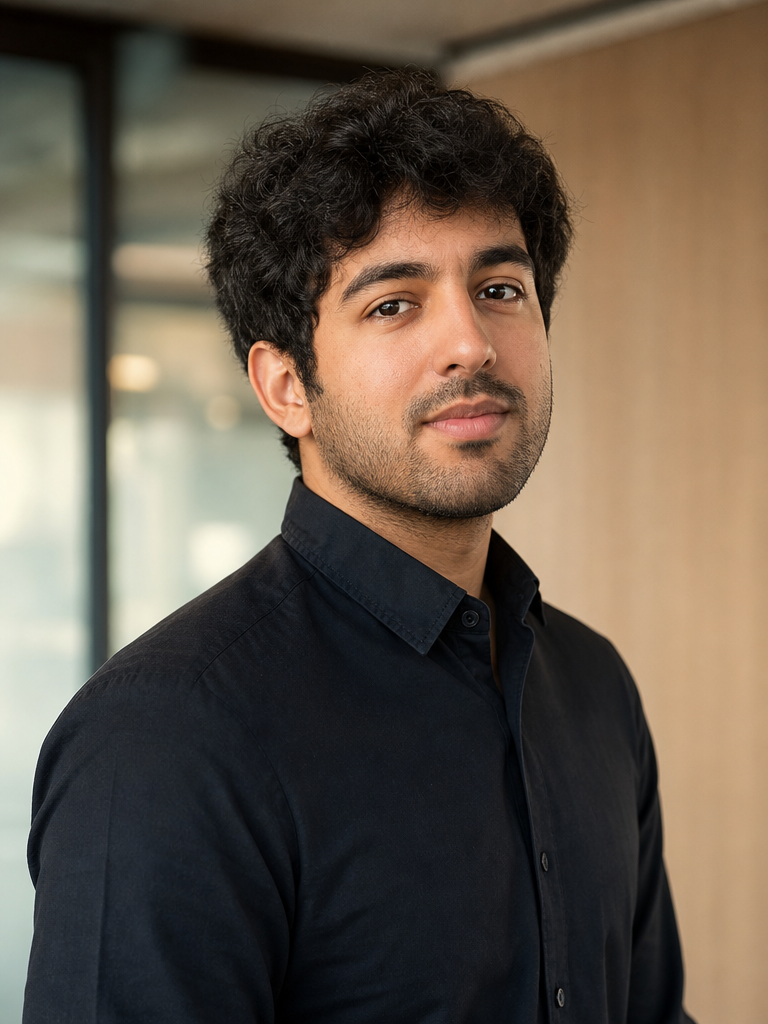
Founder Editorial Portrait Upgrade
About pages, speaker bios, team pages, and PR kits
Best for: About pages, speaker bios, team pages, and PR kits
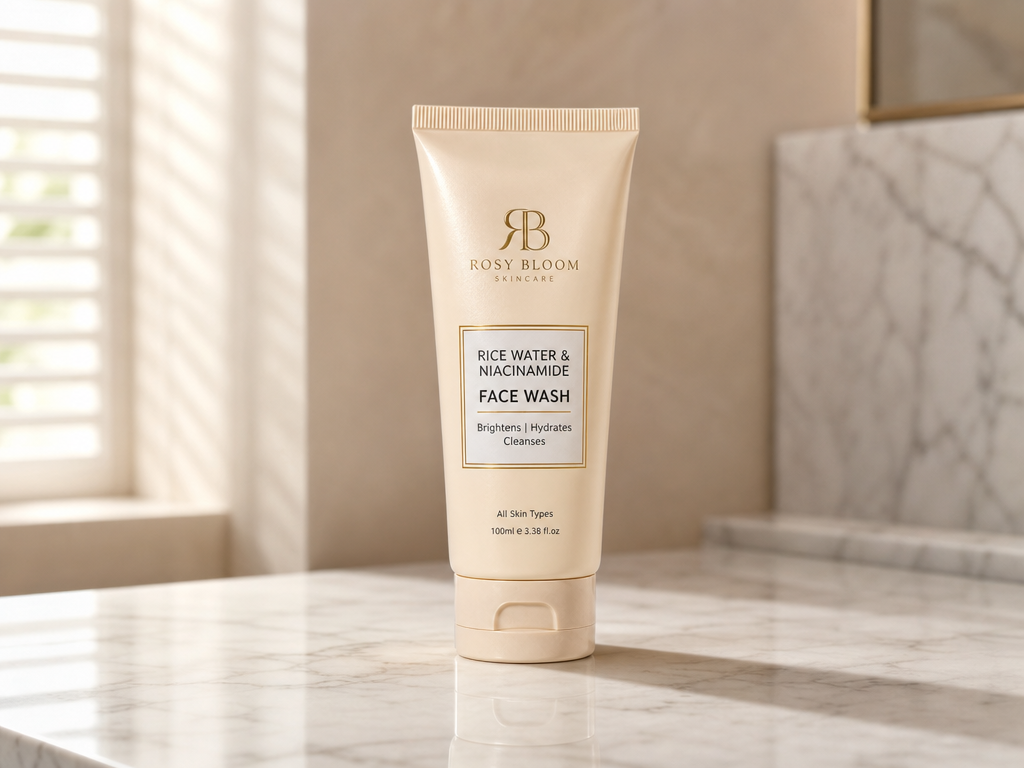
Marble Counter Product Scene
Turning plain SKU images into premium lifestyle product visuals
Best for: Turning plain SKU images into premium lifestyle product visuals
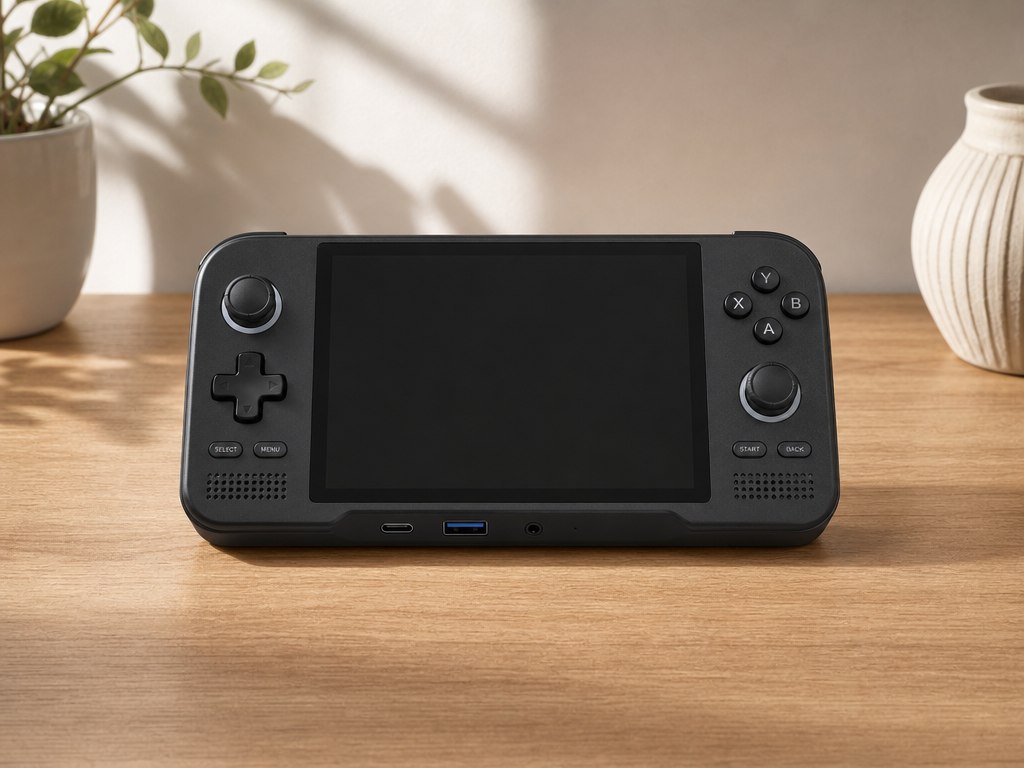
Wood Desk Tech Product Edit
Tech product pages, landing pages, and simple ad variants
Best for: Tech product pages, landing pages, and simple ad variants
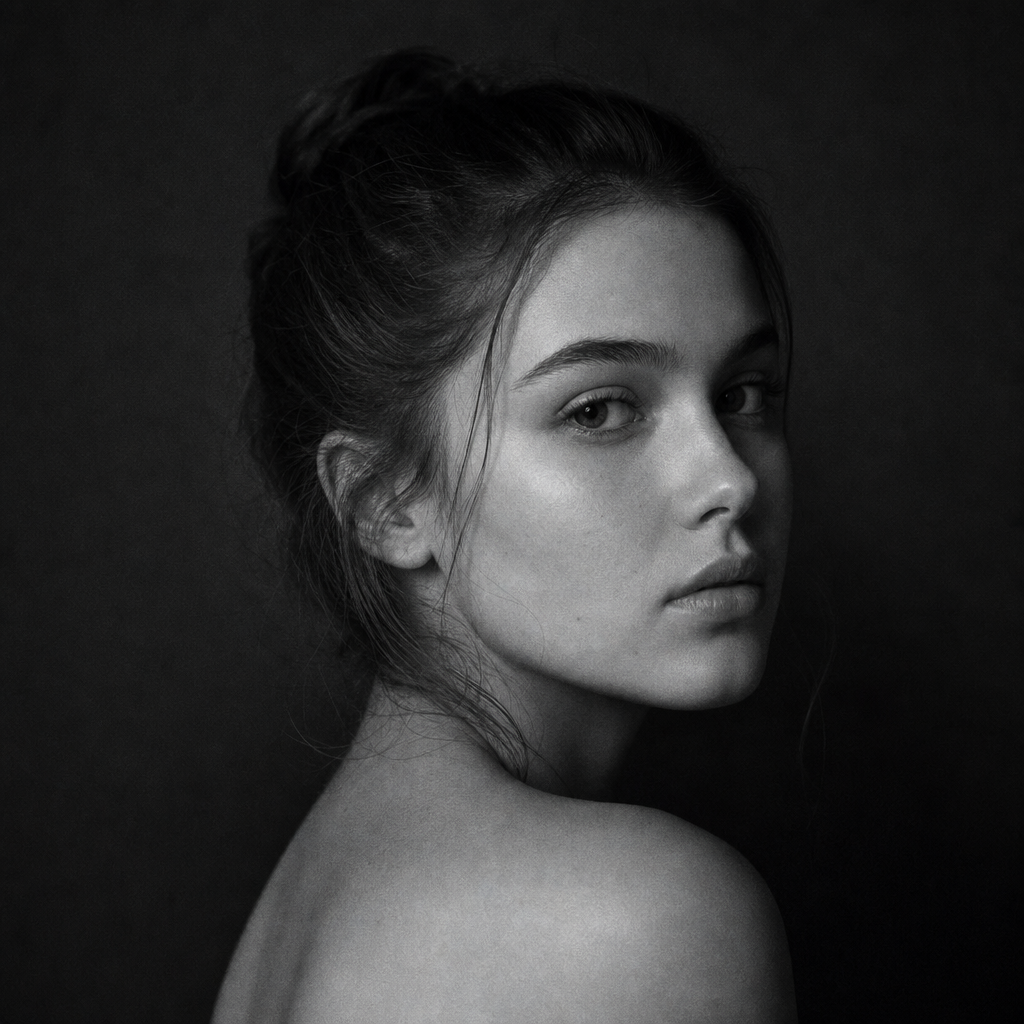
Low-Key Profile Portrait Edit
Moody profile photos and creator avatars
Best for: Moody profile photos and creator avatars
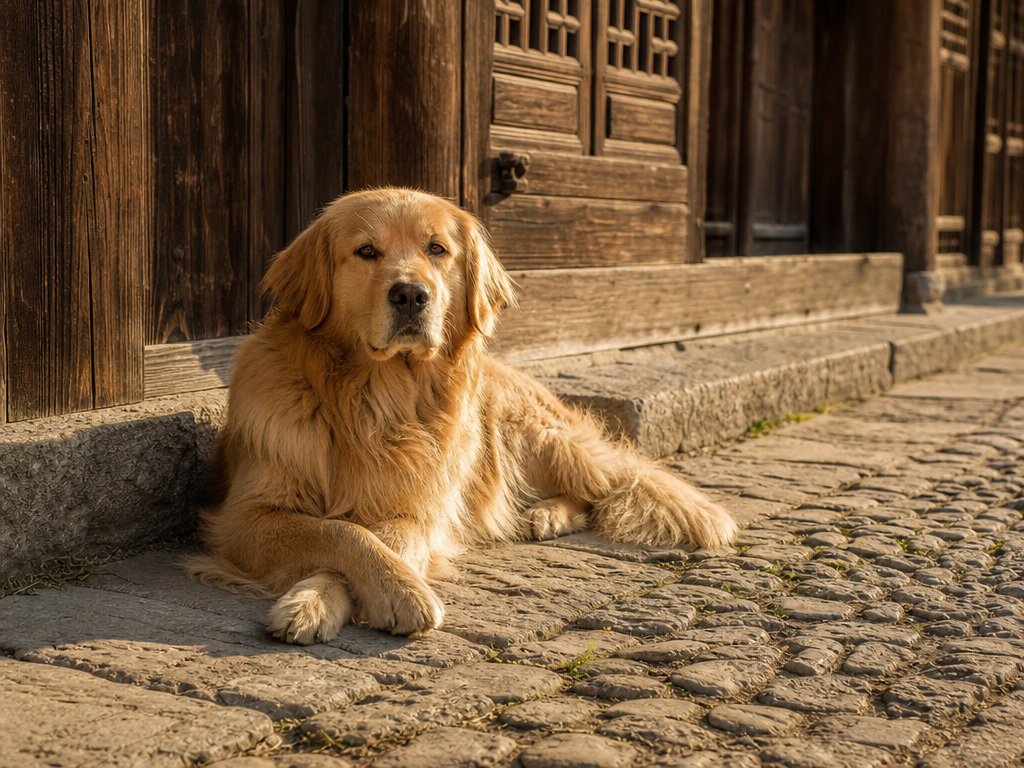
Object Removal Clean Scene
Removing clutter while keeping the photo believable
Best for: Removing clutter while keeping the photo believable
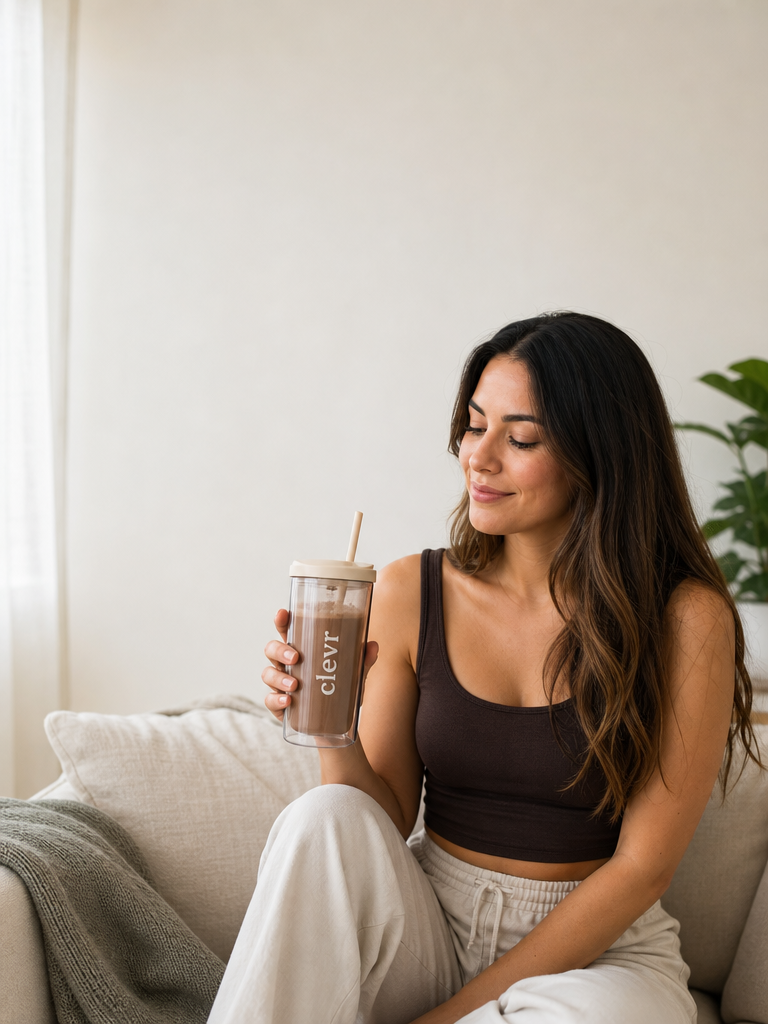
Instagram Carousel Cover Edit
Carousel covers where text will be added separately
Best for: Carousel covers where text will be added separately
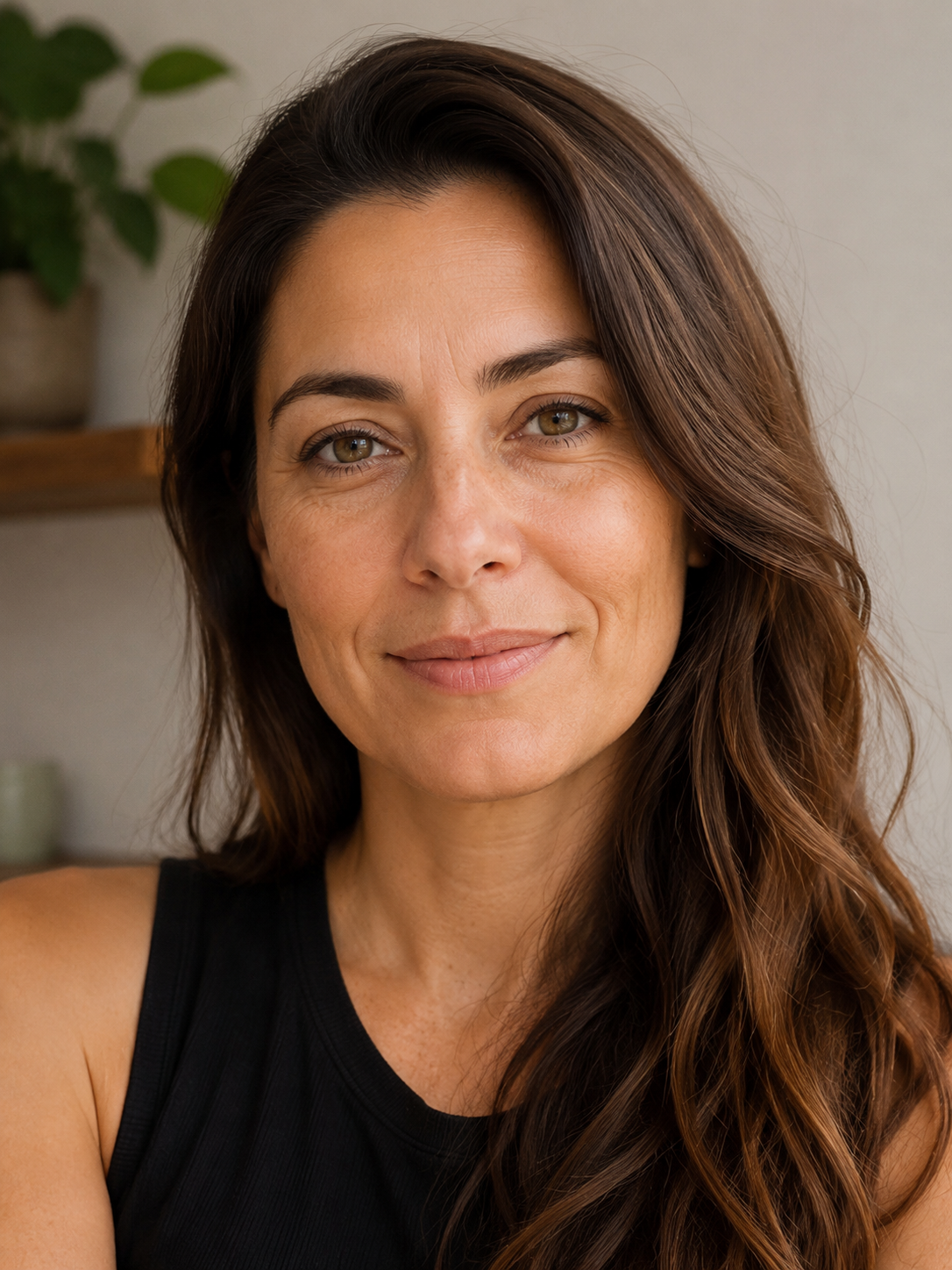
Natural Skin Tone Correction
Fixing phone portraits without losing natural texture
Best for: Fixing phone portraits without losing natural texture
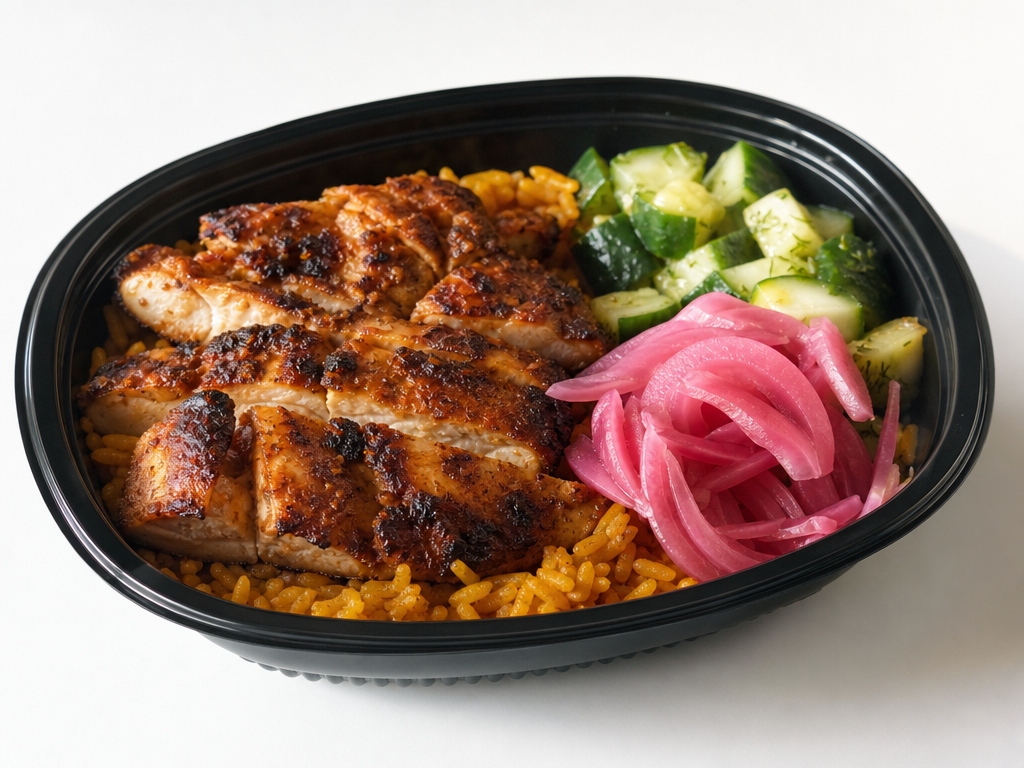
Food Delivery Photo Fix
Restaurant menu photos, delivery apps, and small food sellers
Best for: Restaurant menu photos, delivery apps, and small food sellers
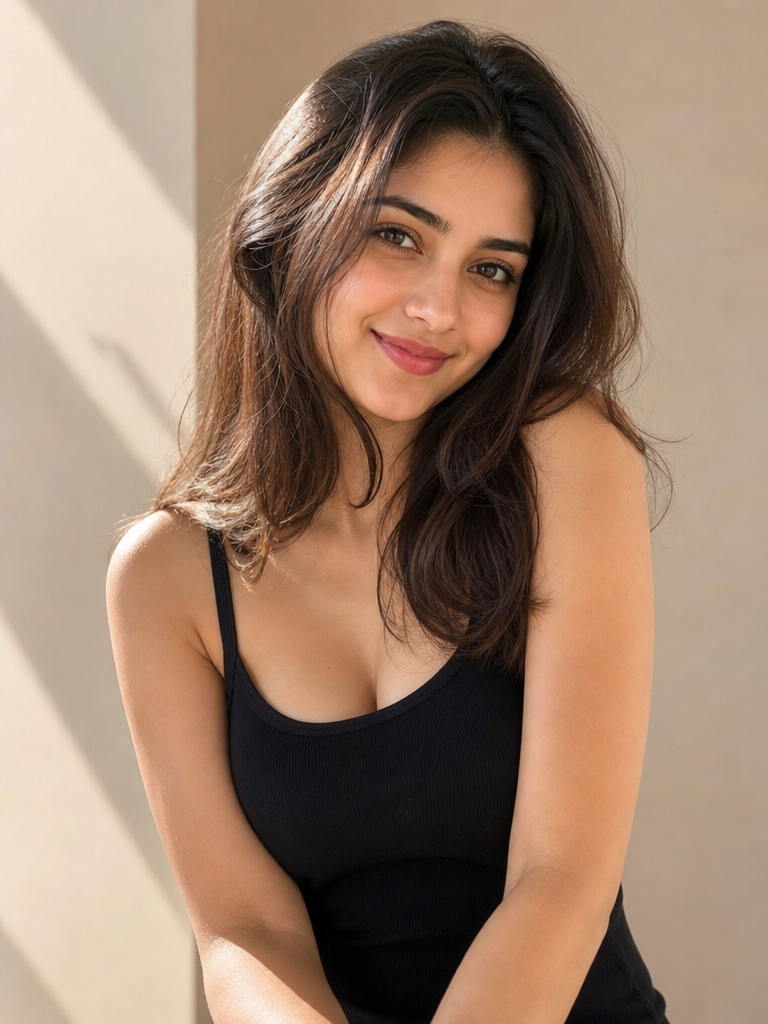
Background Declutter Edit
Cleaning portraits, product snapshots, and home office photos
Best for: Cleaning portraits, product snapshots, and home office photos
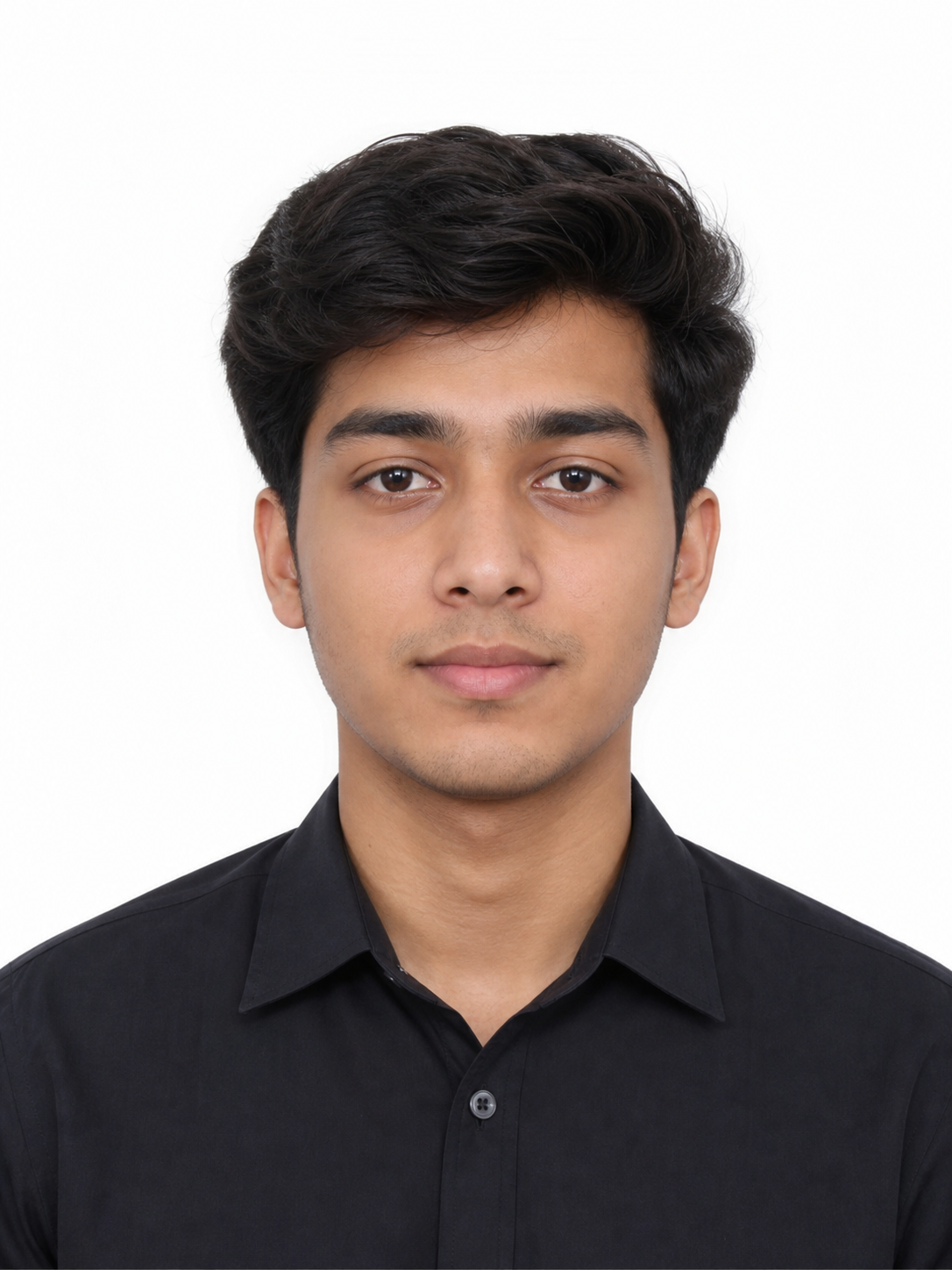
Clean ID Photo Conversion
Application photos, internal profiles, and simple document-style portraits
Best for: Application photos, internal profiles, and simple document-style portraits
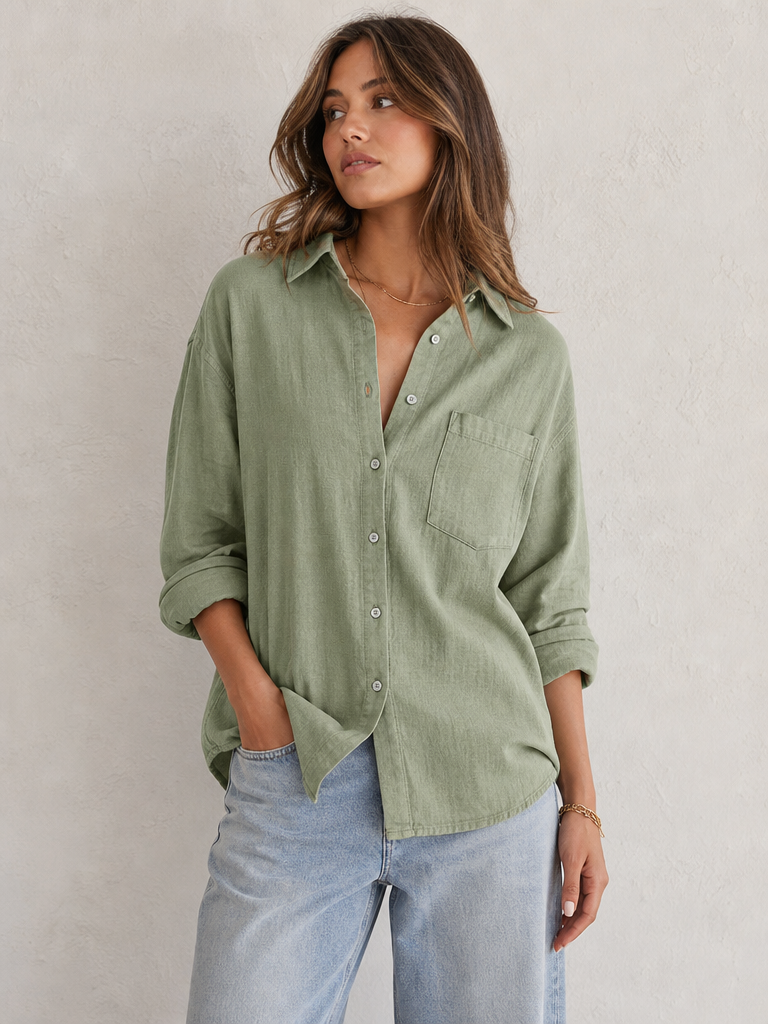
Fashion Item Colorway Edit
Apparel colorway tests without changing product structure
Best for: Apparel colorway tests without changing product structure
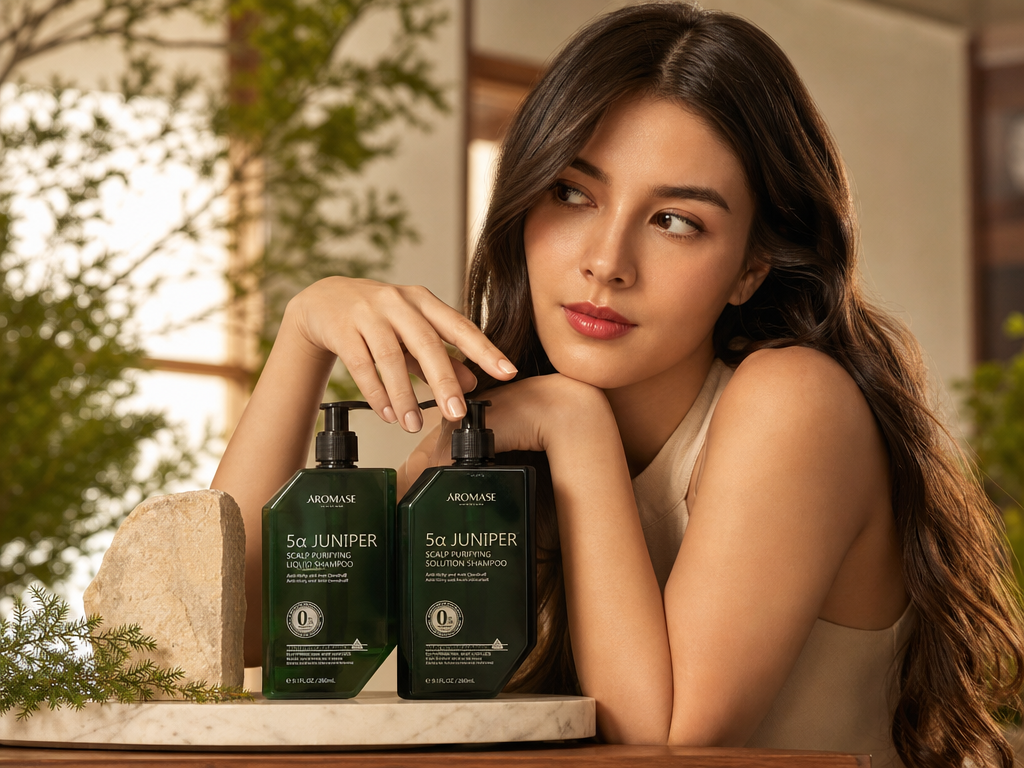
Consistent Color Grade Match
Making a mixed photo set feel consistent
Best for: Making a mixed photo set feel consistent
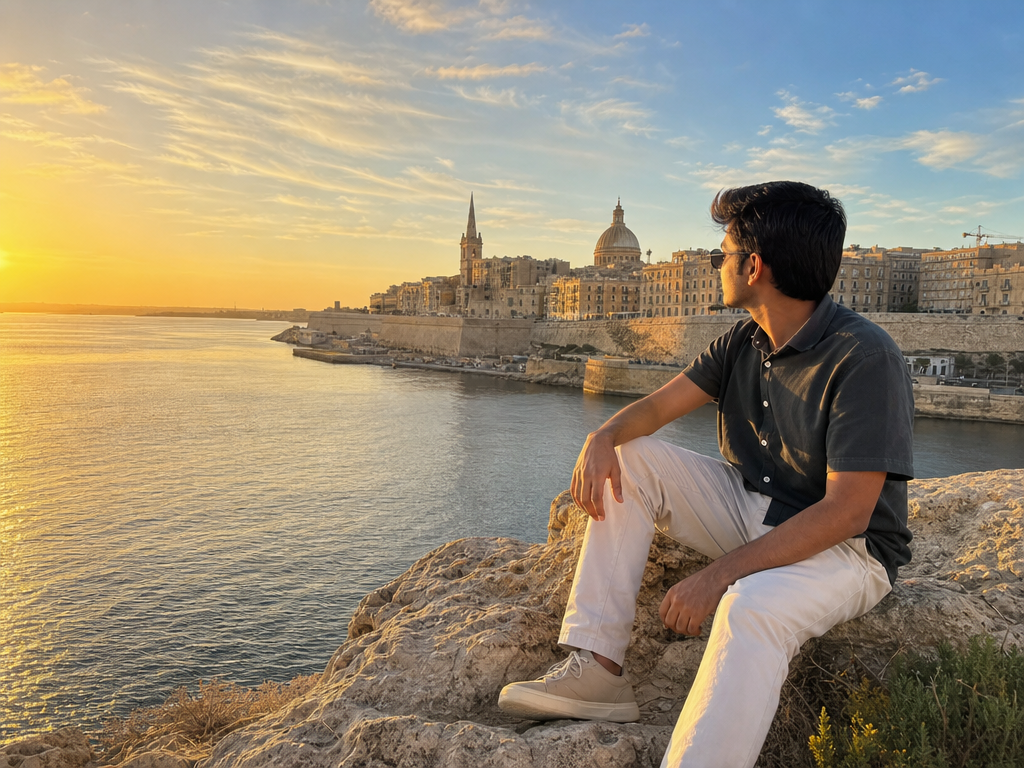
Travel Postcard Photo Edit
Travel posts that need polish without inventing the destination
Best for: Travel posts that need polish without inventing the destination
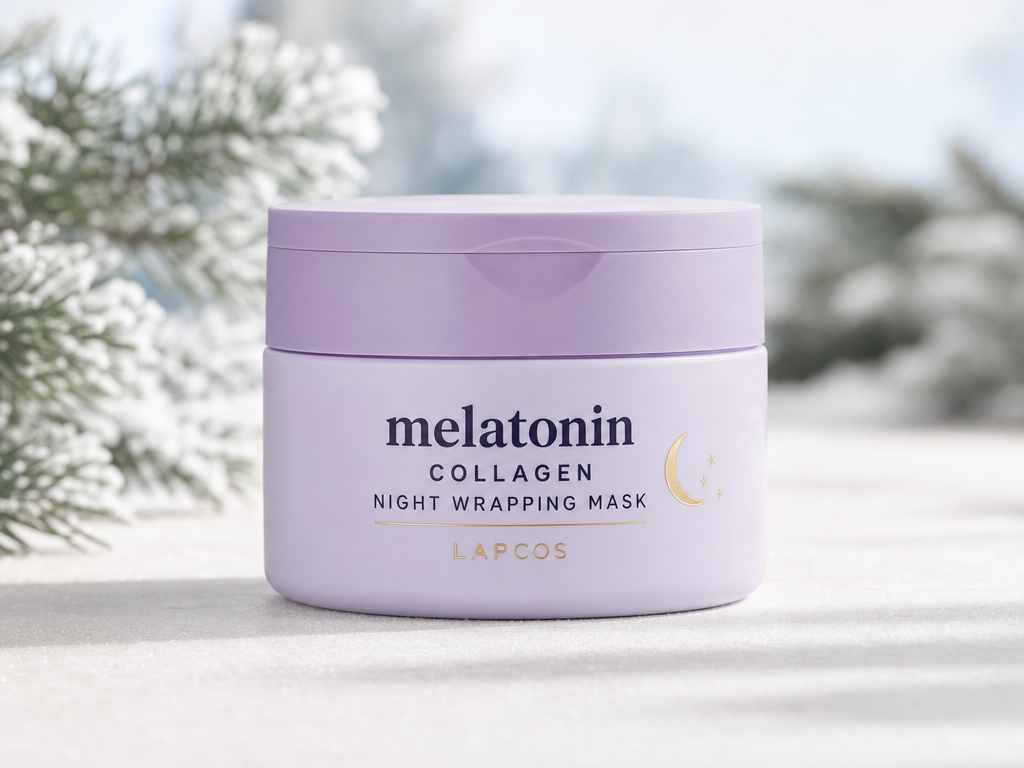
Seasonal Product Background Swap
Seasonal ecommerce assets while keeping the product truthful
Best for: Seasonal ecommerce assets while keeping the product truthful
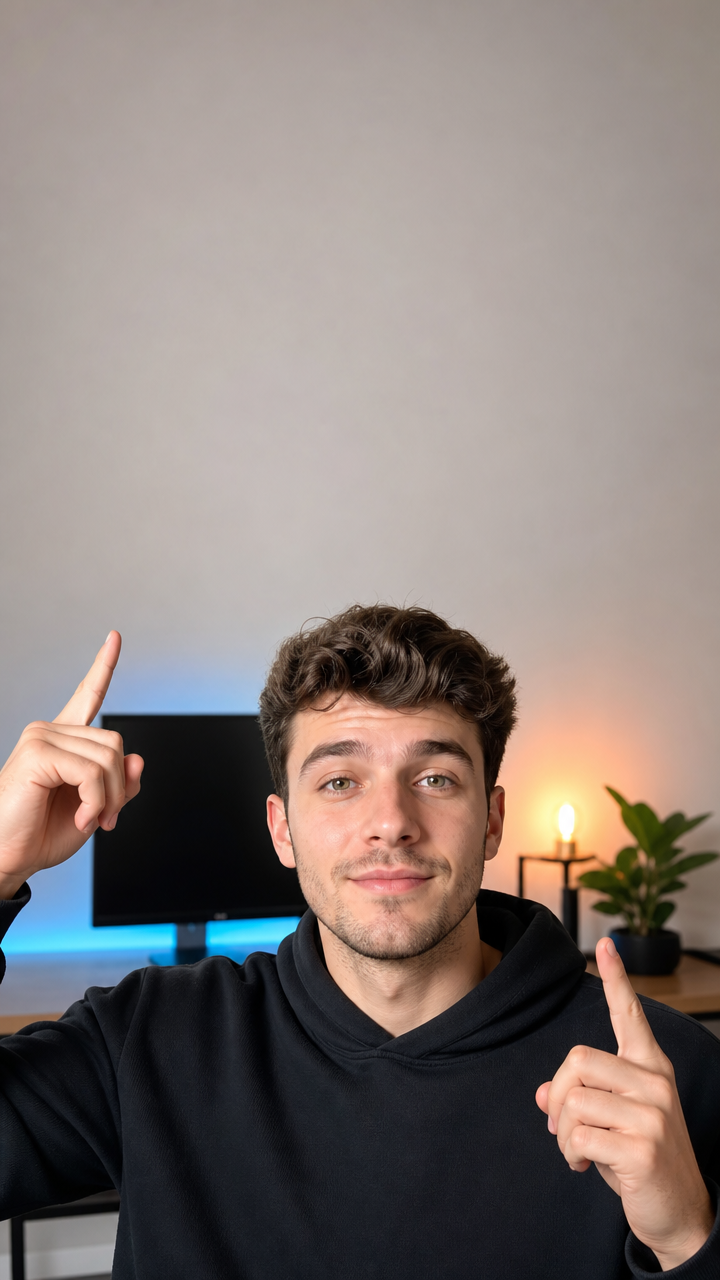
TikTok Cover Polish
Short-form video covers that still need manual typography
Best for: Short-form video covers that still need manual typography
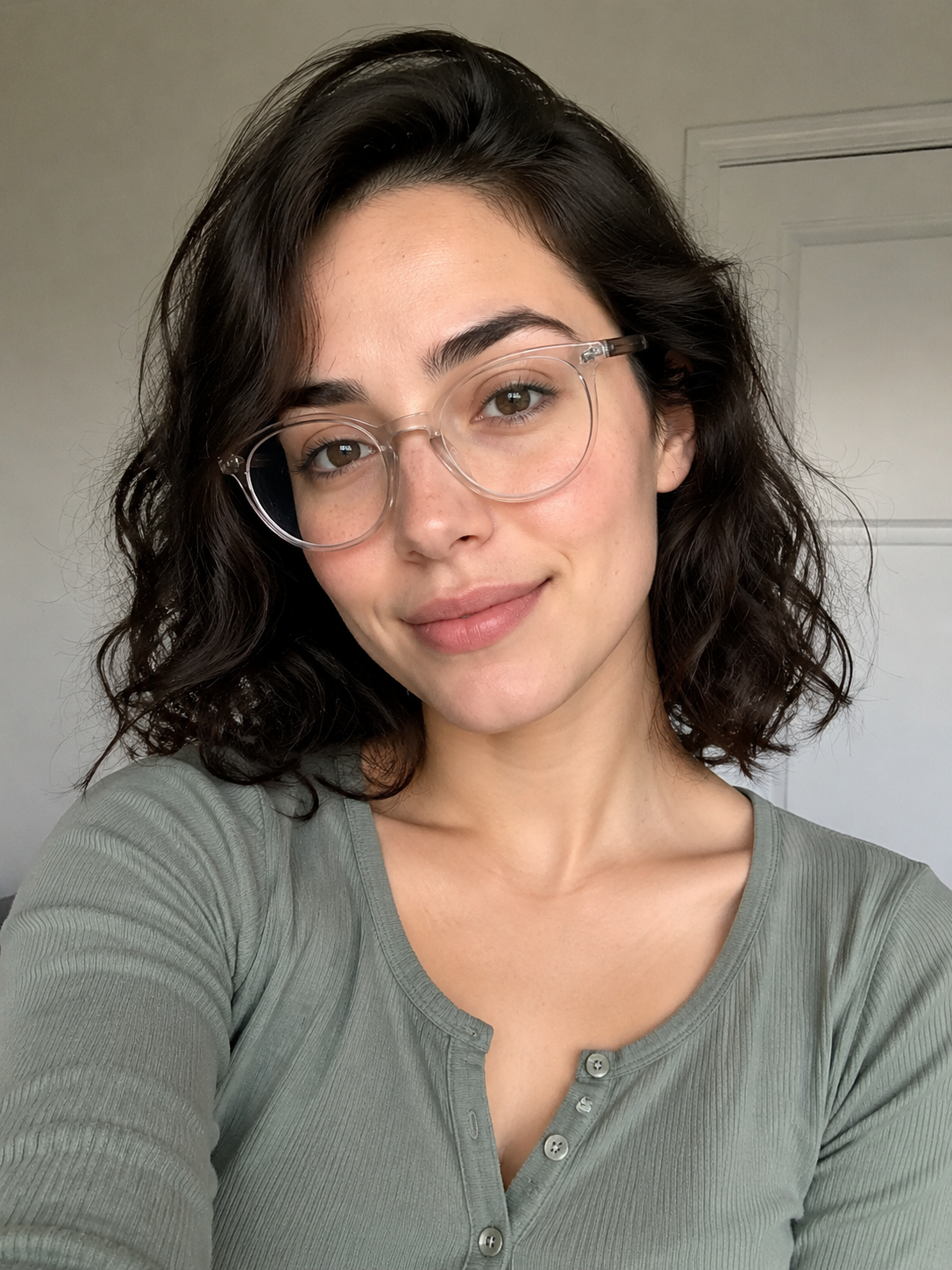
Glasses Glare Reduction
Polishing professional portraits while keeping glasses realistic
Best for: Polishing professional portraits while keeping glasses realistic
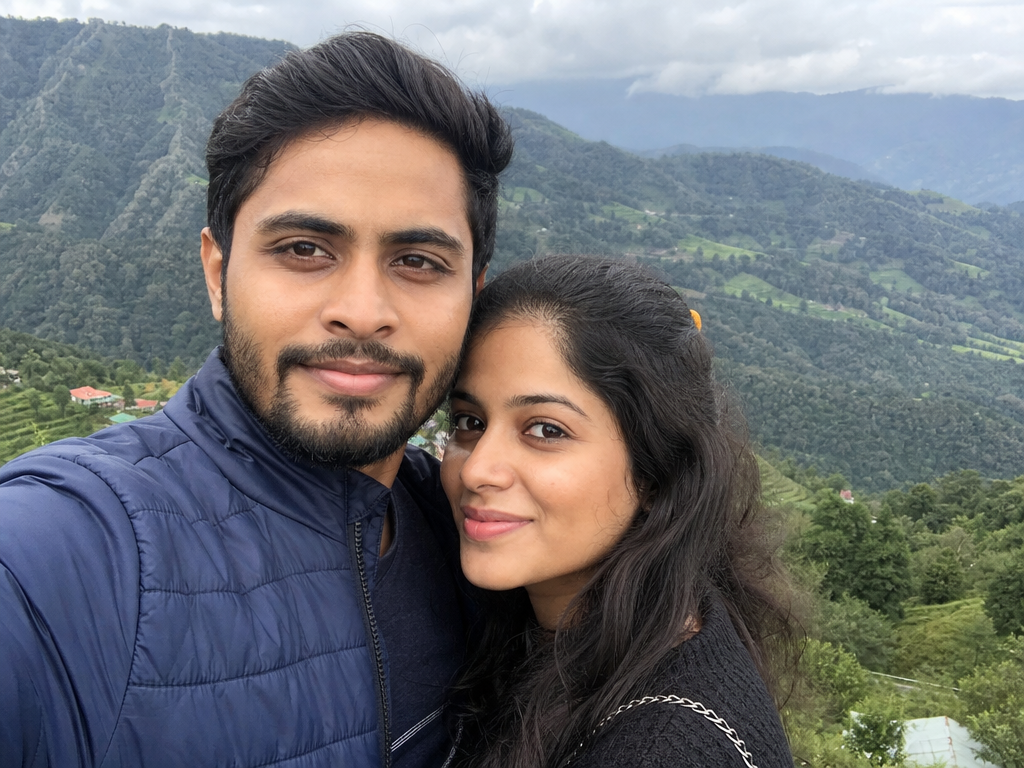
Phone Photo Quality Enhancer
General photo improvement without changing the original moment
Best for: General photo improvement without changing the original moment
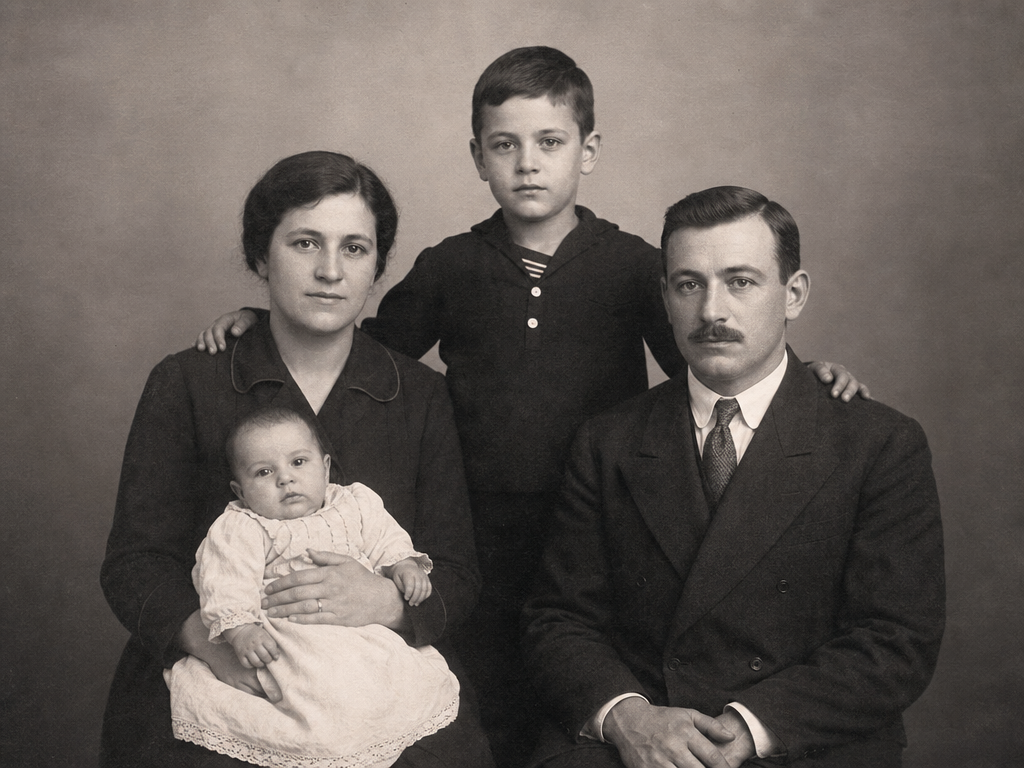
Old Photo Restoration
Restoring scanned family photos without losing authenticity
Best for: Restoring scanned family photos without losing authenticity
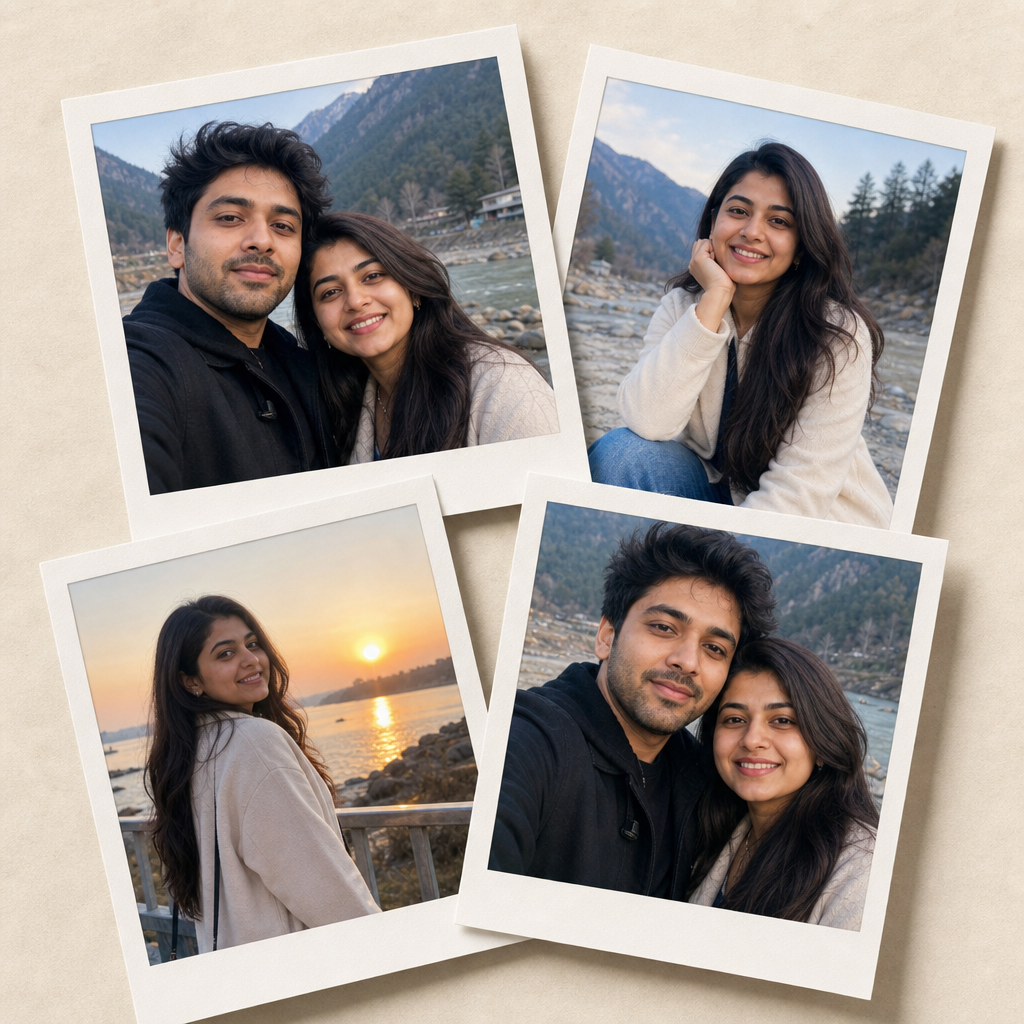
Polaroid Memory Collage
Social memory posts and simple photo scrapbook layouts
Best for: Social memory posts and simple photo scrapbook layouts
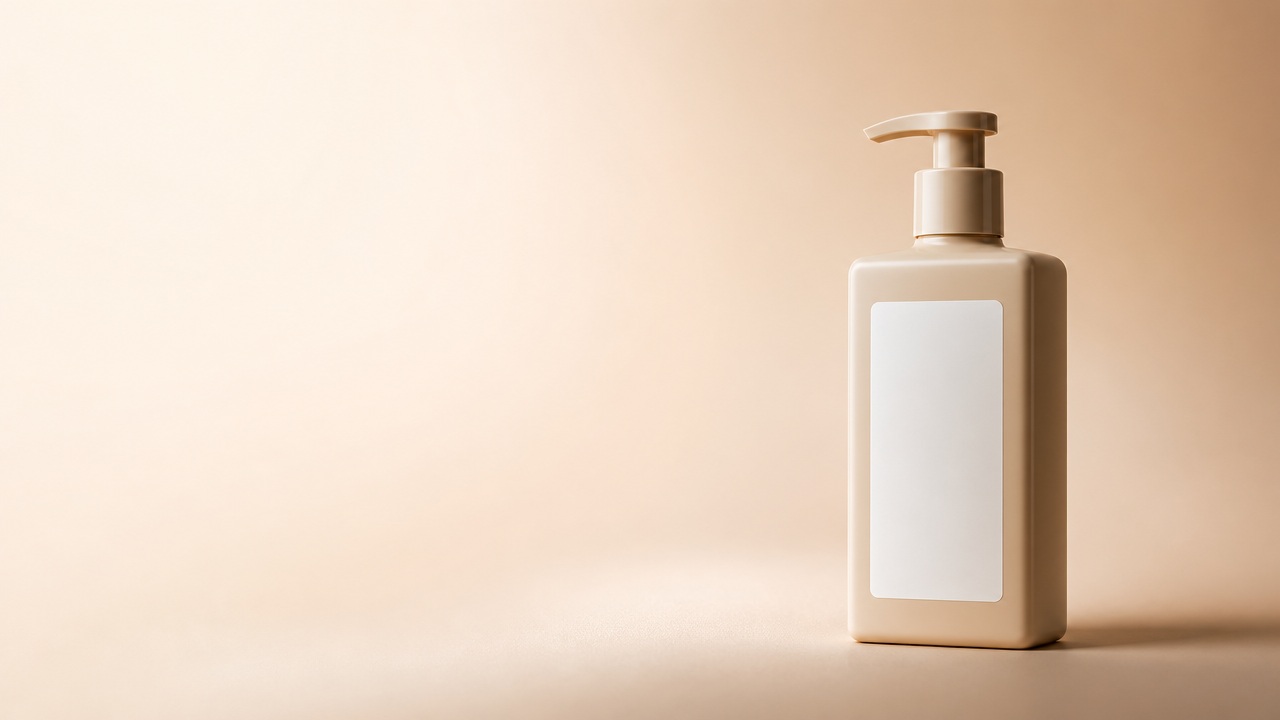
Ad Creative Product Hero
Ad layouts where copy and claims are added in a design tool
Best for: Ad layouts where copy and claims are added in a design tool
ChatGPT photo editing prompts are written instructions that describe how an existing image should change and what must stay the same. In ChatGPT Images, users can upload an existing image or select part of an image, then describe the edit they want.
The best prompts read like a small editing brief: preserve the subject, define one change, name the edit area, describe the style, and add constraints. PhotoPrompt turns that structure into reusable copy-paste examples you can customize for portraits, product images, backgrounds, social posts, and quality enhancement.
Simple Editing Prompt Formula
Goal + Source Image + Preserve + Change + Edit Area + Style + Output + Constraints
Most weak edits fail because the prompt only says what to change. Strong prompts also say what cannot change.
Ask for one primary change at a time: remove an object, replace a background, relight a portrait, polish a product, or enhance image quality.
Protect identity, product shape, label placement, clothing, pose, camera angle, composition, and original perspective when those details matter.
Mention whether the change applies to the whole image, background only, face only, product surface, lower-left corner, or another specific area.
Ask for natural texture, realistic shadows, clean edges, accurate colors, no warped hands, no changed face, no fake text, and no over-processed AI look.
The keyword cluster points to clear editing jobs that creators, marketers, and small businesses search for repeatedly.
Portrait Retouching
Use prompts for subtle skin texture, lighting correction, LinkedIn headshots, creator avatars, and professional profile photos.
Product Photo Fixes
Polish ecommerce shots, preserve labels, clean backgrounds, improve shadows, and create Shopify, Etsy, or ad-ready images.
Background Changes
Replace cluttered scenes, remove distractions, add studio surfaces, or create realistic location swaps while keeping the subject intact.
Enhancement Prompts
Improve sharpness, exposure, color balance, noise, and resolution without making the image look fake or heavily retouched.
Use these compact templates when you need a reusable text pattern instead of a long fixed prompt.
Portrait Retouch Template
Edit the uploaded portrait. Preserve the same face, age, hairstyle, expression, clothing, pose, and natural skin texture. Change only [lighting/background/retouch detail] to [specific result]. Keep the image realistic, high-resolution, and not over-processed.
Product Photo Template
Use the uploaded product image as the source. Preserve product shape, label placement, material, color, and camera angle. Change [background/lighting/surface/defect] to [specific direction]. Keep shadows natural and avoid extra props, fake text, or distorted packaging.
High-Quality Enhancer Template
Enhance this photo while preserving identity, composition, and original details. Improve sharpness, exposure, color balance, and noise reduction. Keep skin texture, fabric, product edges, and shadows realistic. Avoid plastic skin, halo edges, or an artificial AI-rendered look.
Use the page as a prompt library for repeated editing tasks, then refine the prompt after you see the first output.
LinkedIn headshots, speaker bios, creator profile photos, and team portraits
Ecommerce product images for Shopify, Etsy, Amazon listings, and paid social ads
Background replacement, object removal, color correction, and lighting cleanup
Photo enhancement prompts for sharper, cleaner, higher-quality image drafts
Trending social edits for Instagram posts, TikTok covers, YouTube thumbnails, and Pinterest pins
Product photo prompt variants for lifestyle scenes, studio surfaces, packaging, and ad creative
Use goal, source image, preserve list, change list, edit area, style, output format, and constraints. This gives the model both the edit request and the guardrails.
OpenAI's help documentation says ChatGPT Images can edit an uploaded existing image or an image generated by ChatGPT. You can describe the edit directly or select part of the image and describe the change.
Write a preserve section. Mention the same face, expression, hairstyle, body proportions, product shape, label placement, camera angle, and any detail that must not change.
No. They are written in clear editing language that can also help with PhotoPrompt's multi-model image workflow. Results vary by model, so review outputs and refine one detail at a time.
Use 4o Image for realistic reference-guided edits, GPT Image 2 for product layouts or text-forward assets, Nano Banana for fast drafts, and Nano Banana Pro for polished commercial visuals.
Copy a template, customize the preserve list, change list, edit area, style, and constraints, then open it in PhotoPrompt to test your first version.
Related Prompt Pages