
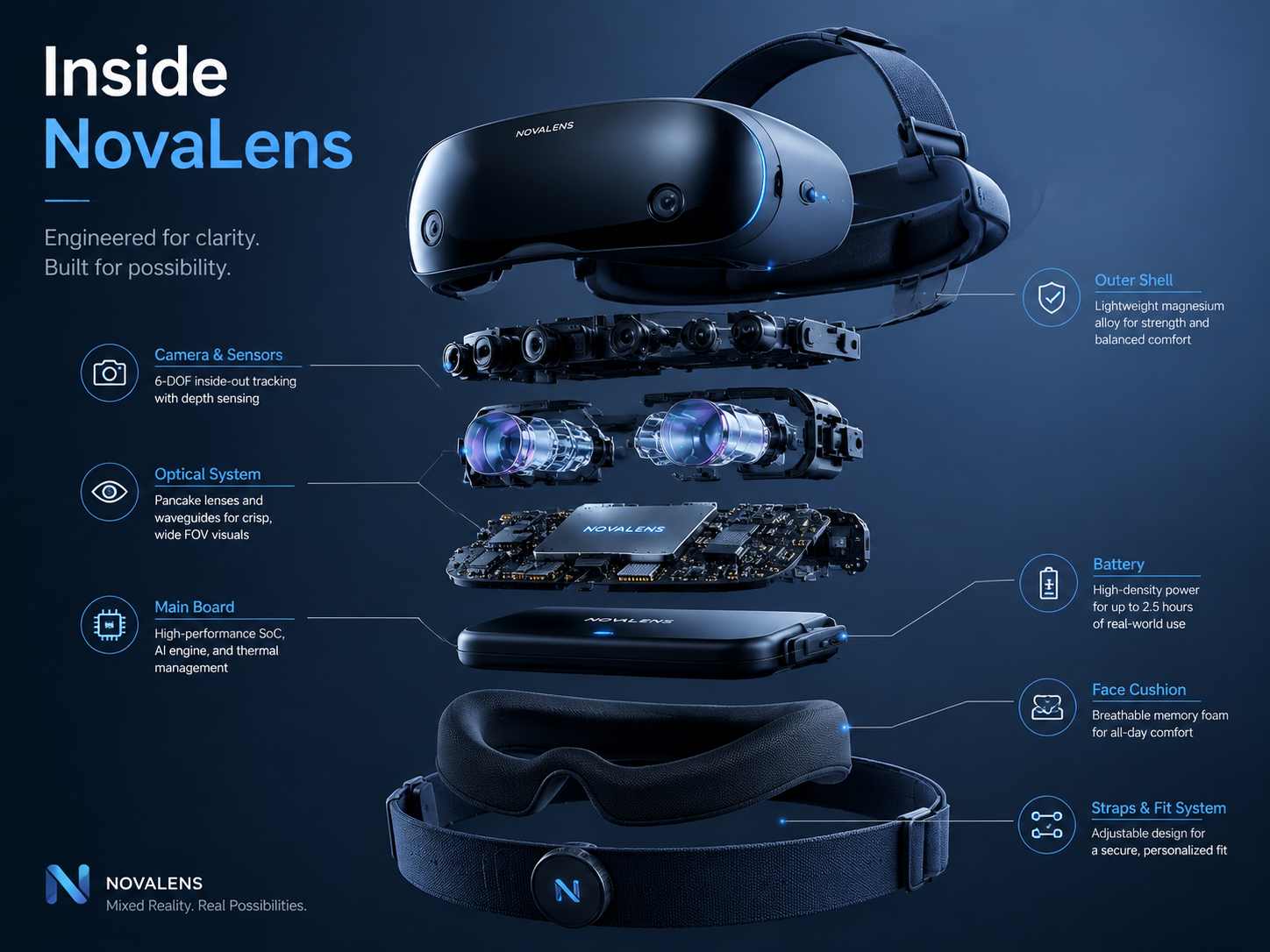
Exploded Tech Product Poster
Technical launch posters, product explainers, pitch decks
Best for: Technical launch posters, product explainers, pitch decks
#gpt-image-2#product#poster
GPT Image 2 Prompt Guide
Copy prompt examples for layout-heavy images, posters, product concepts, infographics, social graphics, and precise image edits.
Start from prompts written for GPT Image 2 strengths: clear visual hierarchy, typography direction, structured layouts, product scenes, and precise edits.
Exploded Tech Product Poster
Technical launch posters, product explainers, pitch decks
Best for: Technical launch posters, product explainers, pitch decks
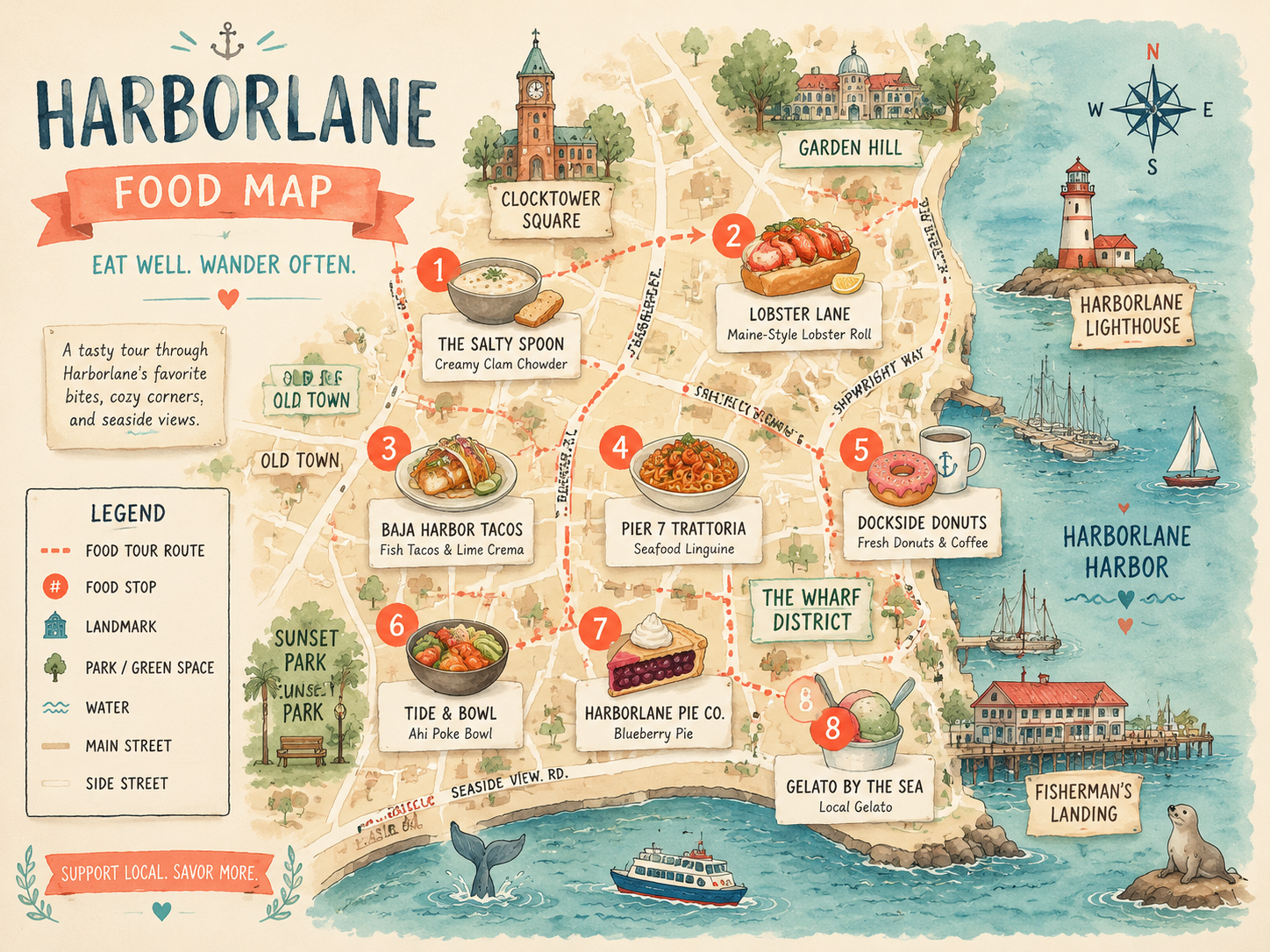
Illustrated City Food Map
Travel blogs, local guides, editorial explainers
Best for: Travel blogs, local guides, editorial explainers
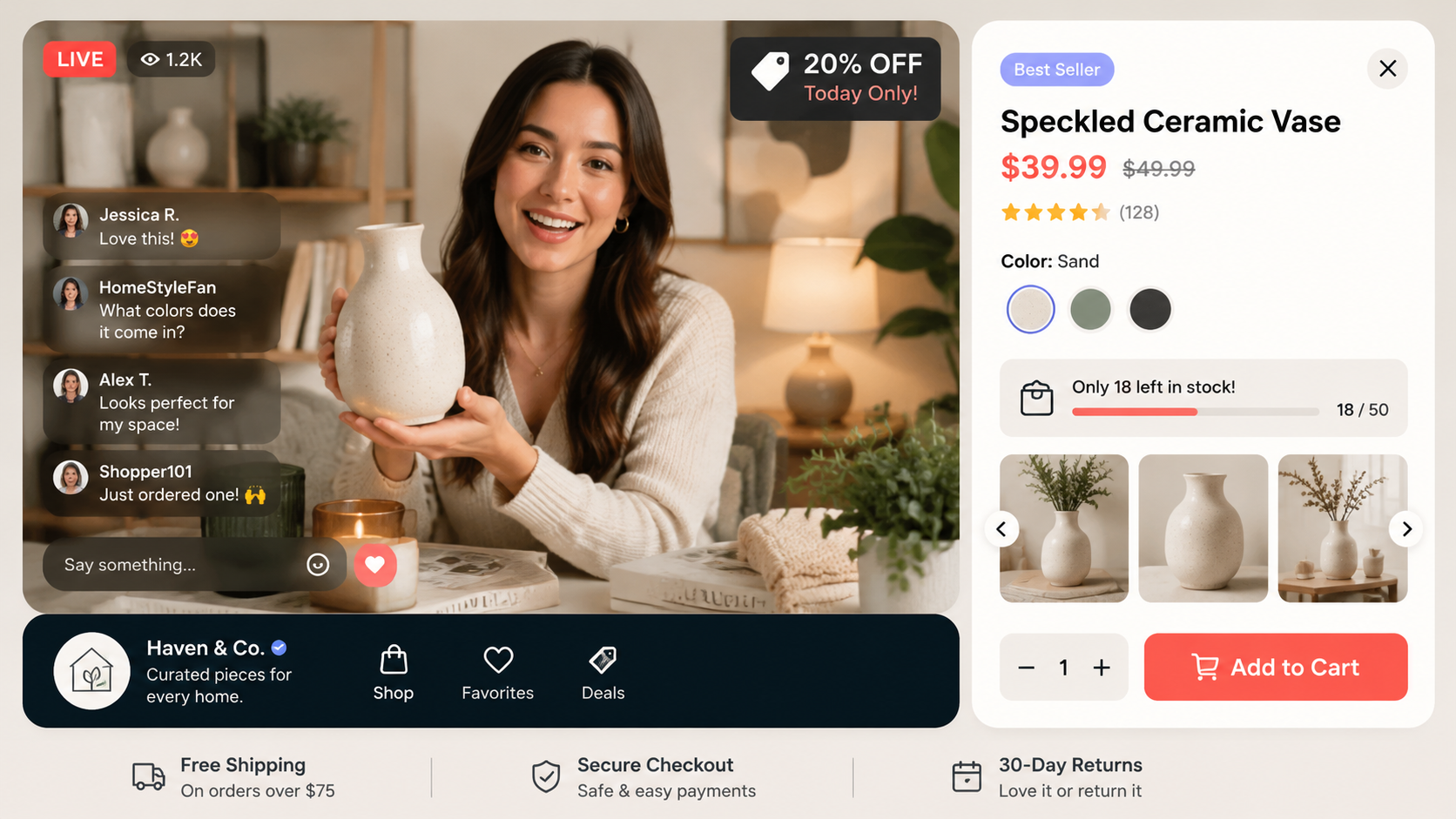
Live Commerce UI Mockup
Commerce concepts, product strategy slides, app mockups
Best for: Commerce concepts, product strategy slides, app mockups
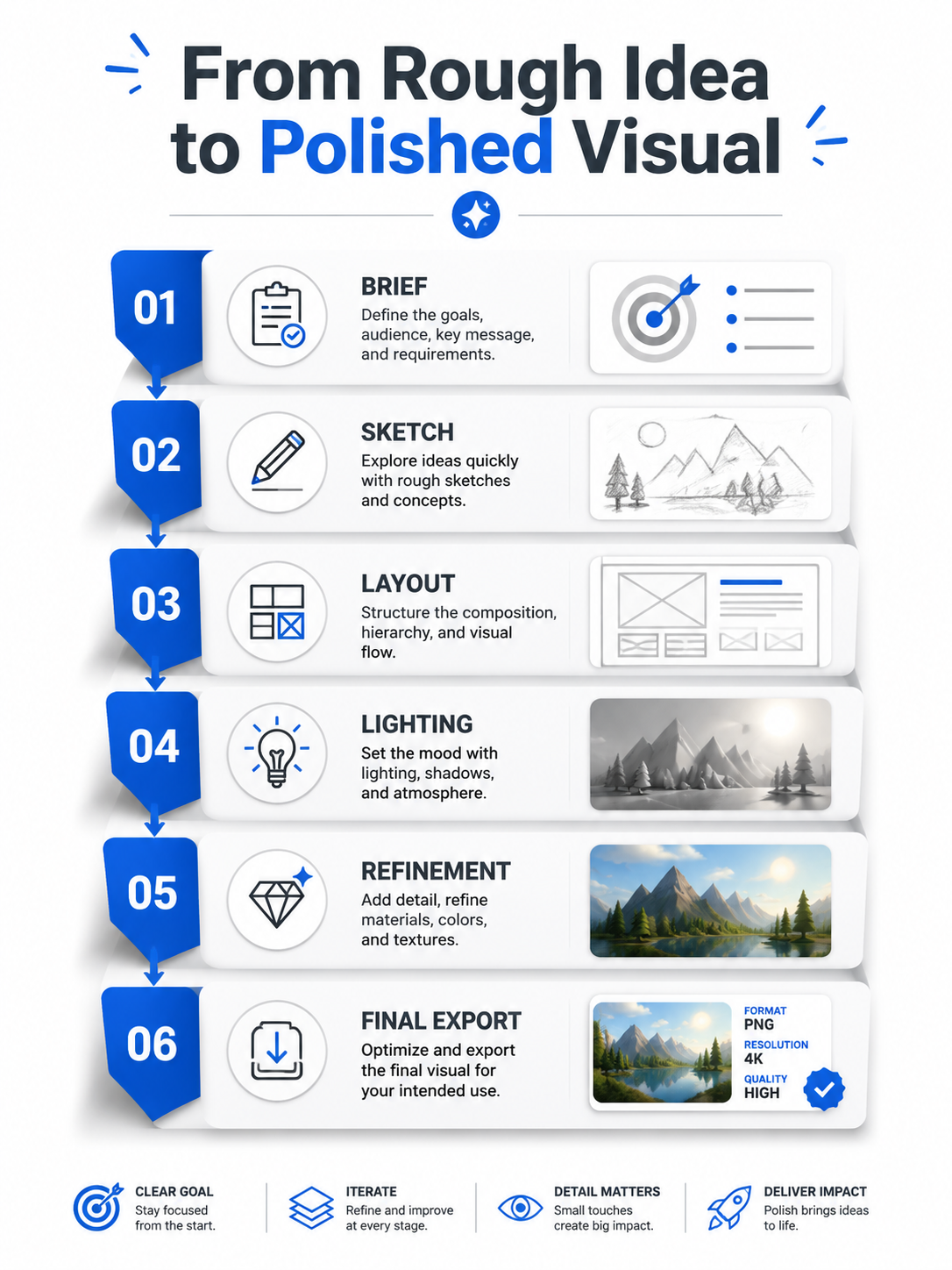
Process Evolution Infographic
Educational visuals, workflow explainers, blog graphics
Best for: Educational visuals, workflow explainers, blog graphics
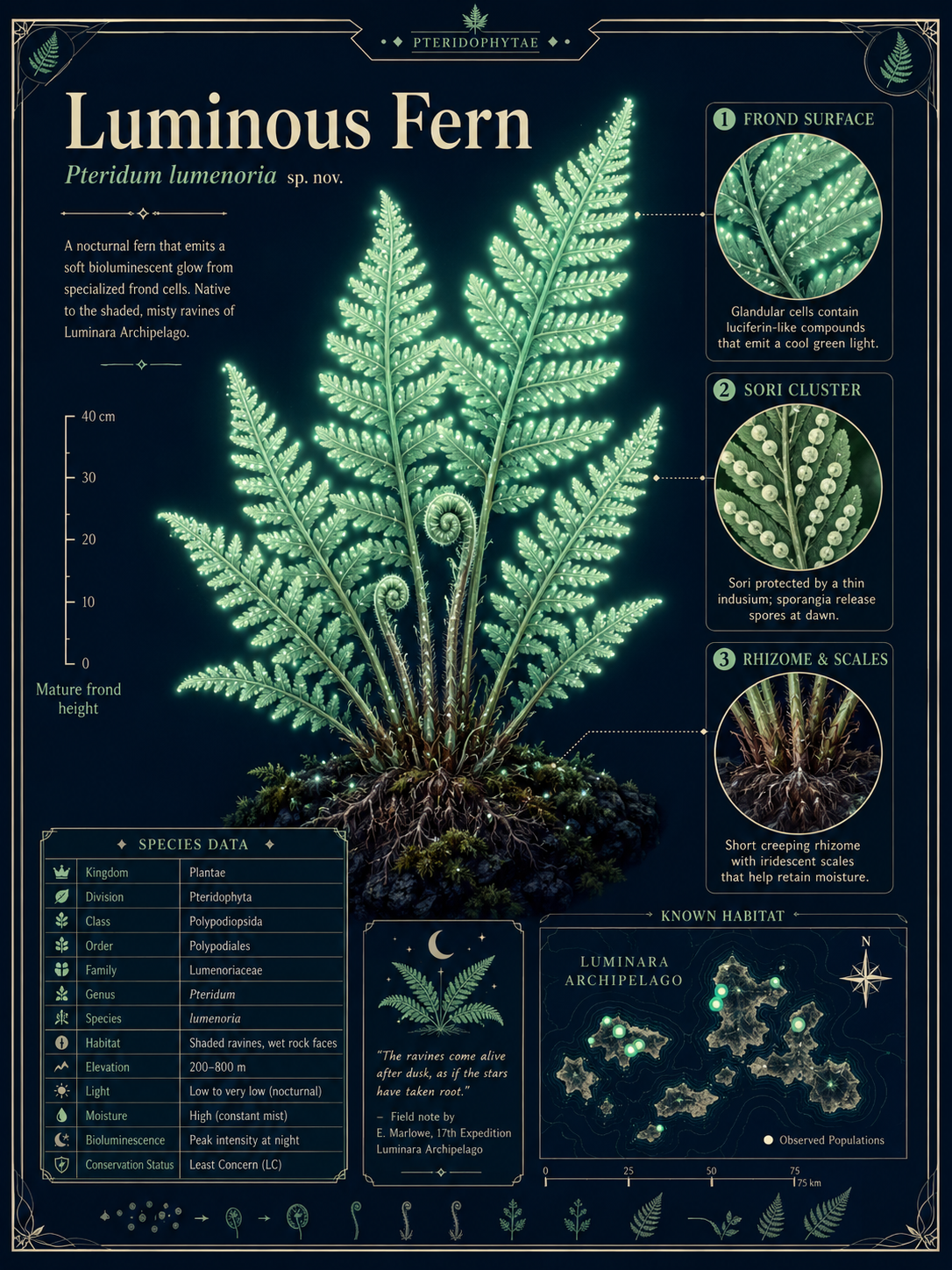
Botanical Atlas Card
Science explainers, classroom posters, editorial cards
Best for: Science explainers, classroom posters, editorial cards
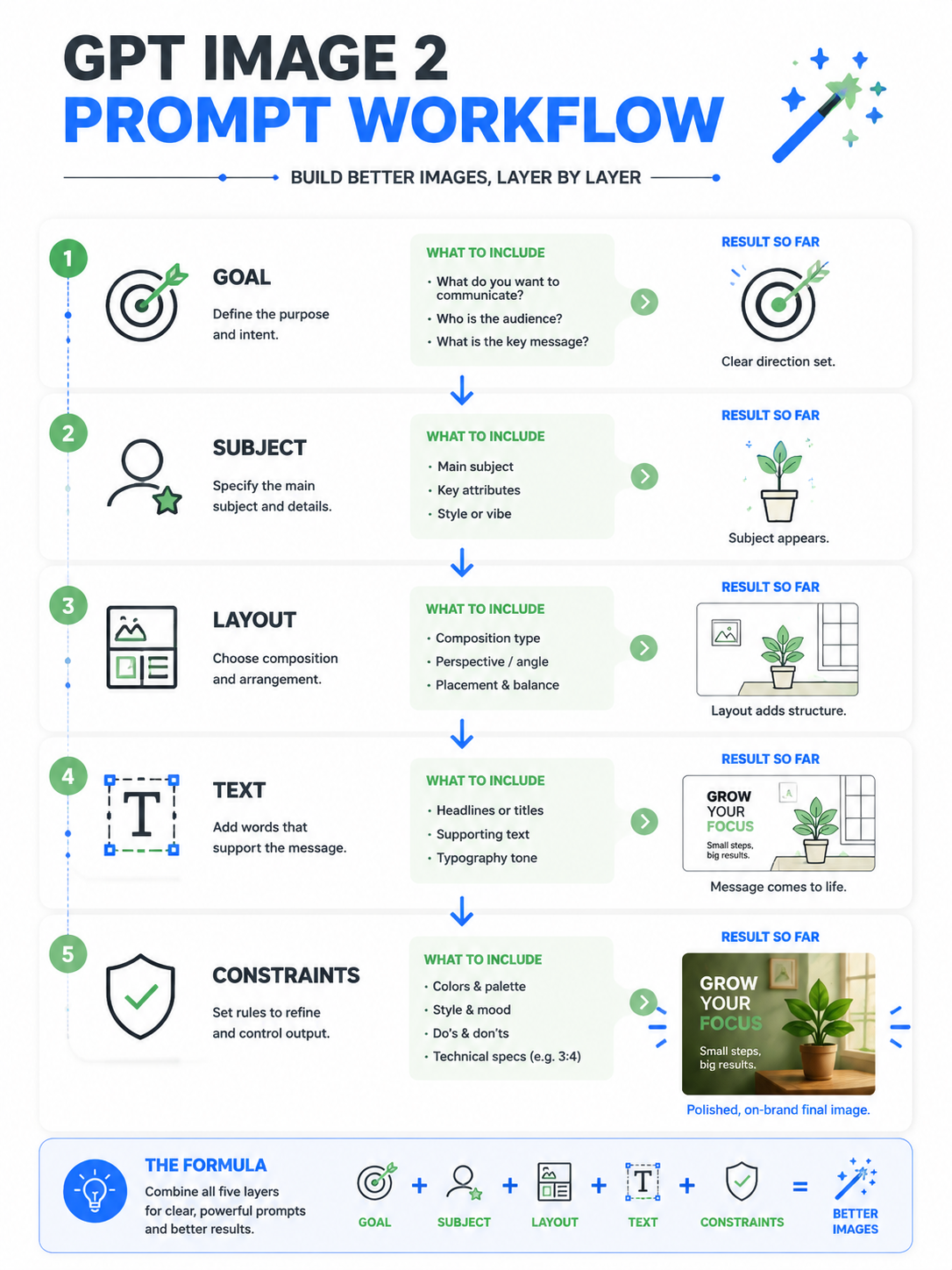
Layered Prompt Workflow Infographic
Prompt tutorials, SEO page visuals, training material
Best for: Prompt tutorials, SEO page visuals, training material
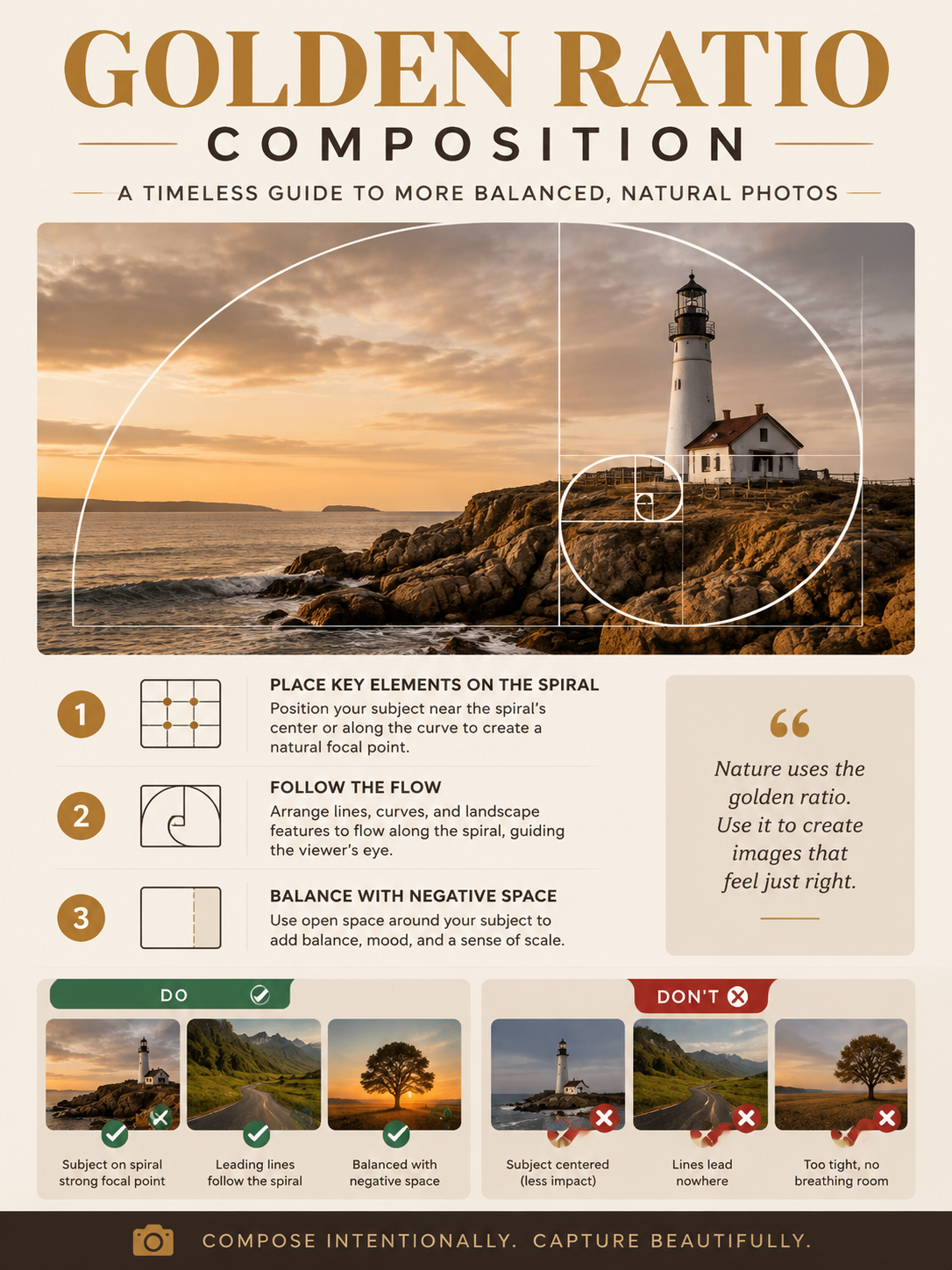
Golden Ratio Composition Poster
Photography tutorials, course graphics, visual explainers
Best for: Photography tutorials, course graphics, visual explainers
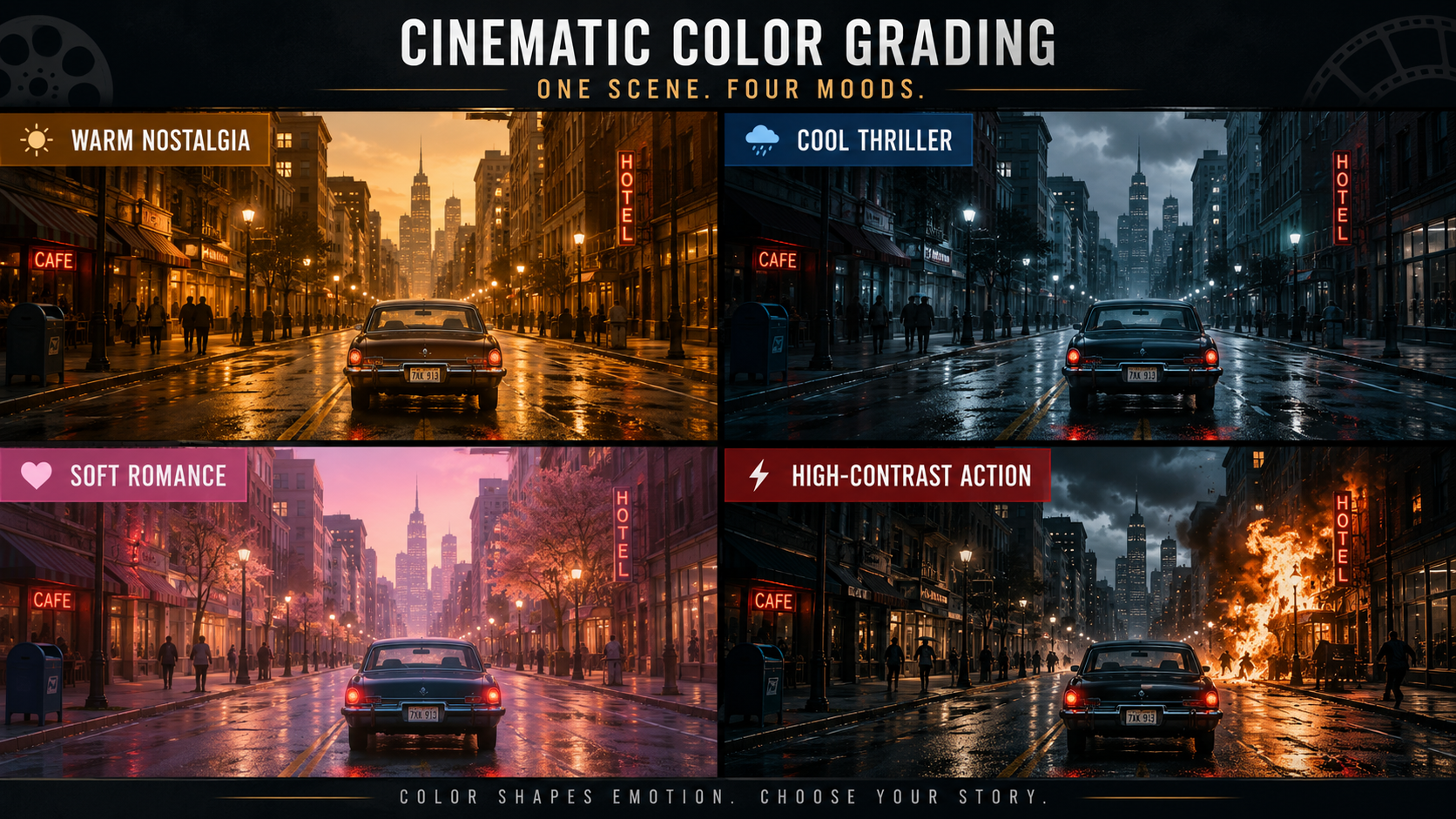
Cinematic Color Grade Comparison
YouTube thumbnails, tutorial covers, creator education
Best for: YouTube thumbnails, tutorial covers, creator education
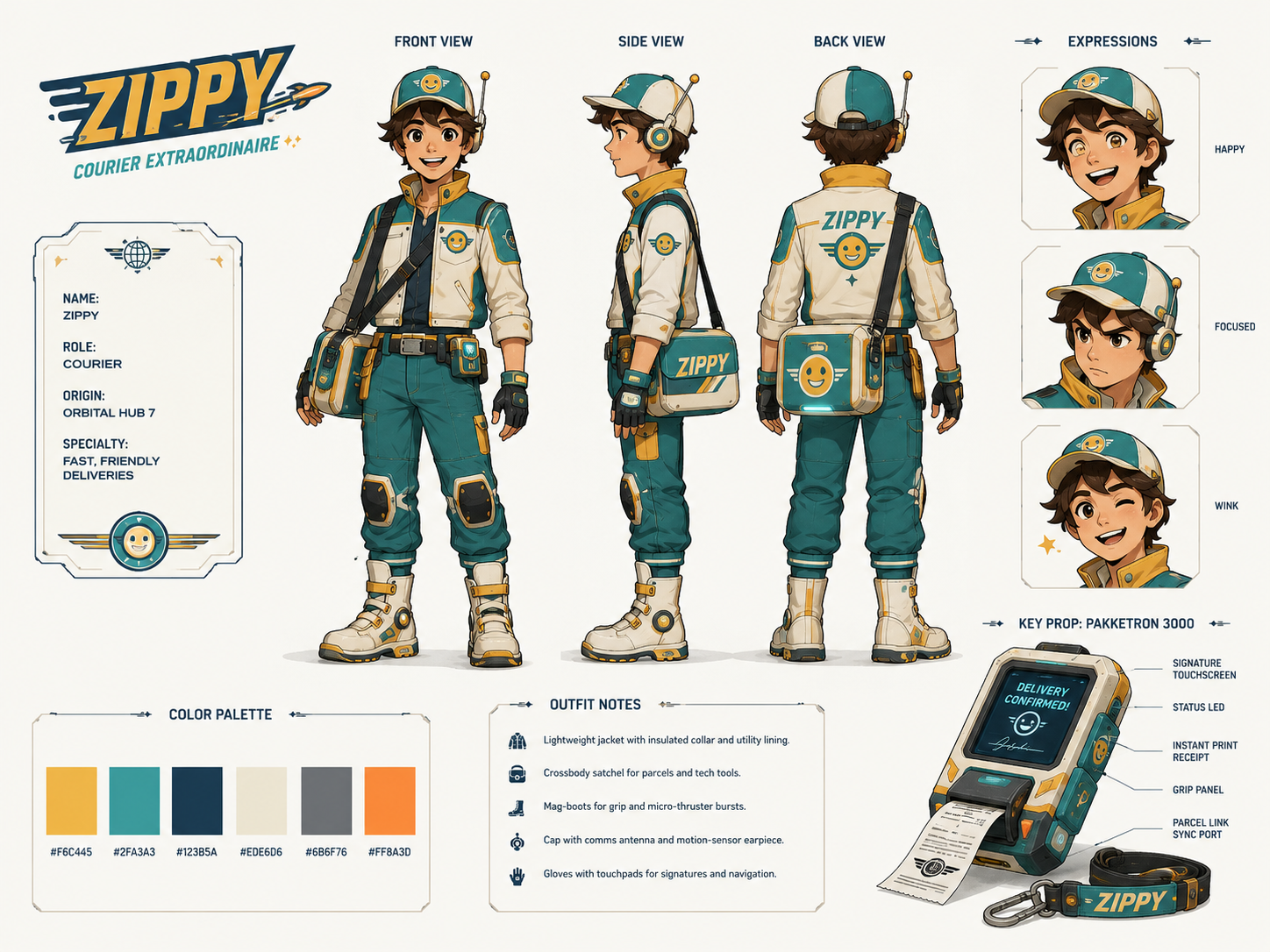
Original Character Reference Sheet
Character design, game concepts, story development
Best for: Character design, game concepts, story development
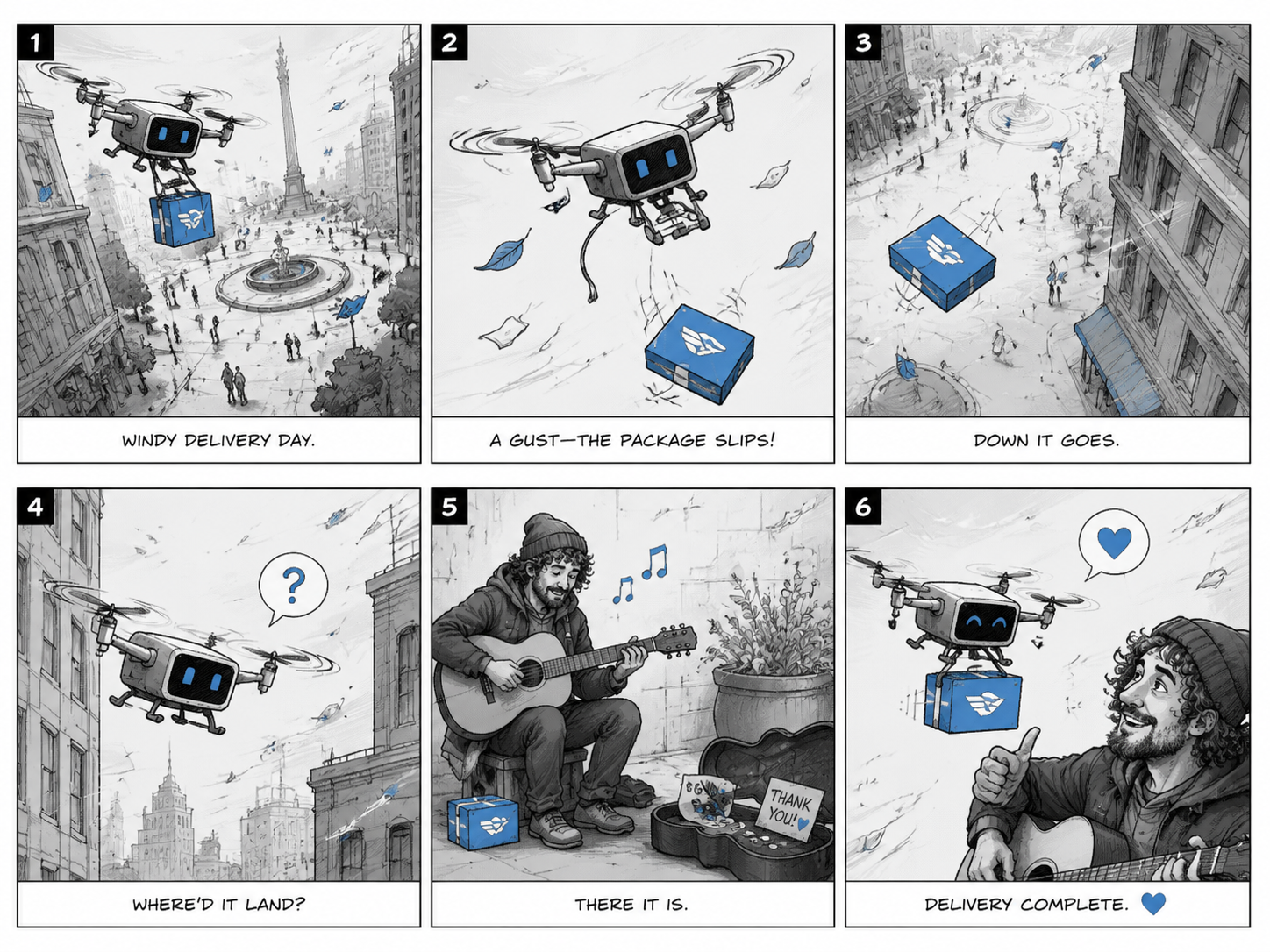
Six-Panel Storyboard Page
Storyboarding, ads, short-form video previsualization
Best for: Storyboarding, ads, short-form video previsualization
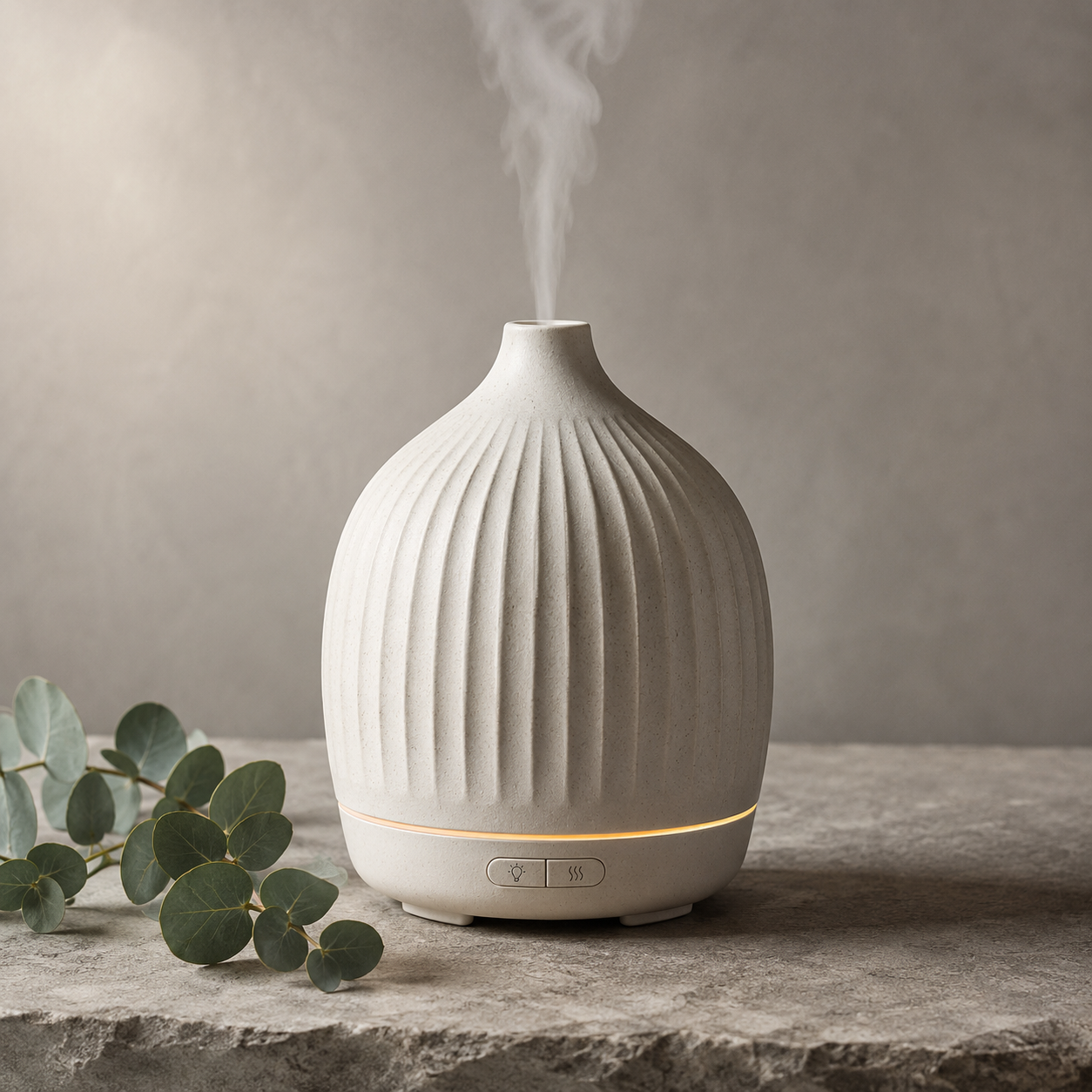
Premium Product Photo
Marketplace listings, Shopify images, product concepts
Best for: Marketplace listings, Shopify images, product concepts
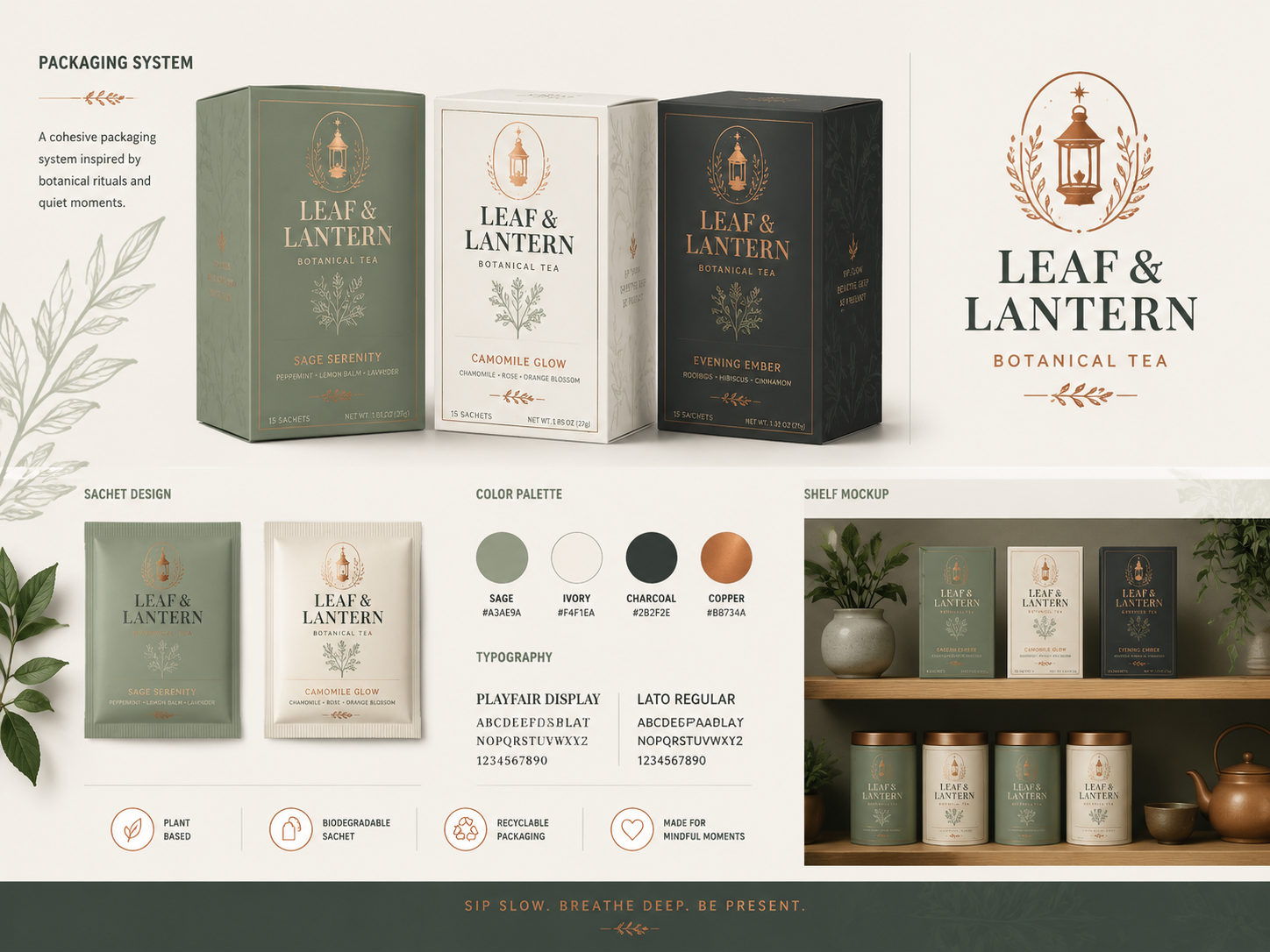
Packaging System Design
Brand pitches, packaging concepts, product mockups
Best for: Brand pitches, packaging concepts, product mockups
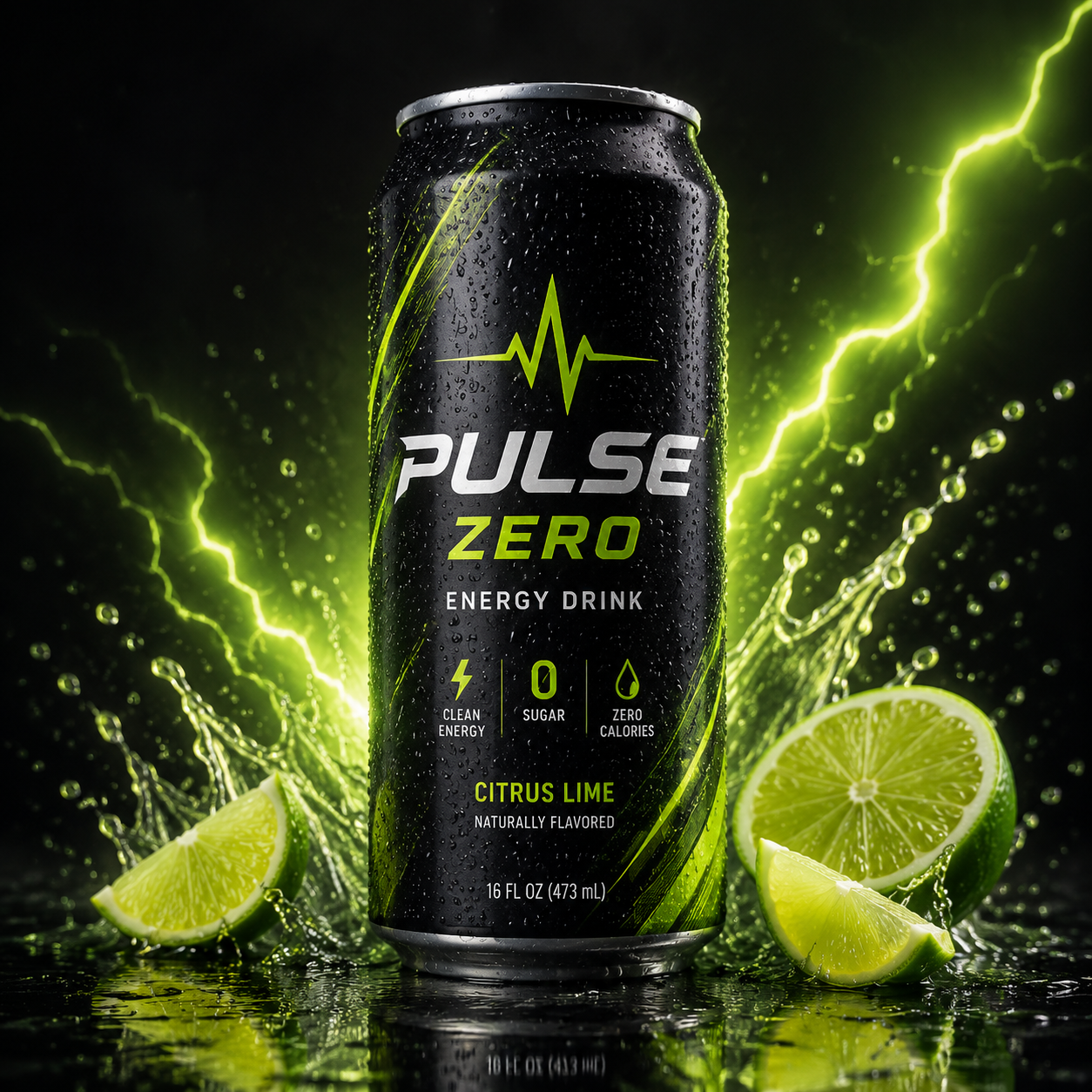
Neon Energy Drink Product Shot
Beverage ads, ecommerce hero images, launch concepts
Best for: Beverage ads, ecommerce hero images, launch concepts
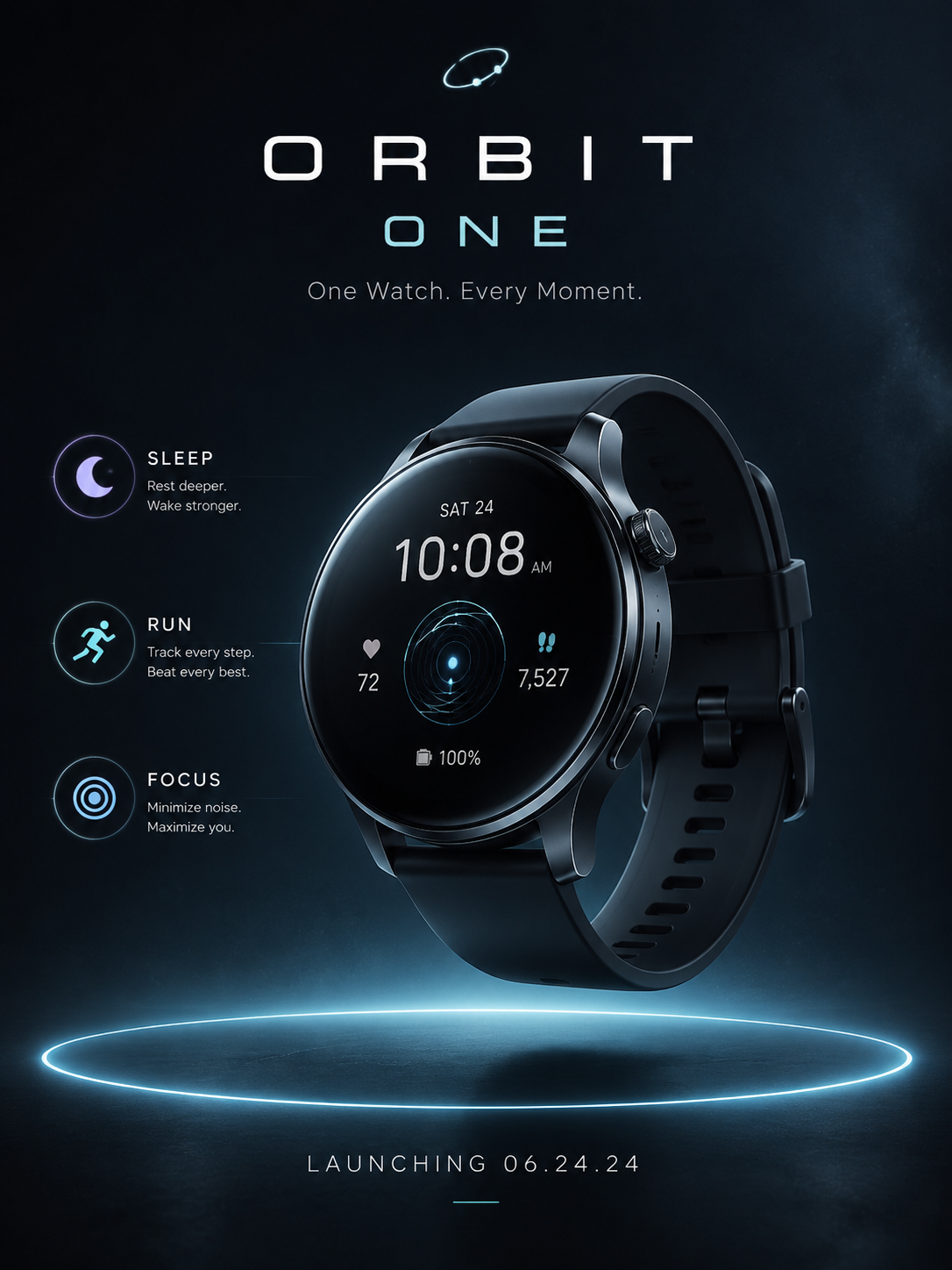
Smartwatch Launch Poster
Tech campaigns, product launch graphics, paid ads
Best for: Tech campaigns, product launch graphics, paid ads
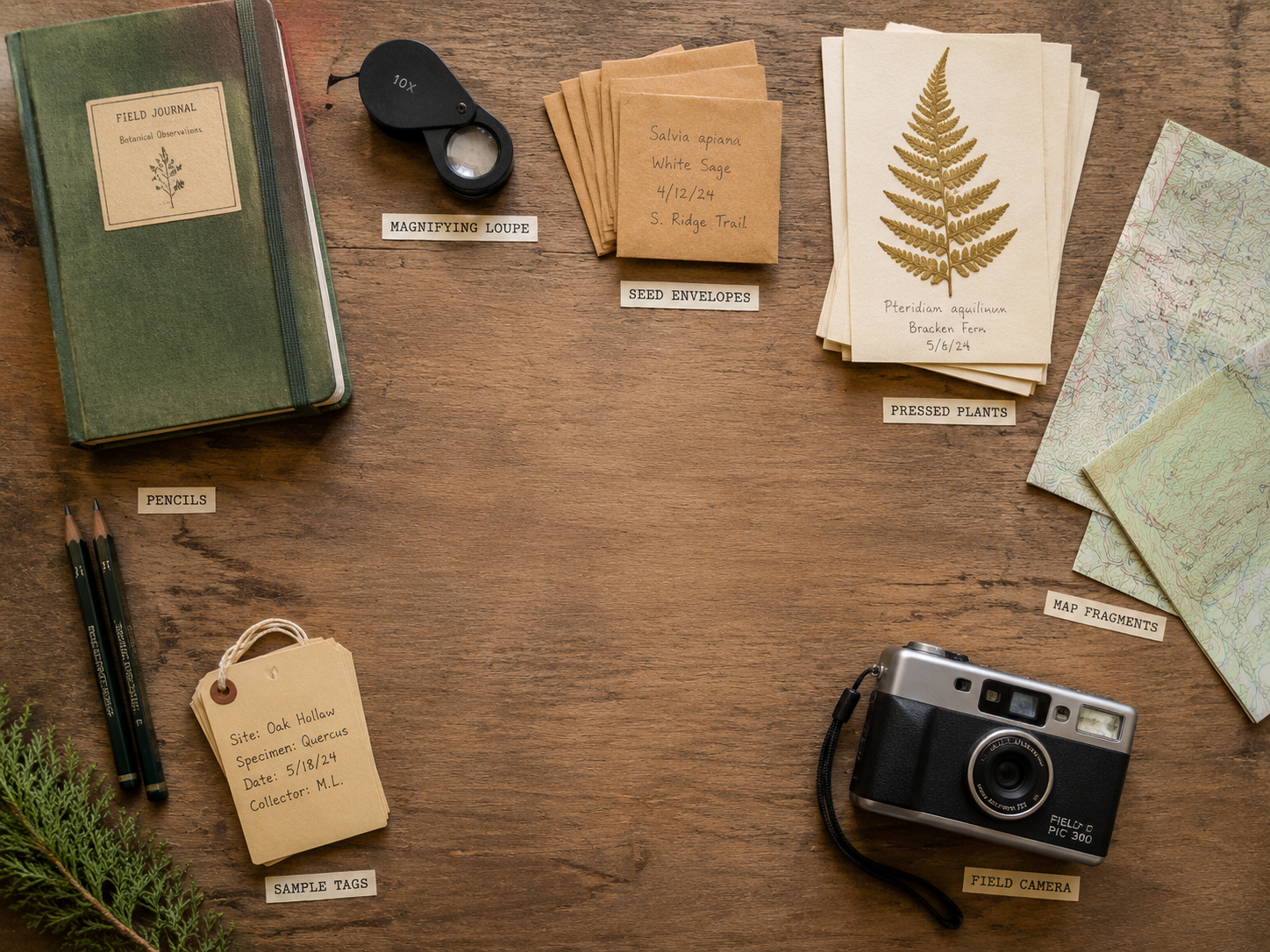
Profession Inventory Flat Lay
Editorial spreads, character kits, brand storytelling
Best for: Editorial spreads, character kits, brand storytelling
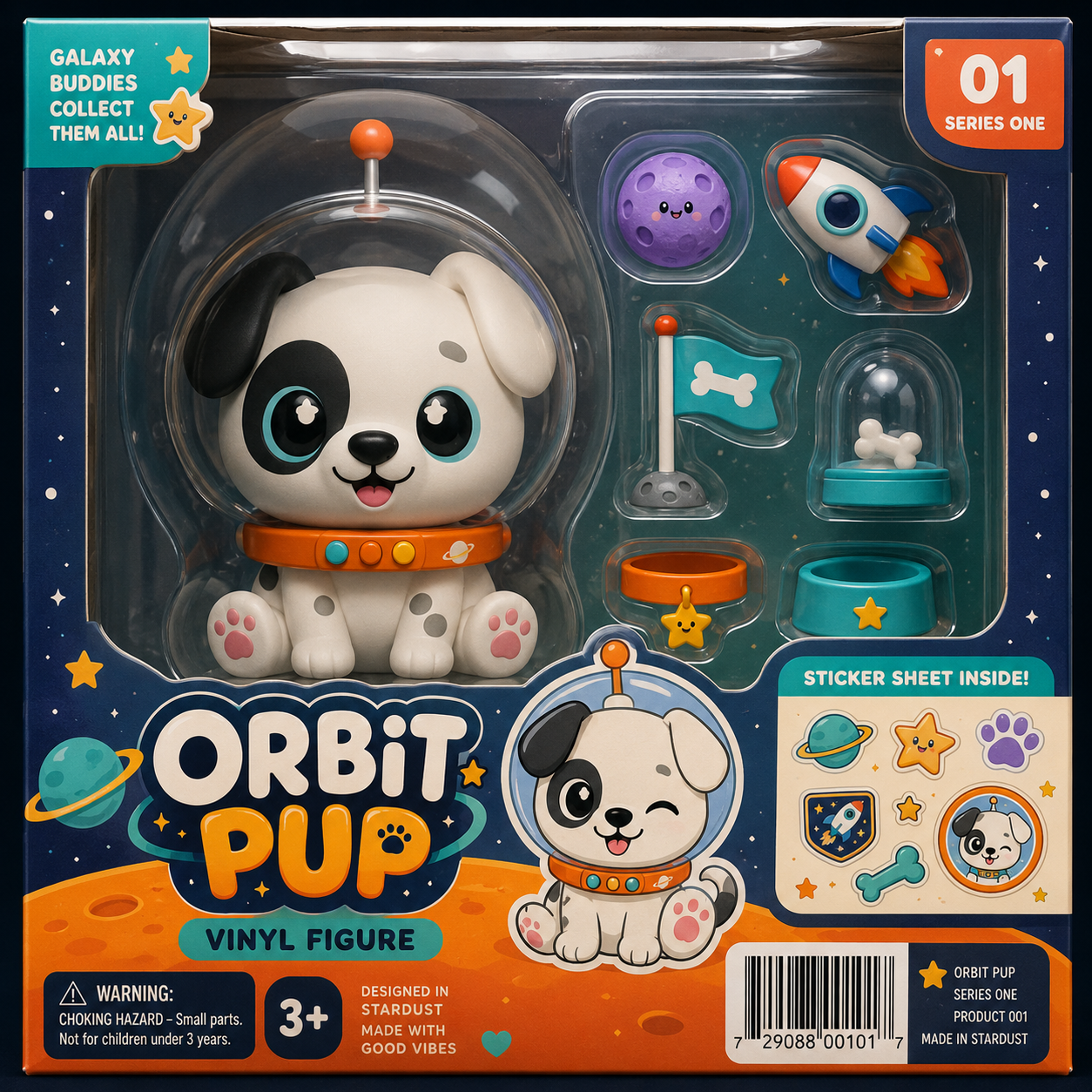
Collectible Toy Packaging
Toy concepts, packaging mockups, ecommerce previews
Best for: Toy concepts, packaging mockups, ecommerce previews
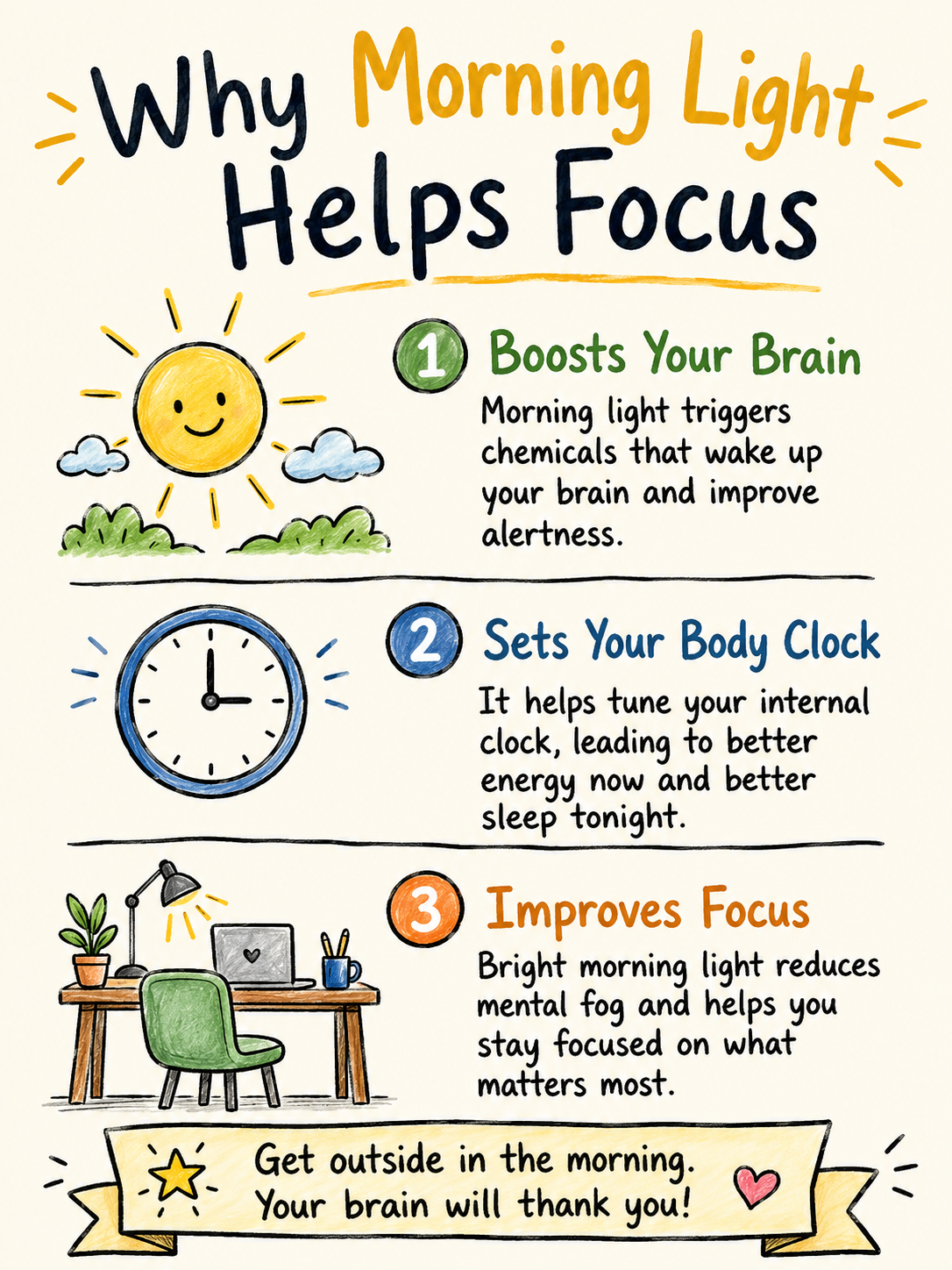
Hand-Drawn Topic Card
LinkedIn posts, Instagram explainers, educational cards
Best for: LinkedIn posts, Instagram explainers, educational cards
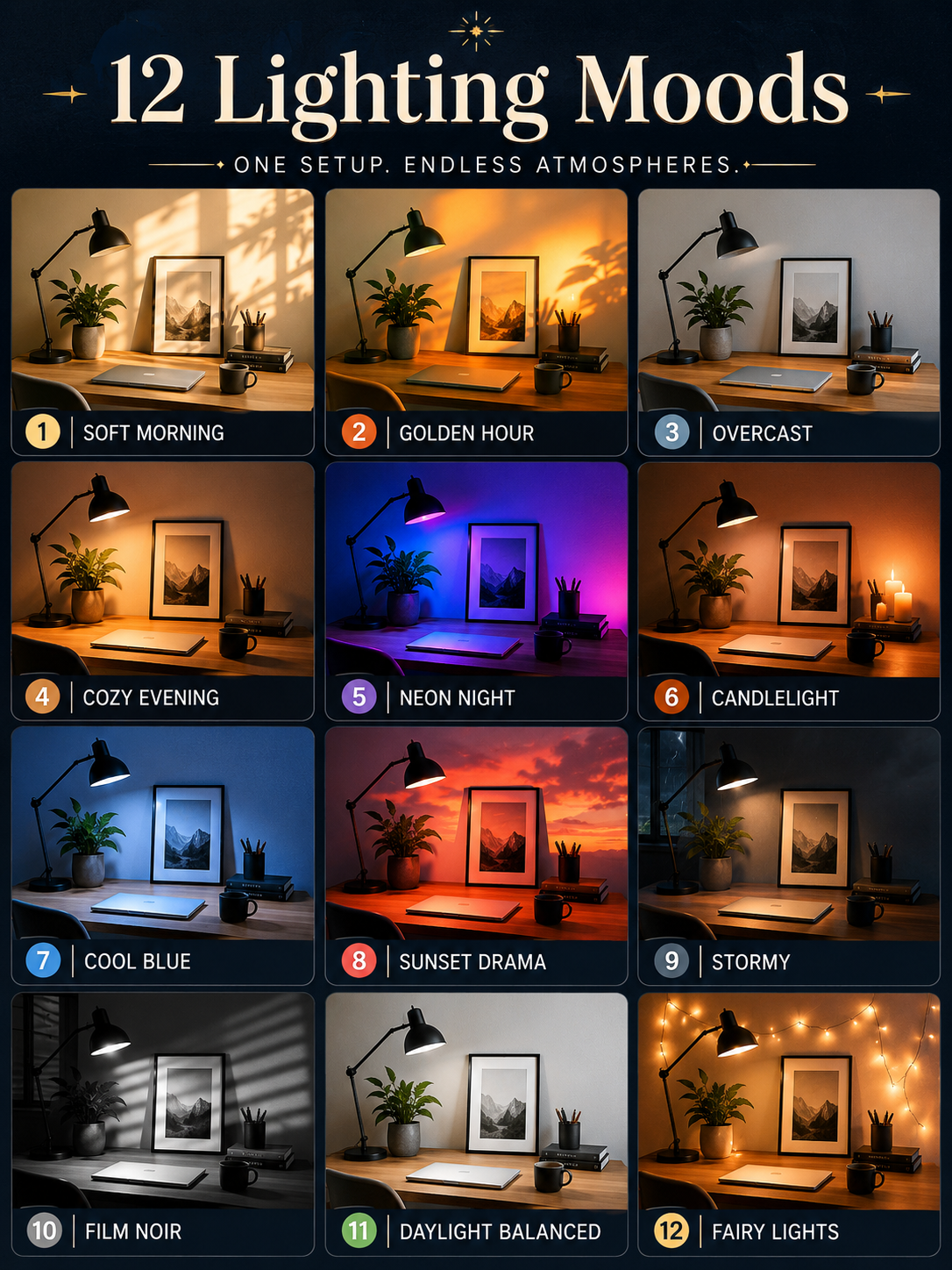
Visual Style Catalog Poster
Prompt testing, style guides, education graphics
Best for: Prompt testing, style guides, education graphics
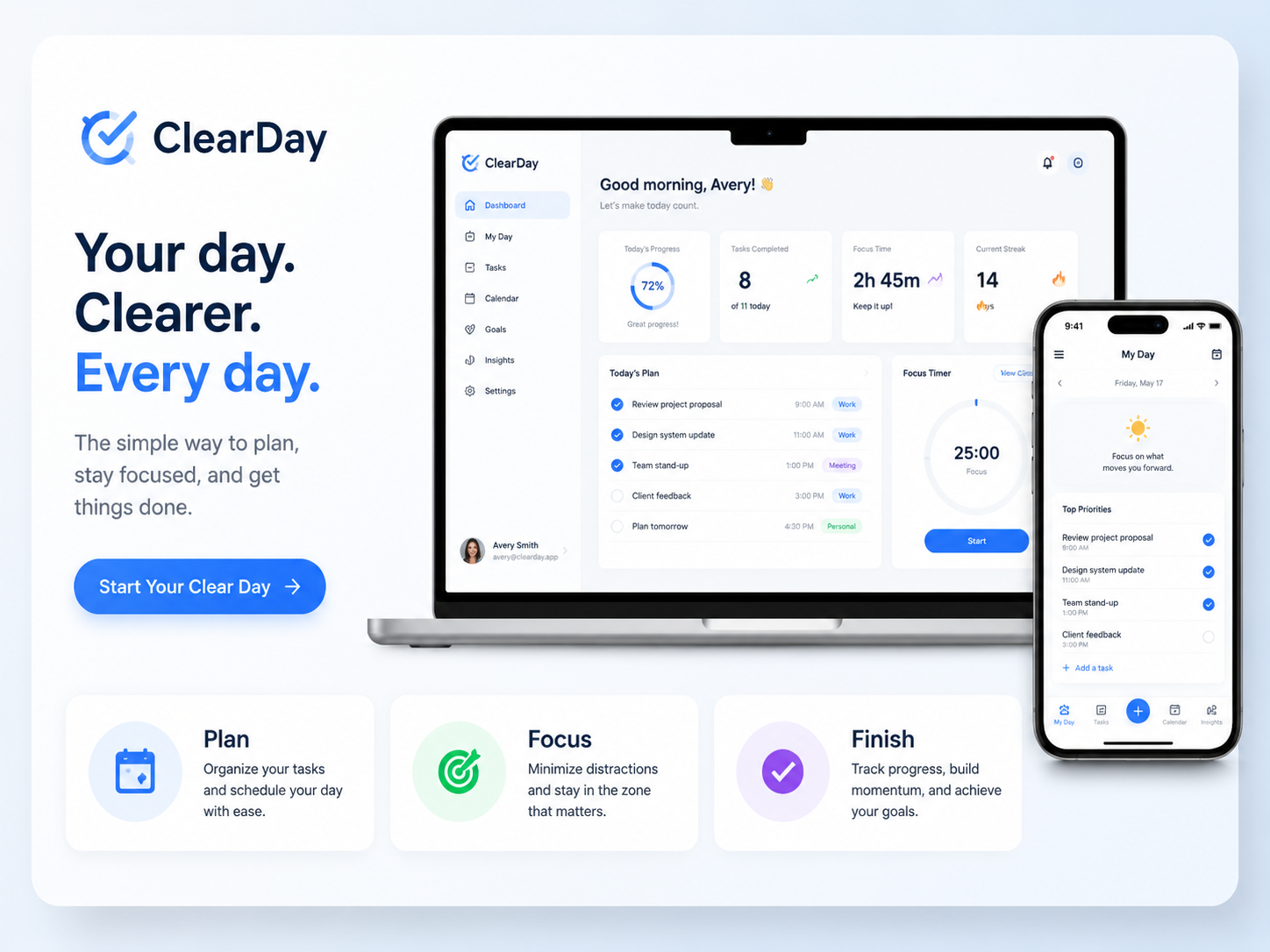
Product Mockup Claim Card
SaaS landing pages, product announcements, pitch decks
Best for: SaaS landing pages, product announcements, pitch decks
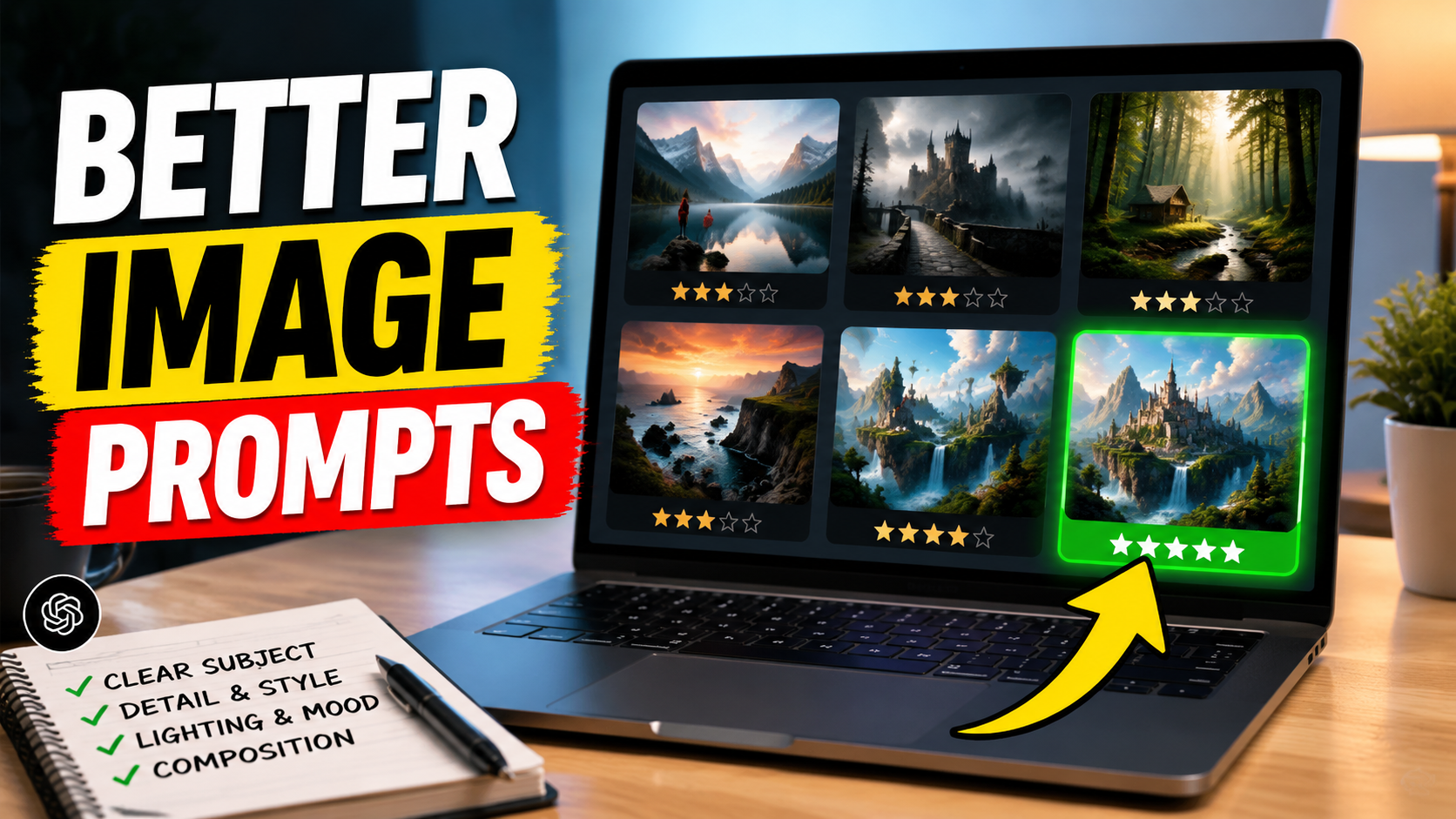
YouTube Tutorial Thumbnail
Tutorial covers, creator videos, prompt education
Best for: Tutorial covers, creator videos, prompt education

Reference Background Edit
Profile refreshes, clean background edits, reference-image workflows
Best for: Profile refreshes, clean background edits, reference-image workflows
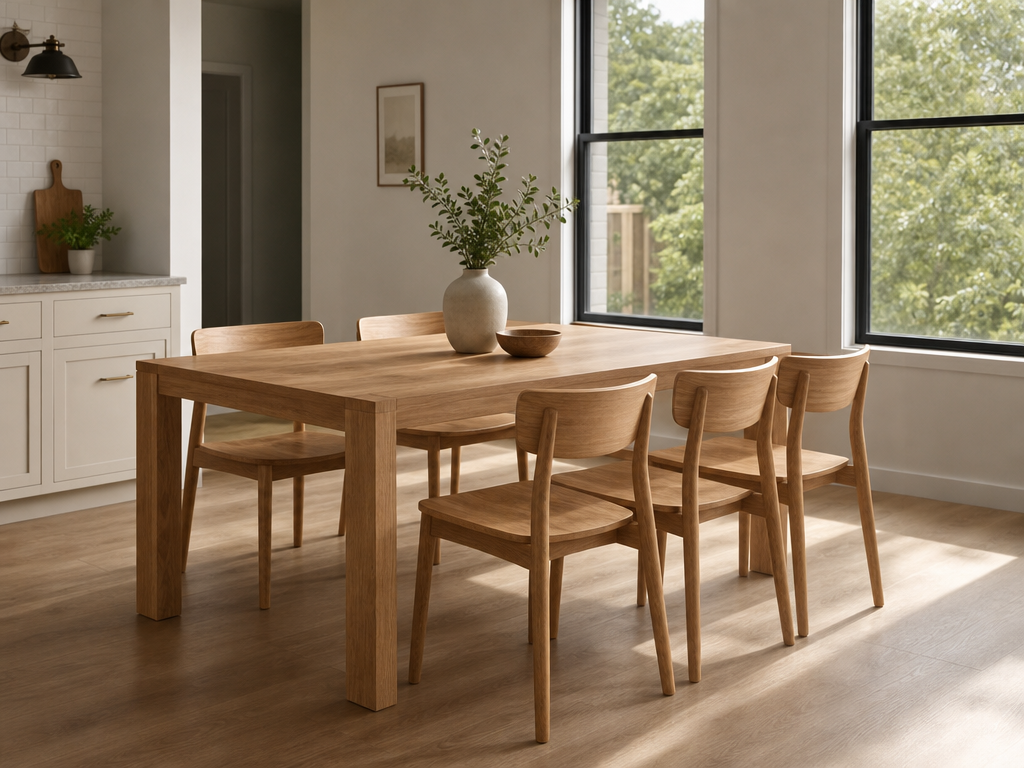
Room Material Edit
Interior edits, product material swaps, design previews
Best for: Interior edits, product material swaps, design previews
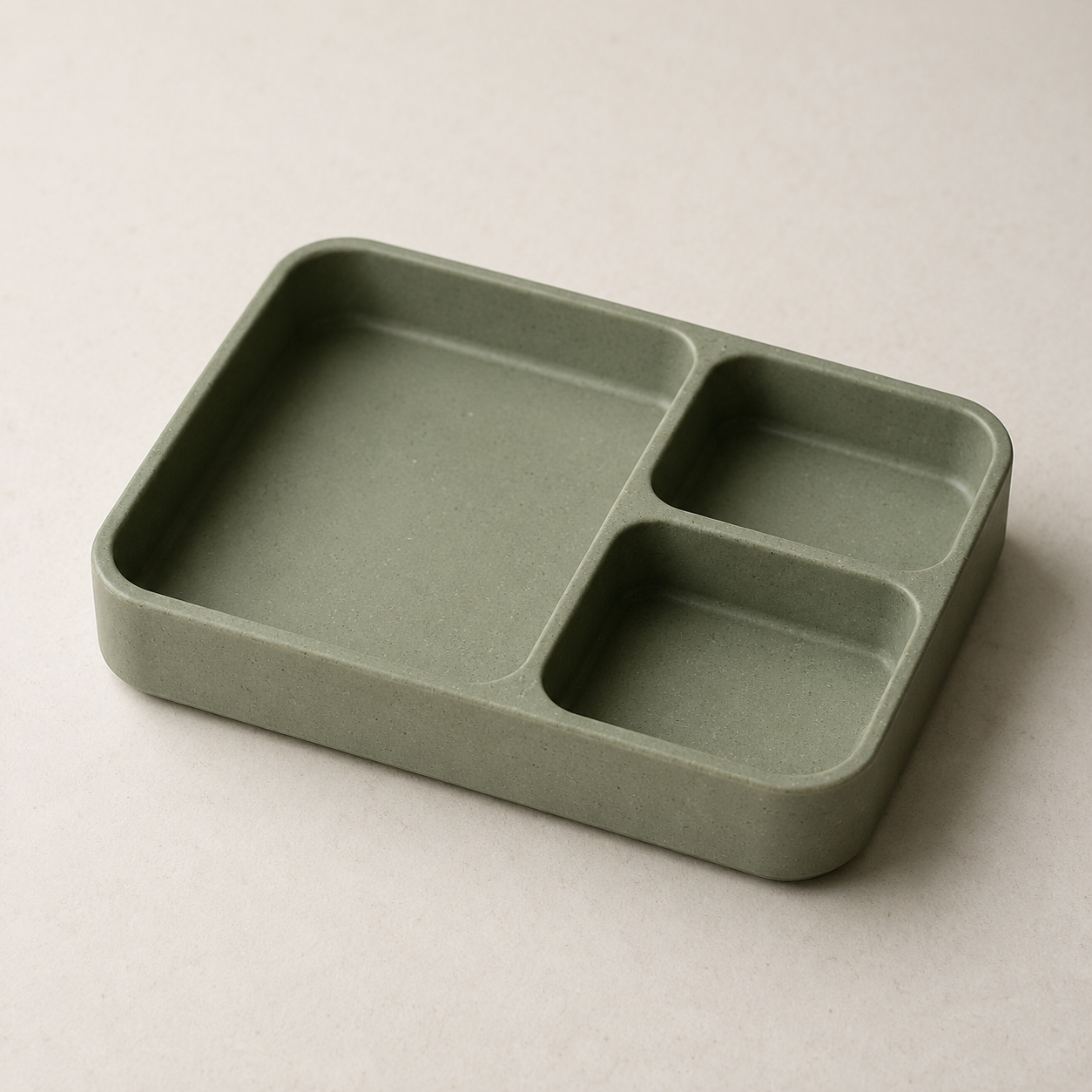
Sketch to Real Object
Product ideation, sketch visualization, design prototypes
Best for: Product ideation, sketch visualization, design prototypes
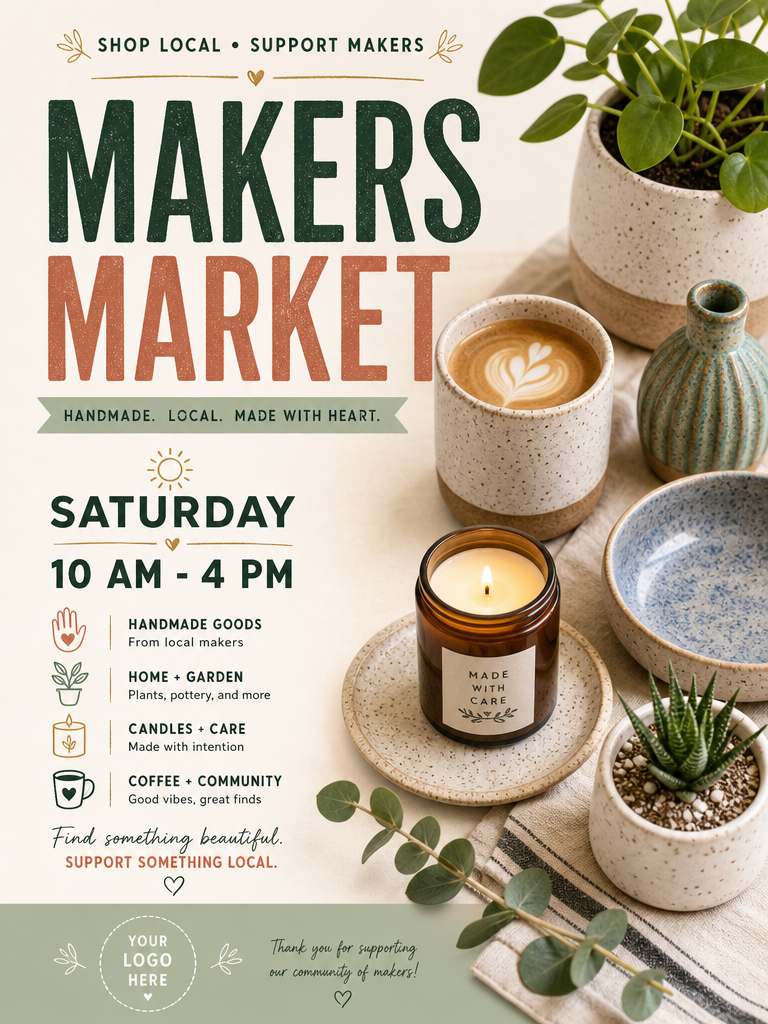
Local Event Flyer
Event graphics, flyers, community announcements
Best for: Event graphics, flyers, community announcements
GPT Image 2 is an OpenAI GPT Image model for generating and editing images from text prompts and image inputs. For creators, marketers, and small teams, it is especially useful when the image needs more than a simple scene description.
Use GPT Image 2 when your prompt includes layout direction, readable text, product composition, brand hierarchy, infographic structure, or precise edit instructions. PhotoPrompt gives you a faster way to copy a proven structure, customize the details, and open it in the generator.
Simple GPT Image 2 Prompt Formula
Goal + Format + Subject + Layout + Text + Style + Constraints + Final Use
GPT Image 2 prompts work best when you describe the job like a creative brief, not just a subject.
Say whether you need a poster, product image, infographic, thumbnail, carousel cover, flyer, or edited reference photo.
Describe hierarchy, negative space, text placement, grid structure, focal point, and crop. This matters when the image includes design or marketing content.
Put important copy in quotation marks and keep it short. Ask for large readable type, simple hierarchy, and enough room around the text.
Mention what to avoid: clutter, distorted products, tiny text, incorrect labels, heavy retouching, extra people, or mismatched shadows.
Choose the model based on the job you are trying to finish. GPT Image 2 is strongest when structure and instruction following matter.
Posters and Layouts
Use it for posters, flyers, thumbnails, carousels, and campaign graphics with clear visual hierarchy.
Text-Forward Images
Use short text blocks, readable headlines, labels, and typography direction when the image needs words.
Product Concepts
Use it for ecommerce images, packaging ideas, launch graphics, and organized brand moodboards.
Precise Edits
Use image-to-image prompts when you want to preserve important details while changing background, lighting, or layout.
Use these compact templates when you want to build your own prompt instead of starting from a blank prompt box.
Marketing Poster Template
Create a [vertical/square/wide] poster for [brand/product/event]. Show [main subject] as the focal point. Add headline text: "[headline]" and supporting text: "[subhead]". Use [style], [color palette], clear visual hierarchy, readable typography, and room for a logo.
Product Image Template
Create a clean product image of [product] on [surface/background]. Use [lighting], realistic material texture, accurate proportions, subtle shadow, no distracting props, and a [square/vertical/wide] crop for [Shopify/Etsy/social ad].
Reference Edit Template
Use the uploaded reference image. Preserve [identity/product shape/key details]. Change [background/lighting/style] to [new direction]. Avoid [distortions/extra objects/heavy retouching]. Keep the final image realistic and ready for [use case].
GPT Image 2 is useful when a prompt needs to combine image generation with visual design decisions.
Launch posters, ad concepts, event flyers, and campaign graphics
Ecommerce product images for Shopify, Etsy, Amazon, and small business stores
Infographics, educational diagrams, blog graphics, and presentation visuals
Instagram carousel covers, TikTok covers, YouTube thumbnails, and LinkedIn graphics
Brand moodboards, packaging concepts, product mockups, and creative briefs
Reference-photo edits for clean backgrounds, lighting changes, and profile assets
GPT Image 2 is a strong fit for structured visual tasks such as posters, product concepts, infographics, social graphics, layouts, and precise image edits.
Yes, GPT Image models support image inputs for editing workflows. In PhotoPrompt, use image-to-image prompts when you want to keep a reference image while changing background, lighting, style, or layout.
Keep the copy short, put important text in quotation marks, and describe typography, placement, hierarchy, and negative space. Always review final spelling before publishing.
It depends on the job. Use GPT Image 2 for detailed layouts, typography, infographics, posters, and product concepts. Use 4o Image when realistic portraits, natural lighting, or reference-guided identity work matters more.
Yes. GPT Image 2 prompts can help create campaign drafts, ecommerce visuals, social covers, and presentation concepts. Review outputs for brand accuracy, rights, claims, and platform requirements before publishing.
Copy a GPT Image 2 prompt, customize the layout, text, subject, and constraints, then open it in PhotoPrompt to generate your first version.
Related Prompt Pages