Studio Ghibli fans, rejoice! You can now turn your ideas (or even your selfies) into magical Ghibli-style illustrations in seconds. Thanks to OpenAI’s new GPT-4o image generation, AI can mimic that beloved hand-drawn anime look. In fact, when ChatGPT rolled out its image feature, a simple photo was transformed into a scene “uncannily like a still from a Studio Ghibli film”. Within hours, users flooded social media with whimsical Ghibli-style AI art. Now free tools like PhotoPrompt let anyone join the fun. In this guide, we’ll walk through exactly how you can create stunning Studio Ghibli-inspired images with PhotoPrompt – no drawing skills required!
What is GPT-4o Image Generation?
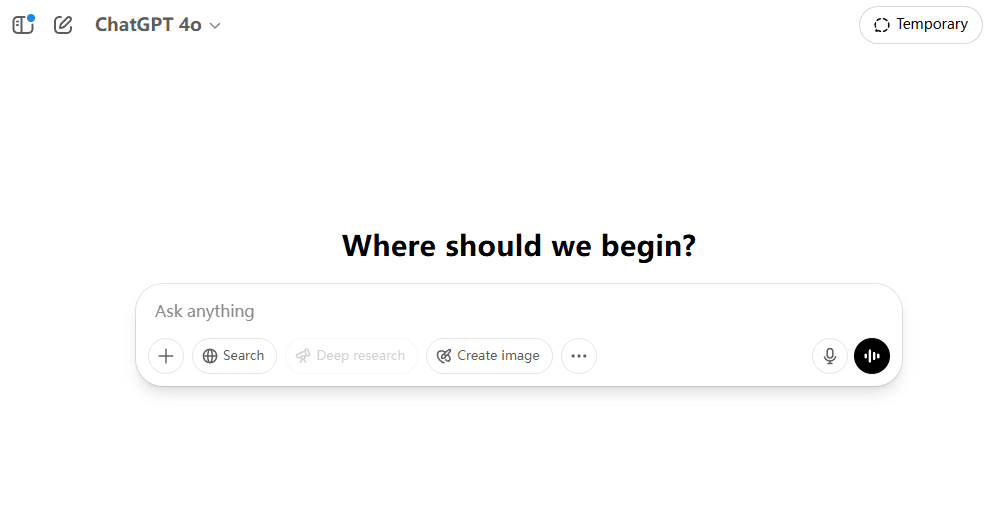
GPT-4o is OpenAI’s latest multimodal AI model that understands text and generates images in one step. OpenAI calls it “our most advanced image generator” built right into GPT-4o. In practice, you simply describe what you want – for example, “a brave young witch flying over a village at sunset, Studio Ghibli style” – and GPT-4o will draw it in vivid detail. It excels at following precise prompts, adding fine details, and even rendering text within images. Because it was trained on a vast variety of artwork, GPT-4o can convincingly mimic almost any style: photorealism, watercolor painting, sci-fi concept art… or the warm, whimsical aesthetic of Hayao Miyazaki’s animations. In fact, OpenAI specifically notes that GPT-4o can create “Studio Ghibli-inspired” pictures. In short, GPT-4o is like having the world’s knowledge and a professional art studio combined – ideal for anime fans who want to bring their Ghibli fantasies to life.
Meet PhotoPrompt: A Free Ghibli-Style AI Generator
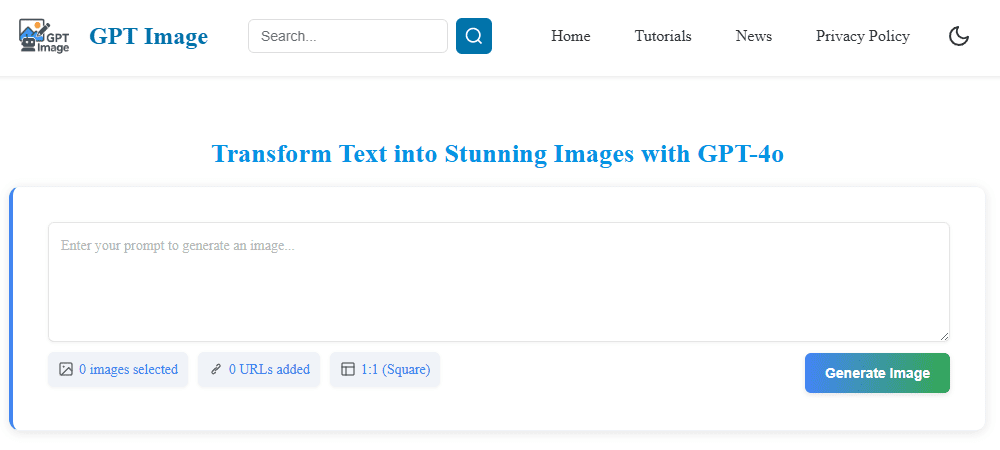
PhotoPrompt is a web-based, no-install tool that puts GPT-4o’s power at your fingertips. It’s designed for everyone – no coding or art training needed. The interface is straightforward: enter a text prompt describing your scene, upload up to five reference images if you have a visual in mind, pick an aspect ratio (square, portrait, or landscape), and click Generate. Behind the scenes, GPTImage uses the GPT-4o model to create high-quality visuals. It explicitly promises support for “anime, Ghibli-style illustrations” among its versatile art styles. The results are professional-grade: by default GPTImage makes images up to 1024×1024 pixels, and can even produce wider or taller outputs if you choose a different ratio. Best of all, PhotoPrompt offers a generous free tier – you can generate a number of images at no cost. (After that, you can opt for a paid plan or pay-per-image, but casual use usually stays within the free credits.) Think of PhotoPrompt as a magic “Studio Ghibli filter” you apply with words and optional images. Let’s dive into the step-by-step process.
Step-by-Step Guide to Creating Ghibli Art
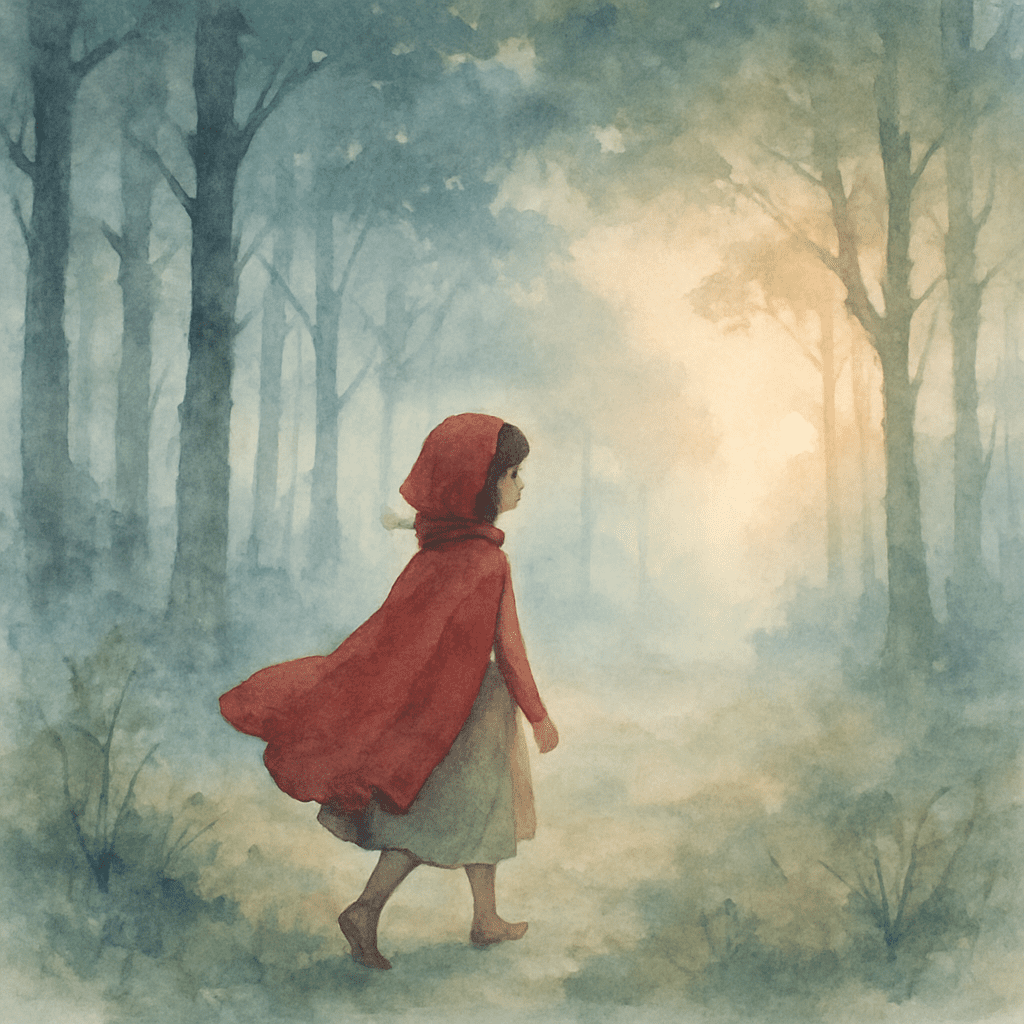
- Write Your Prompt: Begin with a clear, detailed description. Be specific about your subject, setting, and mood. For example, instead of just “anime girl,” try “A young girl with a red cloak walking through a misty forest at dawn, gentle lighting, watercolor style”. The more vivid and specific your prompt, the better GPT-4o can capture your vision. Ghibli cues help a lot: mention soft lighting, natural landscapes, or whimsical elements (spirits, creatures, flying machines, etc.). You can even explicitly say “Studio Ghibli style” or “in the style of Hayao Miyazaki” if you want that vibe – GPTImage will do its best to match it. (If needed, you can also describe the style indirectly, e.g. “painterly, whimsical anime scene with warm pastel colors”.)
- [Optional] Upload Reference Images: If you have a photo or artwork that captures the style or content you want, upload it. PhotoPrompt lets you add up to five images or URLs as visual guides. For example, you could upload a photo of a forest and ask for a Ghibli makeover, or a still from a favorite anime for color inspiration. The AI will analyze these references and blend their look into the generated image. Using references is a great way to ensure your output has the correct atmosphere, characters, or color palette.
- Choose Aspect Ratio: Select the format that fits your scene: 1:1 (Square), 3:2 (Widescreen), or 2:3 (Portrait). GPTImage defaults to 1024×1024 pixels for square images, and adjusts resolution for other ratios (for example, a widescreen image might be 1536×1024). If you’re drawing a landscape or cityscape, wide might work best; for a character or portrait, square or tall may look nicer. Studio Ghibli movies often use widescreen cinematic framing, but a square image is great for social media or avatars. The key is that once you pick a ratio, GPTImage will follow it so your composition looks intentional.
- Generate & Refine: Click Generate Image and let GPT-4o work its magic. It may take a minute to process. When it’s done, you’ll see the AI-created illustration on screen. If you love it, hit Download to save the high-resolution image. If it’s not exactly what you envisioned, no problem – iteration is quick and free. Refine your prompt by adding or changing details (for example, adjusting colors, mood, or composition), then generate again. You can also change the style or use one of your outputs as a new reference. Each tweak gets you closer: GPTImage’s GPT-4o model is remarkably good at understanding clarifications. Don’t be afraid to experiment – the process of tweaking prompts is part of the fun!
Ghibli-Style Prompt Cheatsheet
Crafting the right prompt is key. Here are some prompt formulas and examples to spark your creativity. Each one is designed to evoke Studio Ghibli’s aesthetic – think whimsical, detailed, and full of life:
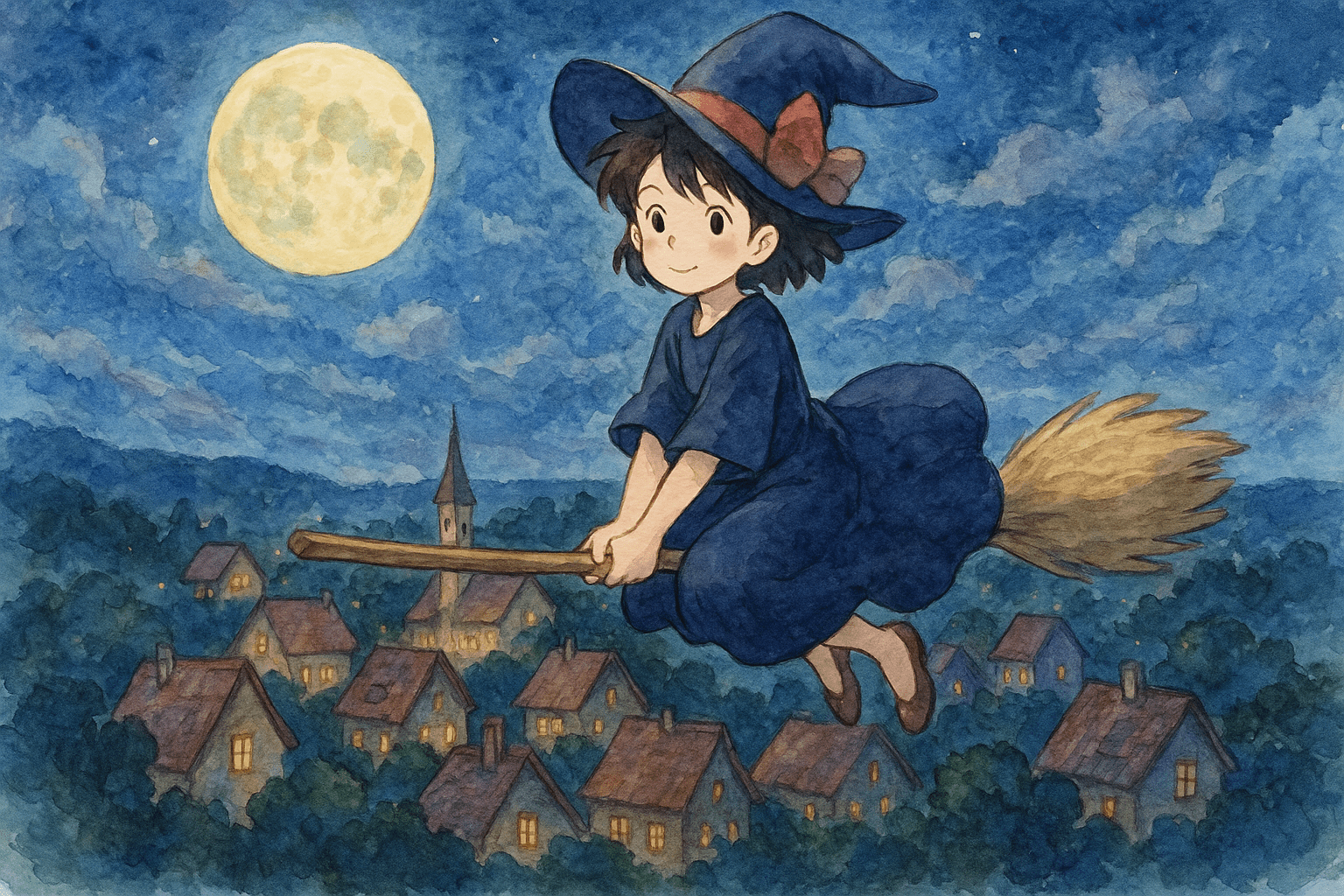
“A young witch flying on a broom over a moonlit village, whimsical and magical, watercolor painting in a nostalgic anime style.”
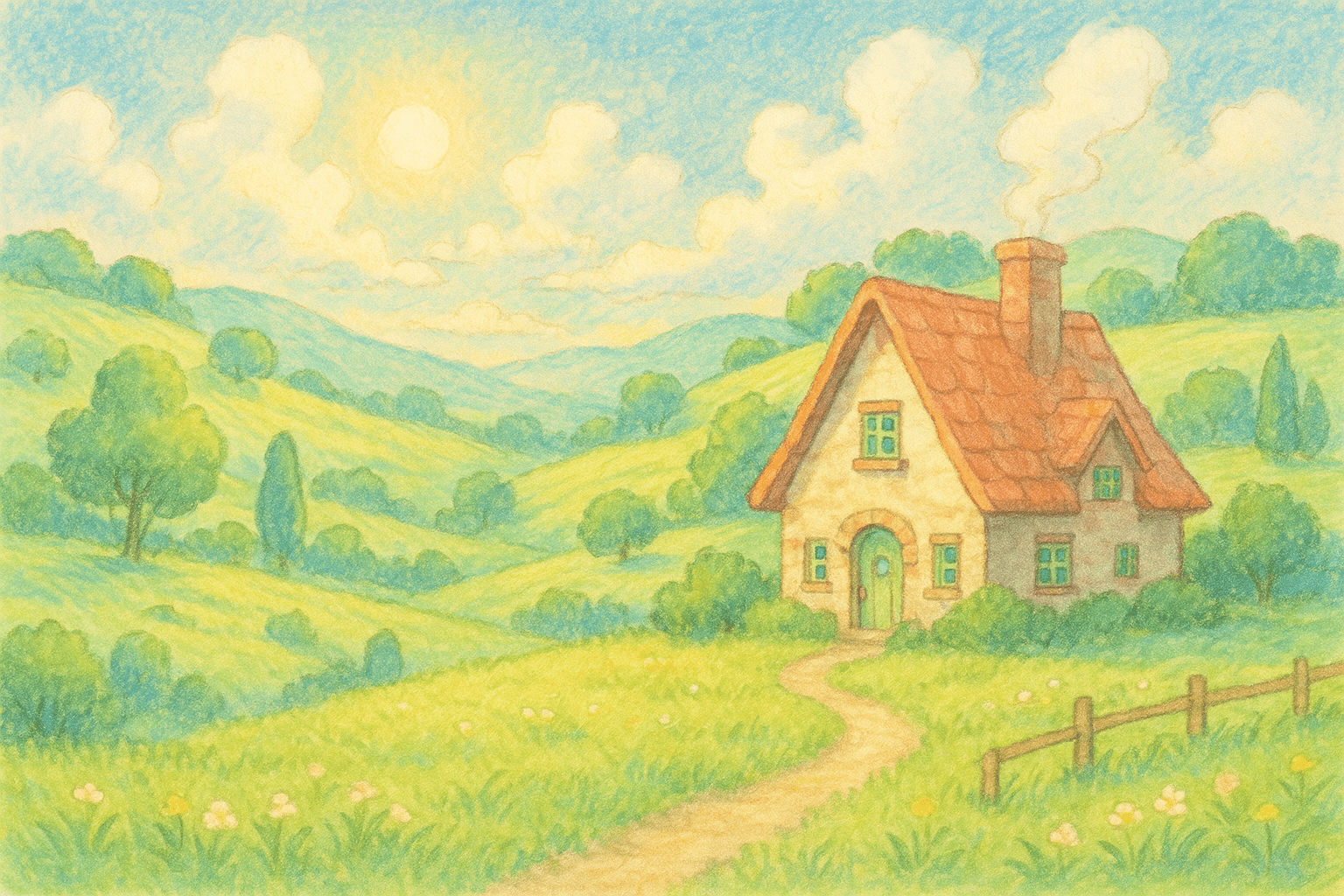
“A peaceful countryside with a cottage and rolling green hills under a bright sky, gentle sunlight, hand-drawn pastel color illustration reminiscent, whimsical anime style.”
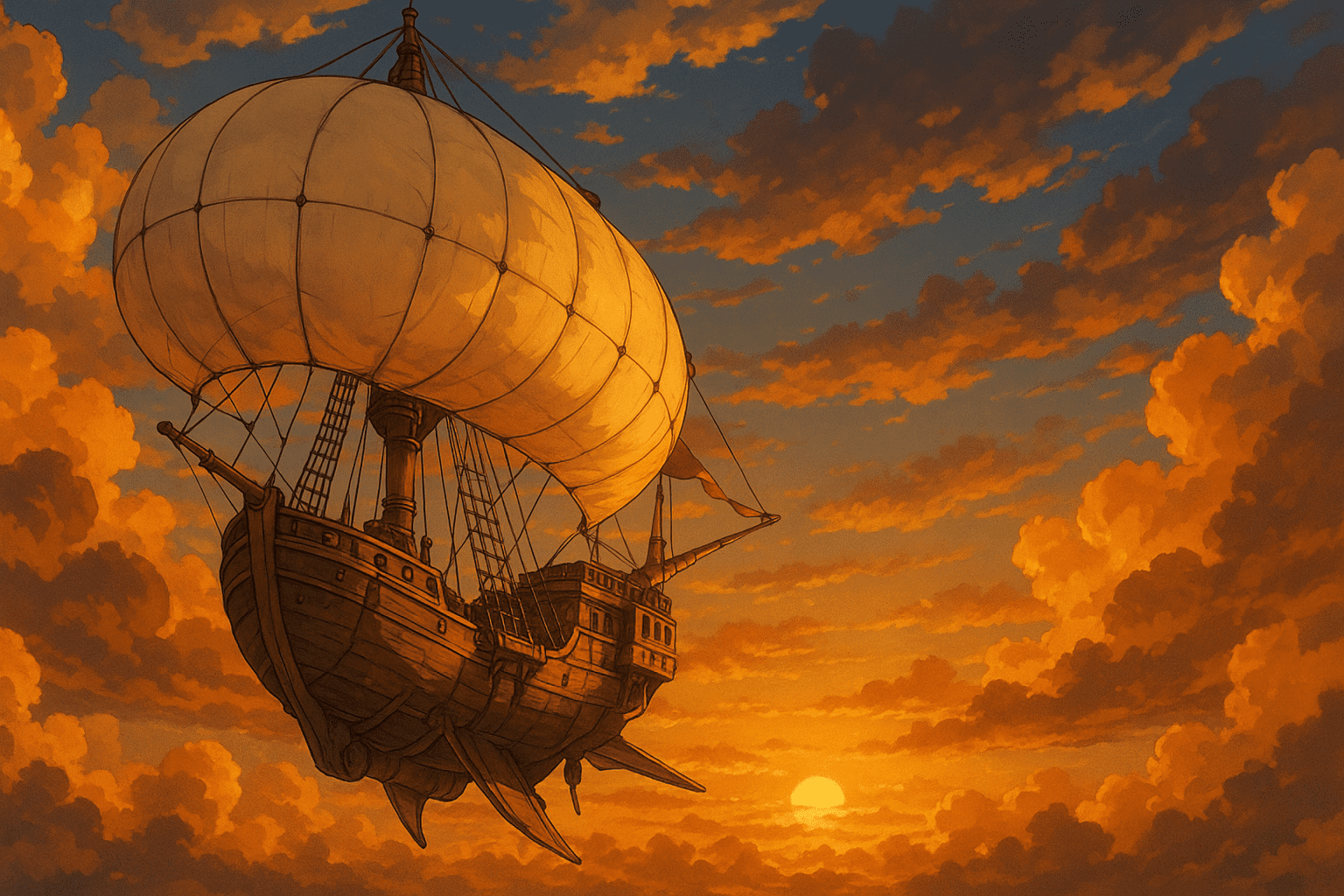
“An adventurous airship sailing through golden clouds at sunset, detailed anime art style with warm lighting, evocative of Castle in the Sky.”
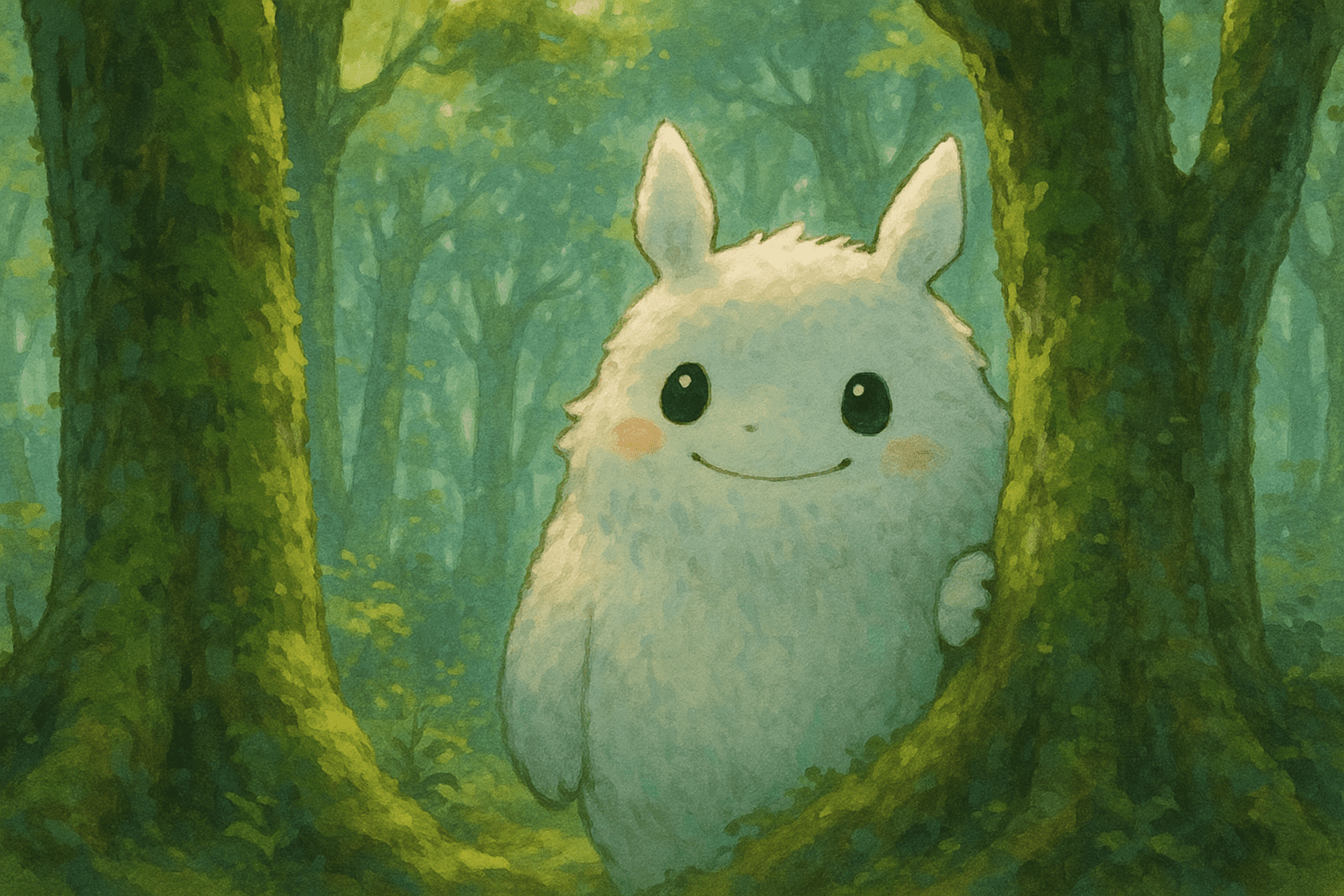
“A friendly forest spirit (big cute creature) peeking behind mossy trees in a mystical wood, soft lighting, painterly Studio Ghibli style.”
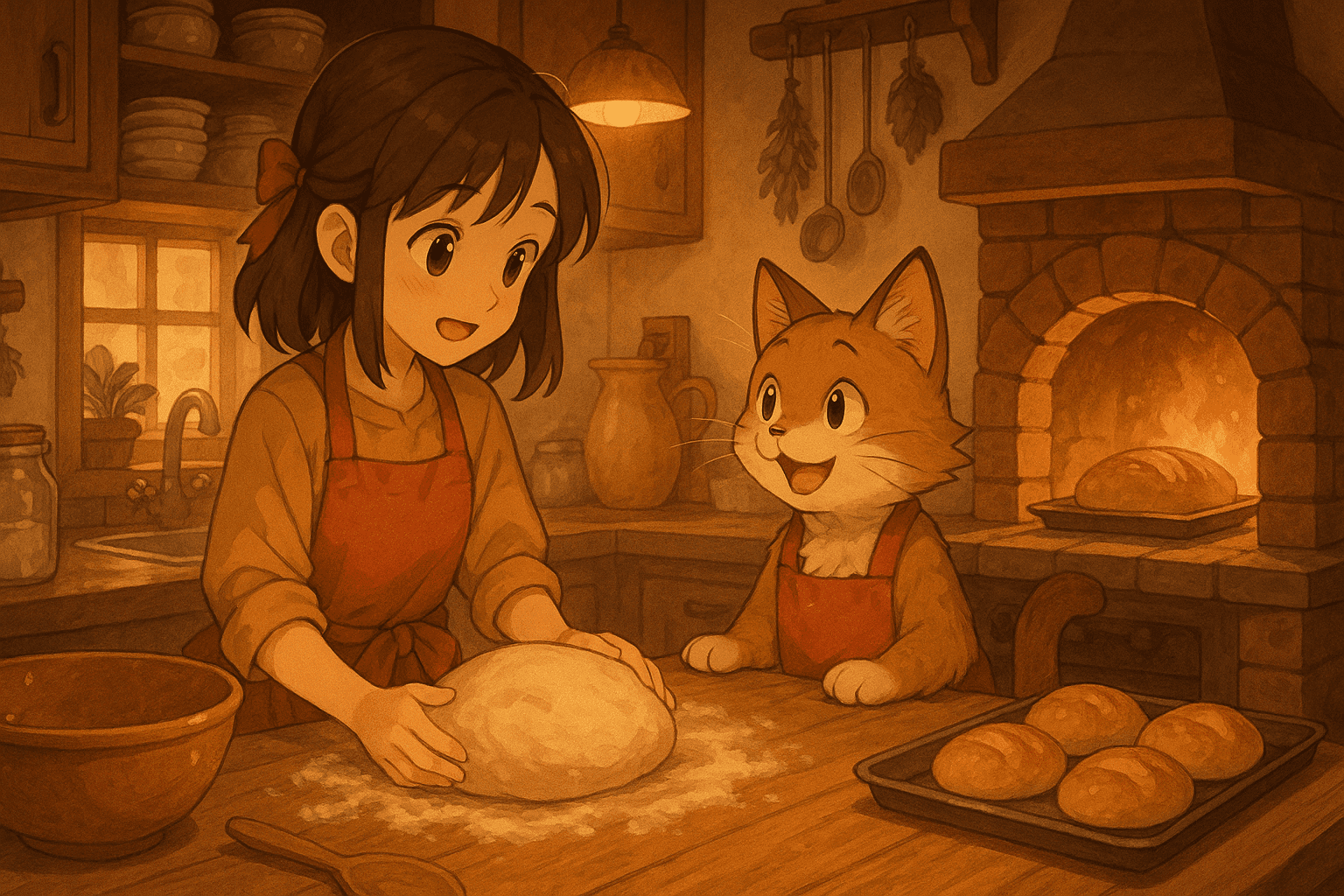
“A cosy kitchen scene with a young girl and a talking cat baking bread, warm tones, highly detailed, in the style of a heartwarming anime movie.”
Feel free to mix and match elements (characters, animals, objects) and always include style cues like “Studio Ghibli style”, “hand-drawn”, “watercolor”, “pastel colors”, “whimsical”, or “magical”. These examples should give you a good starting point to make your own unique Ghibli-inspired prompts.
Common Mistakes and How to Avoid Them
- Vague prompts: Don’t just write “anime style scene.” The AI needs clear, specific details to work well. Specify what and how: e.g. which characters, what they’re doing, and descriptive adjectives.
- Missing character details: If you want a person or creature in the image, include defining features: age, clothing, expression, pose, etc. Ghibli art often shows expressive faces and dynamic poses, so mention those.
- Ignoring color and lighting: Studio Ghibli is known for soft pastel palettes and warm, natural lighting. Explicitly mention colors or lighting if you want that effect (e.g. “soft orange sunset light”, “muted earthy tones”).
- Overcrowding the scene: Trying to cram too many unrelated elements can confuse the AI, leading to a cluttered or messy image. Keep your scene focused – for example, center on one main character or action per prompt.
- Forgetting emotion/mood: A big part of Ghibli’s charm is atmosphere and feeling. Words like “dreamy”, “nostalgic”, “joyful”, or “mysterious” help guide the AI to capture that emotion. Don’t skip mentioning the vibe you want.
FAQs
Q: Is PhotoPrompt really free to use?
A: Yes! PhotoPrompt offers a free tier that lets you generate a number of images at no cost. You can use it right away without paying, up to the free credit limit. Once you hit that limit, the site offers affordable plans (or pay-per-image options) if you want more. In practice, many casual users find the free credits each month are enough for plenty of experiments.
Q: What is GPT-4o image generation?
A: GPT-4o is OpenAI’s cutting-edge multimodal model. It combines text and image understanding, so it can follow complex prompts and generate matching pictures within ChatGPT or tools like GPTImage. Think of it as an advanced AI that can both chat and create art. It goes beyond older models (like DALL·E) by handling styles, details, and even text in images more accurately.
Q: How do I get my image to look “Ghibli-like”? Do I have to say “Studio Ghibli”?
A: You don’t have to use the exact words “Studio Ghibli” if you’re worried about content filters. Many users simply describe the aesthetic: mention “whimsical anime style,” “pastel colors,” “hand-drawn animation,” or reference Miyazaki’s vibe. For example, you could say “hand-painted, dreamy illustration with lush nature and expressive characters, reminiscent of classic Japanese animation.” GPT-4o is usually smart enough to pick up on those cues. (If it ever blocks the phrase “Studio Ghibli,” just rephrase it as shown here.)
Q: Can I upload my own photo to transform it?
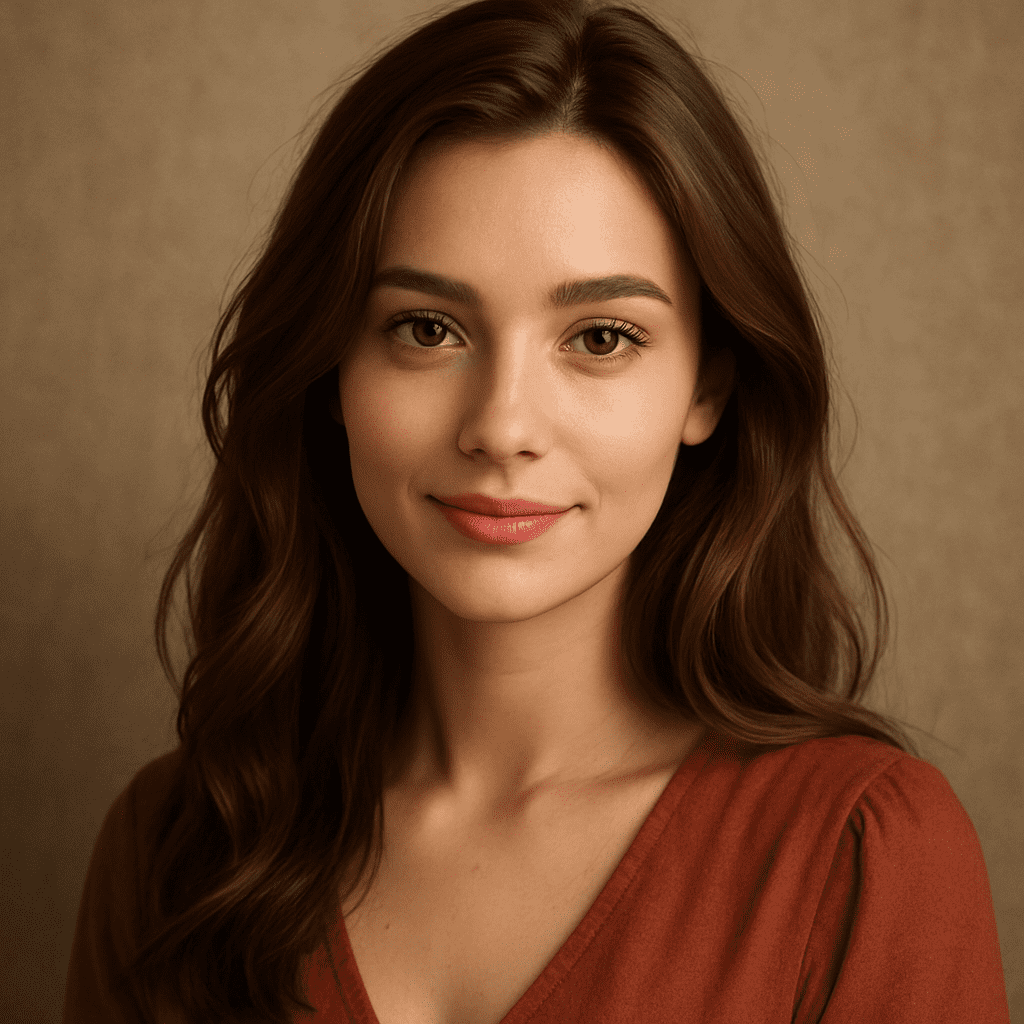
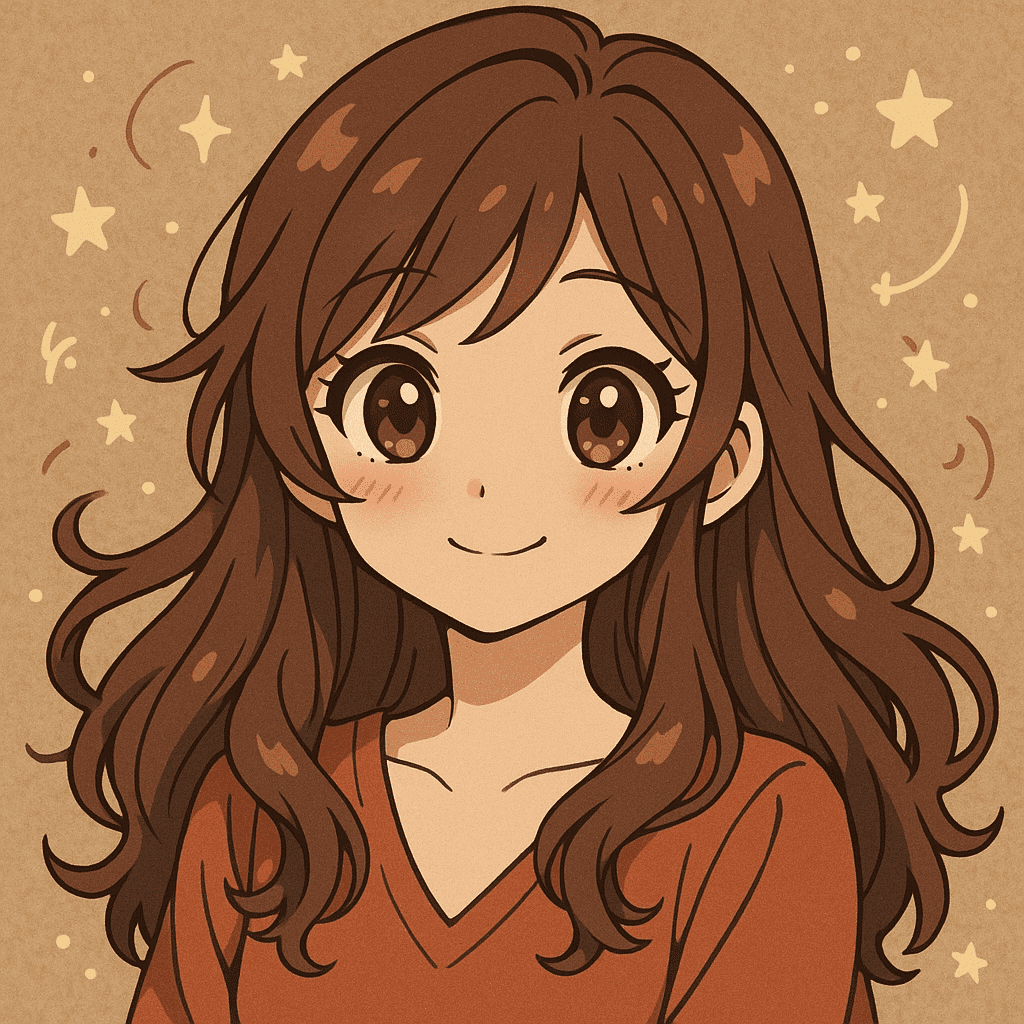
A: Absolutely. In PhotoPrompt, just use the reference-image option (the “+” button or URL field) to upload up to 5 photos. The AI will use your photo as inspiration. For instance, you can upload a selfie and prompt: “Turn this image into a Studio Ghibli-style anime portrait.” GPT-4o will redraw it in the Ghibli aesthetic. This is a fun way to “Ghiblify” your personal photos.
Ready to Make Your Own Ghibli Art?
Now it’s your turn to create some Studio Ghibli magic! Head over to PhotoPrompt and give it a try – it’s free to get started and incredibly easy. We can’t wait to see what you imagine. Happy creating!
Try PhotoPrompt Now