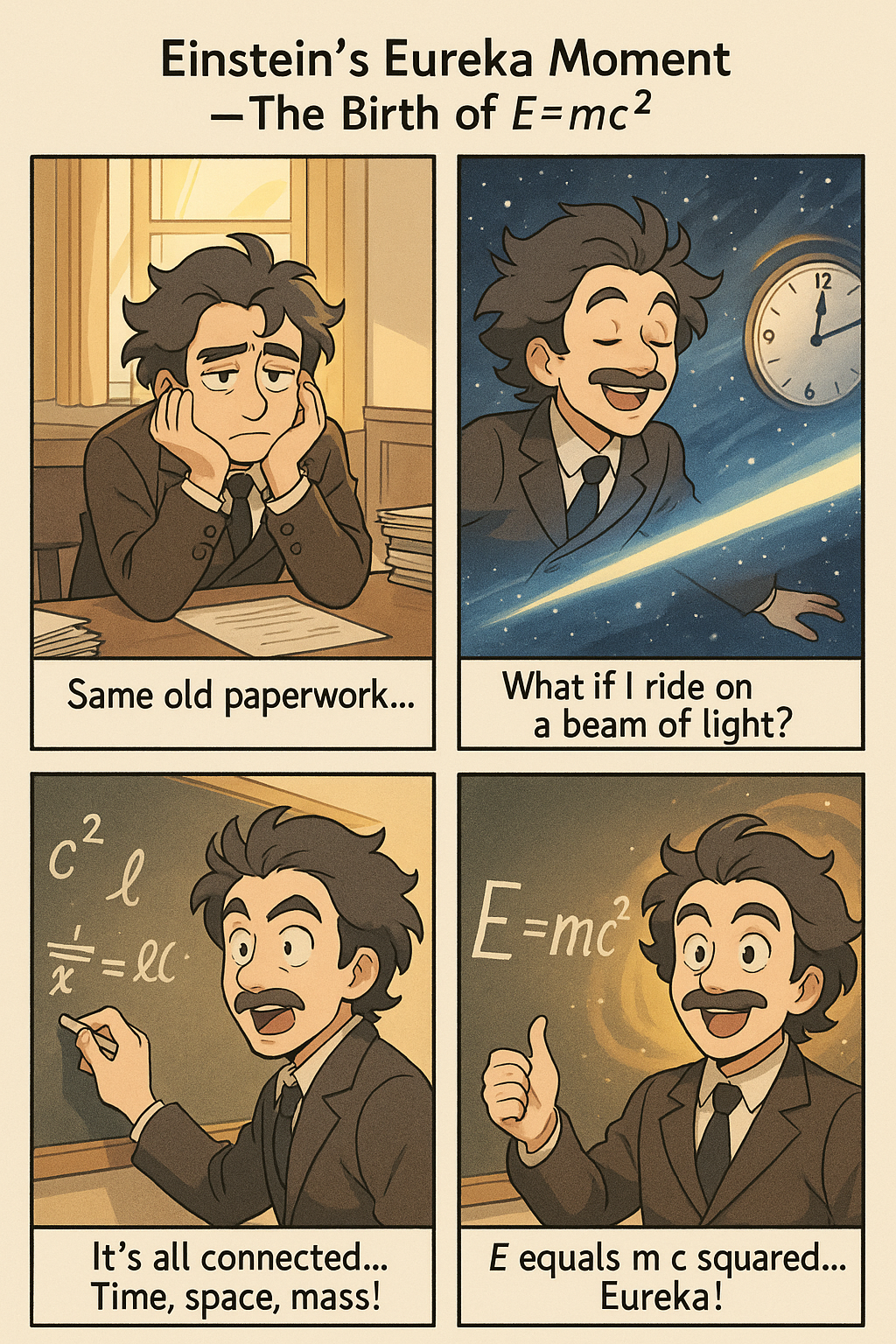
PhotoPrompt can generate multi-panel comics with consistent style and accurate text. In this example, a four-panel comic titled “Einstein’s Eureka Moment – The Birth of E=mc²” was created entirely from a text prompt. Each panel includes a caption and characters in a cohesive cartoon style, demonstrating the AI’s ability to follow layout instructions and render legible text within the image.
Why Choose PhotoPrompt for AI Comic Creation?
PhotoPrompt is a web-based AI image generator that makes multi-panel comic and storybook creation accessible to everyone. It stands out from other tools thanks to a few key advantages:
- No Login or Setup Required: You can start creating comics instantly – no sign-up or installation needed. Just visit the PhotoPrompt website and you’re ready to go. This removes barriers for educators or marketers who want quick results without IT hassles.
- Powered by GPT-4o Engine: PhotoPrompt uses OpenAI’s latest GPT-4o multimodal model under the hood. GPT-4o understands complex prompts and generates images with a high level of accuracy and detail. This means it can follow your instructions for a comic’s layout, style, and even insert text correctly into the images – something older AI models struggled with. The GPT-4o engine allows for precise control, so your multi-panel comic will turn out just as you envisioned.
- Character Consistency: A common challenge in AI art has been keeping the same characters consistent across multiple panels or images. PhotoPrompt addresses this with GPT-4o’s context awareness, ensuring that the characters’ appearance, clothing, and other details remain consistent from panel to panel. For example, if your story has a heroine with a red hat in panel 1, she can reliably appear with the same red hat in subsequent panels. This consistency is crucial for storybooks and comics, and GPTImage’s engine is designed to maintain it.
- Built-in Text Rendering: Forget about gibberish text in speech bubbles or signs. PhotoPrompt can generate images with actual readable text – captions, dialogue, labels, etc. The GPT-4o model excels at this, correctly placing and spelling out words within the image. If your comic has a title banner or characters speaking in dialogue bubbles, GPTImage will include the text exactly as you write it in the prompt. This built-in text rendering is a game-changer for creating comics (for example, you can have a character say “Hello!” in a speech bubble and it will appear just like that in the image).
- Versatile Art Styles & Quality: Whether you want a cute cartoon, a manga style, a watercolor storybook look, or a realistic graphic novel panel, PhotoPrompt can do it. The tool leverages GPT-4o’s training on diverse art styles, so you can specify the visual style of your comic (e.g. “in the style of a children’s storybook illustration” or “Marvel comic style ink and color”). It also produces high-resolution images (up to 1024×1024 pixels and beyond), which is sufficient for presentations or prints. The results are professional-grade with sharp details and vibrant colors.
- Ease of Use for Everyone: PhotoPrompt is designed to be intuitive. You don’t need any drawing skills or coding knowledge – perfect for teachers, marketers, or students who are not graphic designers. If you can describe your story idea in a sentence or two, the AI can turn it into a visual. The interface is simple: just enter your prompt, pick an image size, and generate. In short, if you can chat, you can create a comic. This lowers the learning curve and empowers creative folks and non-technical users alike to bring their ideas to life.
Understanding Multi-Panel Grid Layouts (2×2, 3×2, 4×2, etc.)
When we talk about multi-panel grid layouts, we mean a single image divided into multiple smaller panels—like a comic book page, storyboard, or illustrated narrative. PhotoPrompt supports a variety of panel configurations described by the columns × rows format. For instance, a “2×2 comic layout” refers to two panels horizontally and two panels vertically, totaling four panels.
While each layout typically suggests a certain aspect ratio, PhotoPrompt allows creative flexibility: you can choose any available aspect ratio (such as 1:1 Square, 2:3 Portrait, or 3:2 Landscape) based on your specific storytelling needs. Different aspect ratios will affect the visual narrative style and audience experience, so consider your target use-case carefully.
Here’s an overview of popular grid layouts and their typical use-cases, along with possible aspect ratio choices:
| Layout (Columns × Rows) | Number of Panels | Commonly Used Aspect Ratios | Best For / Use Cases |
|---|---|---|---|
| 2×2 Grid | 4 panels | 1:1 (Square), 2:3 (Portrait), 3:2 (Landscape) | Compact storytelling, jokes, Instagram carousels, product showcases, educational mini-lessons. Ideal for quick visual summaries or narratives. |
| 2×3 Grid | 6 panels | 2:3 (Portrait), 1:1 (Square), 3:2 (Landscape) | Detailed step-by-step tutorials, vertical comics (webtoons), storyboarding sequences. Especially useful for Pinterest-style vertical scrolling or portrait-oriented publications. |
| 3×2 Grid | 6 panels | 3:2 (Landscape), 1:1 (Square), 2:3 (Portrait) | Story-driven infographics, presentations, and landscape-oriented blog illustrations. Provides an ideal horizontal narrative suitable for widescreen displays and presentations. |
| 3×3 Grid | 9 panels | 1:1 (Square), 3:2 (Landscape), 2:3 (Portrait) | The 3×3 layout (9 panels) is not recommended, as the GPT-4o image generation engine currently best supports multi-panel comic layouts of up to 6 panels (such as 2×3 or 3×2). |
| 4×2 Grid | 8 panels | 3:2 (Landscape), 1:1 (Square), 2:3 (Portrait) | Wide panoramic storytelling, marketing banners, horizontal sequences, or slideshows. Excellent for storytelling across wide-screen digital formats or print media. |
| 2×4 Grid | 8 panels | 2:3 (Portrait), 1:1 (Square), 3:2 (Landscape) | Vertical scrolling webtoons, mobile-friendly comic strips, educational guides, or visual narratives optimized for mobile readers and social media scrolling. |
How Aspect Ratios Affect Your Comic:
PhotoPrompt lets you select the final aspect ratio independently of the chosen panel layout. While certain aspect ratios naturally complement specific grid configurations (e.g., a 2×2 grid often fits well in a 1:1 square), experimenting with alternate ratios can yield creative results. For example:
- A 2×2 grid with a Portrait (2:3) aspect ratio creates vertically elongated panels, great for character-driven narratives.
- A 3×2 grid with a Landscape (3:2) aspect ratio produces horizontally stretched panels, ideal for panoramic storytelling or detailed scene depiction.
Feel free to experiment with these combinations to achieve the storytelling style and visual impact that best fits your project’s unique requirements.
Step-by-Step: Creating a Comic Page with PhotoPrompt
Ready to create your first AI-generated comic page? Follow this step-by-step guide. We’ll go through an example of making a 2×2 comic strip, but you can adapt these steps for any layout (2×3, 4×2, etc.):
1. Go to the PhotoPrompt website
Open your web browser and navigate to PhotoPrompt. You’ll see a simple interface with a prompt box and some options. (No login is required, so you can start immediately.)
2. Plan your comic idea and layout
Take a moment to outline what story or message you want to convey and how many panels you need. For a short joke or anecdote, 4 panels (2×2) might be enough. For a slightly longer sequence, maybe 6 panels (2×3). Decide on the layout that fits your story. Tip: Jot down a one-line description for each panel – this will help you write a clear prompt. For example, if you’re an educator making a storybook page about the water cycle in 4 panels, your panel notes might be: 1) Sun evaporates water, 2) Clouds form, 3) It rains, 4) Water flows back to ocean.
3. Enter your prompt with panel details
Click on the prompt textbox (labeled “Enter your prompt to generate an image…”). Clearly describe the multi-panel format and content of each panel in detail. Use this structure:
- Mention the panel layout clearly (e.g., “4-panel 2×2 comic”).
- Use Panel numbering: e.g., “Panel 1: … Panel 2: …”.
- Include visual or stylistic directions (colors, style, atmosphere).
- Include captions or speech bubble text explicitly, as GPT-4o can render accurate text.
Example Prompt (for educators):
Create a 4-panel comic strip (2x2 grid) about a classroom science experiment gone funny.
Panel 1: A teacher mixes chemicals in a lab while students watch eagerly. (Caption: 'Mixing the formula...')
Panel 2: The mixture foams and overflows, surprising everyone.
Panel 3: A huge puff of colorful smoke fills the room, and students start laughing.
Panel 4: The teacher and students all wear big smiles, and a speech bubble says 'Science is fun!'.
Style: bright, cartoonish, with clear black outlines and speech bubbles.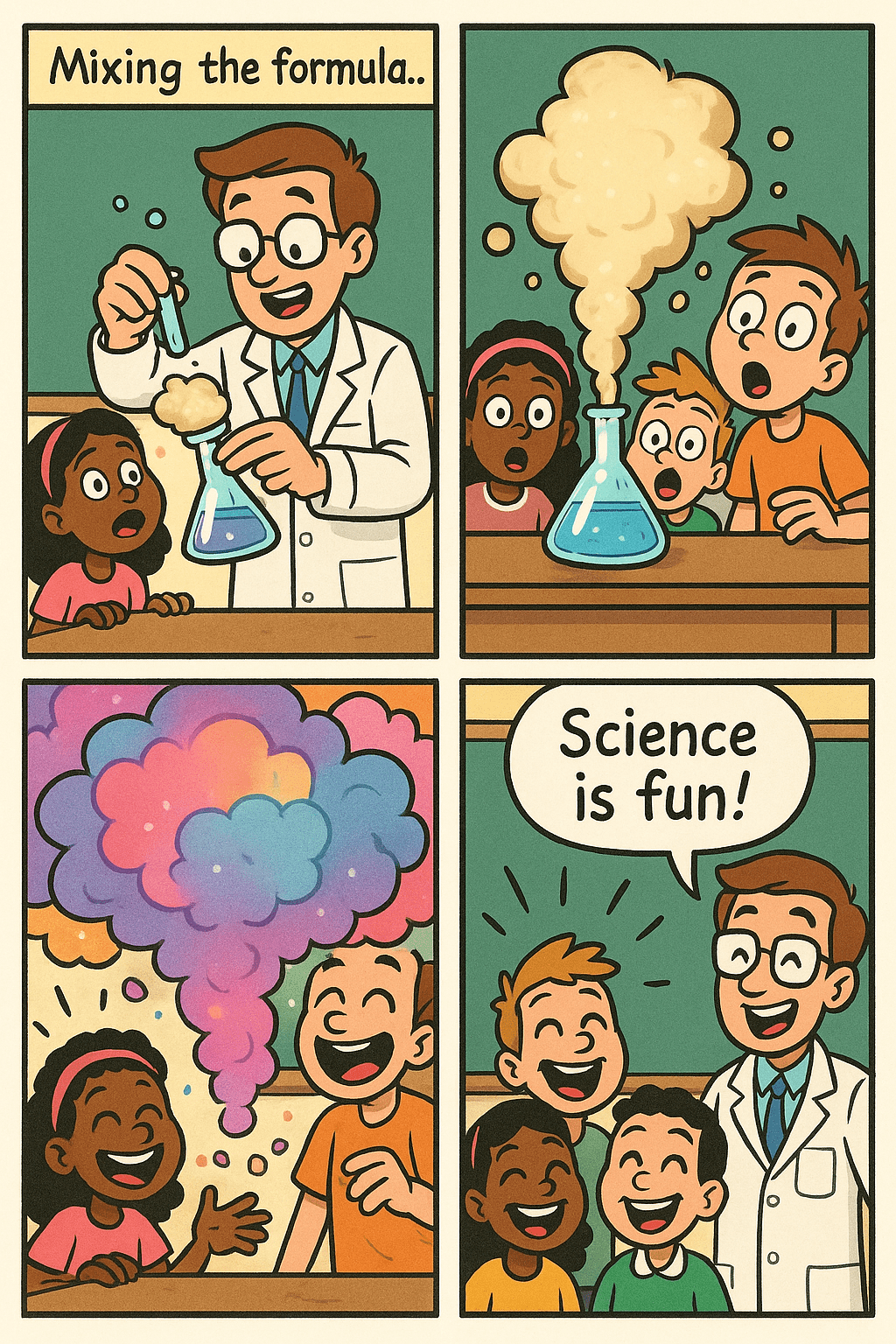
Example Prompt (for marketers):
Make a 2×3 comic (6 panels) showing a hero’s journey of a customer using our product.
Panel 1: (Title panel) A frustrated office worker struggling with a slow computer. Caption: 'Problem'.
Panel 2: The worker discovers SuperSoftware (our product) online. Caption: 'Discovery'.
Panel 3: They install SuperSoftware and smile as the computer speeds up. Caption: 'Solution'.
Panel 4: The boss is impressed with the worker’s productivity. Caption: 'Results'.
Panel 5: The whole team celebrates around the worker’s desk. Caption: 'Success'.
Panel 6: (Closing panel) The SuperSoftware logo with tagline 'Work Smarter, Not Harder!'.
Style: corporate cartoon, in company brand colors.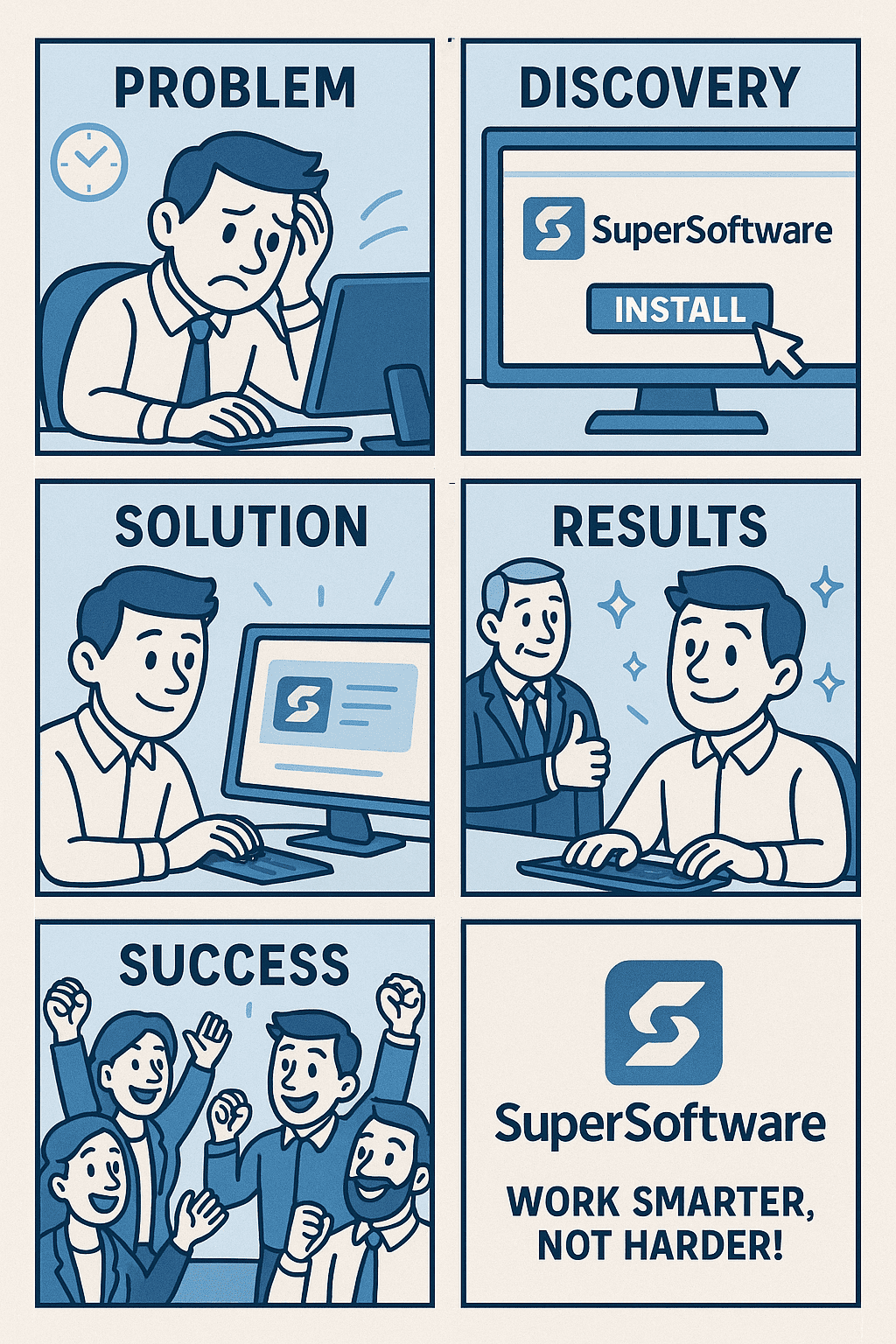
Additional Example Prompt with Top Title Banner and Four Panels:
Here’s an example explicitly demonstrating how to include a large top title banner and four clearly labeled panels. Such a layout is ideal for tutorials, infographic comics, or structured mini-stories suitable for educational or marketing content:
Create a comic image with a prominent rectangular top banner titled 'HOW TO BE PRODUCTIVE AT HOME', using bold white uppercase letters on a blue background. Below the banner, arrange 4 panels in a 2×2 grid:
Panel 1: Character wakes up early, stretching enthusiastically. Caption: 'Start Early'.
Panel 2: Character at a tidy desk with laptop, notebook, and coffee. Caption: 'Organize Your Workspace'.
Panel 3: Character using headphones, focused at the computer. Caption: 'Eliminate Distractions'.
Panel 4: Character relaxes after a productive day, smiling and satisfied. Caption: 'Celebrate Small Wins'.
Style: minimalist cartoon, warm pastel colors, consistent character across all panels, clear captions in dark blue.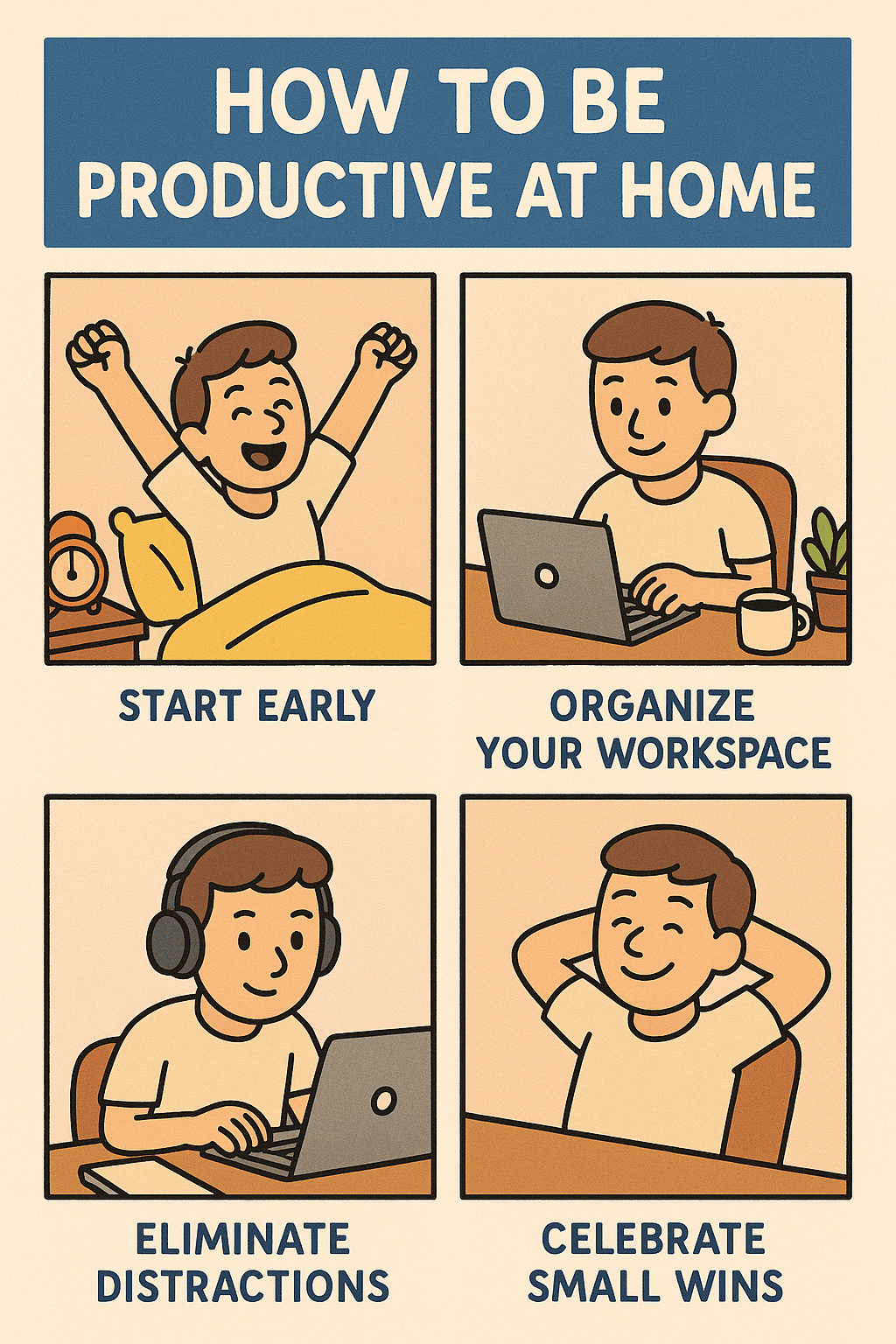
With this prompt structure, PhotoPrompt will generate an image featuring:
- A clearly readable top title banner.
- Four consistent, clearly outlined scenes beneath it.
- Captions correctly rendered within each panel.
- A unified visual style and cohesive character design throughout.
4. Choose the aspect ratio (image size)
Below the prompt box, PhotoPrompt allows you to select the aspect ratio (shape and proportion) of your generated image. You can freely choose any aspect ratio (Square, Portrait, or Landscape) to complement your chosen grid layout.
- 1:1 (Square): Ideal for balanced visual storytelling.
- 2:3 (Portrait): Suitable for vertical scrolling content seperti Pinterest or mobile webtoons.
- 3:2 (Landscape): Best for wider panoramic content like presentations or banners.
5. Generate the image
Click the “Generate Image” button. GPTImage will send your prompt to the GPT-4o engine and begin creating the comic. Once done, the multi-panel comic will appear on the screen.
6. Review the output and refine if needed
Take a close look at the resulting comic image. It should have the panels arranged correctly with the content you described. If something isn’t right, you can tweak your prompt and try again.
7. Download your comic page
Satisfied with the result? Click the “Download” button to save the image (usually as a PNG file) to your device.
8. (Optional) Use reference images for consistency or style
PhotoPrompt also allows you to upload reference images to guide the AI, ensuring character design remains consistent across all panels.
Use Cases: From Classrooms to Marketing Campaigns
Educators & Students
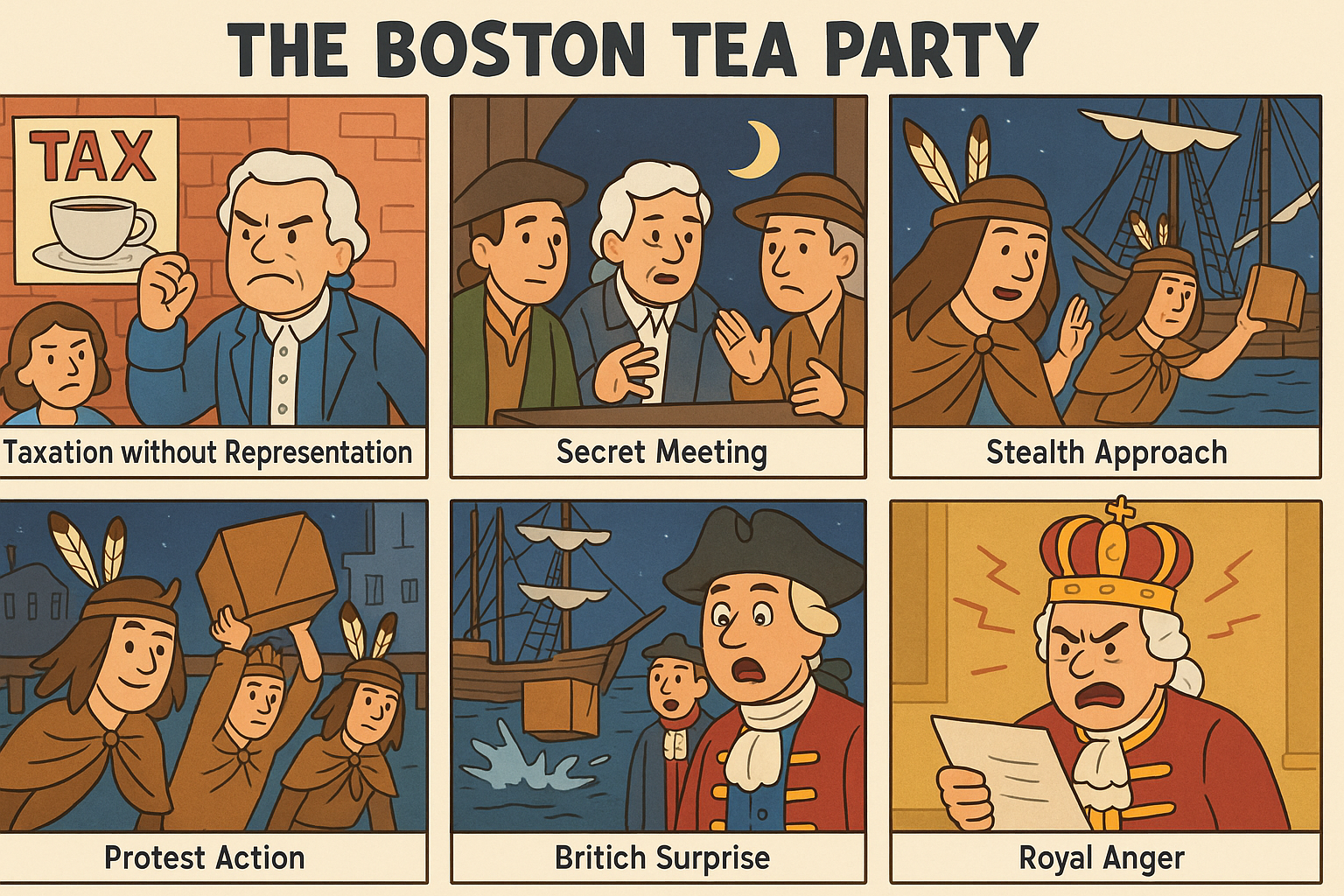
Educators can use AI-generated comics to create visually engaging teaching materials, while students can express their learning creatively.
Marketers & Content Creators
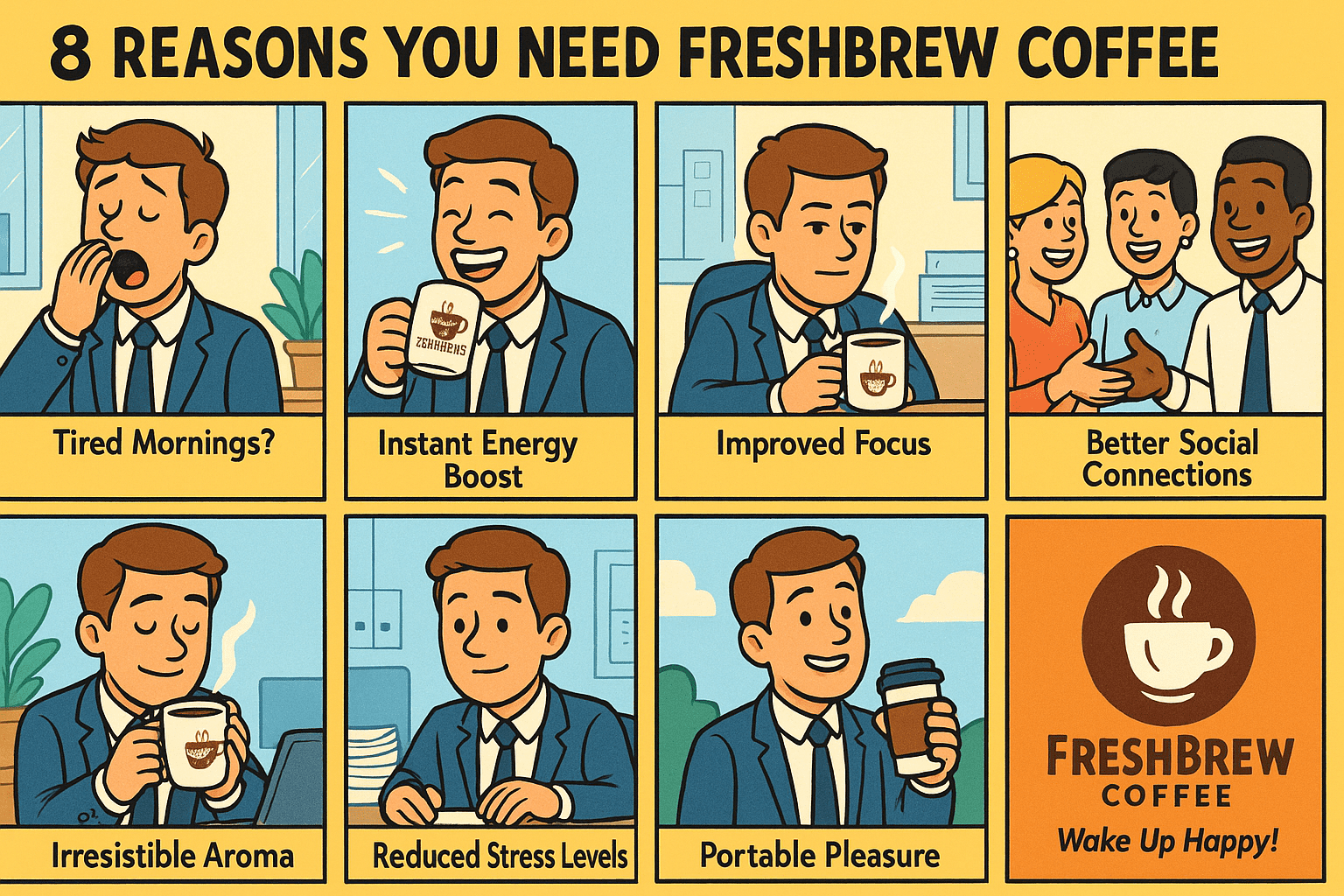
Marketers can utilize PhotoPrompt-generated comics to create eye-catching, memorable branded content.
Writers & Storytellers
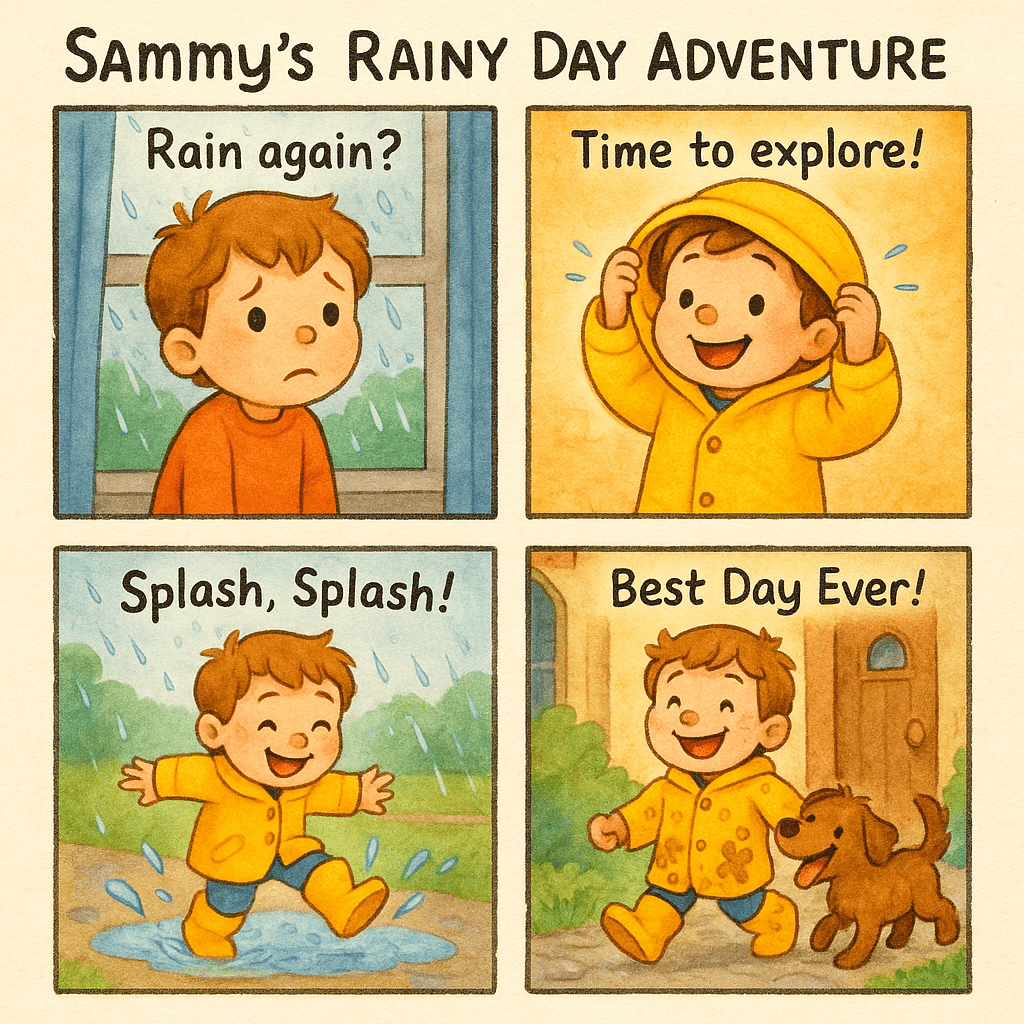
Authors and creators can visualize narrative concepts effortlessly, rapidly prototyping stories or children’s books.
Best Practices for Saving and Sharing Your AI-Generated Comics
To help your content look professional, follow these best practices:
- Save Original Resolution: Always download the highest resolution provided.
- Instagram: Use Square (1:1) or Portrait (2:3) layouts.
- Facebook & LinkedIn: Landscape (3:2) works best.
- Splitting Panels: Consider splitting multi-panel comics into separate slides for carousels.